
Use the Fees page in DX1 to review the fees available for your dealership and see how an individual fee is configured.
Before you begin: The options available to you depend on your DX1 permissions and dealership configuration. The values shown below are examples and may differ for your dealership.
Open Taxes and Fees
-
1
Open User Settings
From the DX1 Dashboard, select the square user tile that shows your initials in the blue header, immediately to the left of Help.

The user tile appears in the upper-right area of the DX1 Dashboard. -
2
Select Taxes and Fees
In User Settings, select Taxes and Fees.
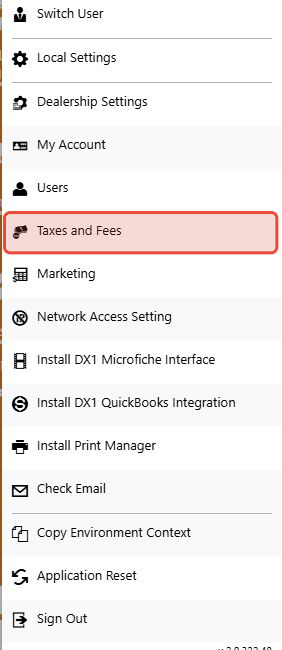
Taxes and Fees in the User Settings menu. -
3
Open Fees
DX1 opens the Taxes & Fees page. In the left navigation menu, select Fees, shown with a wrench icon.
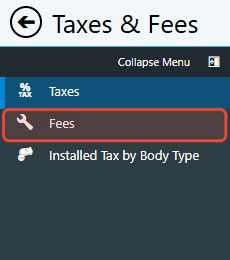
Fees in the Taxes and Fees navigation menu.
Review dealership fees
-
4
Review the fee list
Confirm the State Province shown above the fee list, then use the columns to understand each configured fee:
- Fee Name identifies the group or type of fee.
- Description identifies the specific charge.
- Category shows where the fee is used, such as Major Unit.
- Body Type shows the vehicle category to which the fee applies.
- Fee shows the configured amount.
- Display shows whether the fee is set to appear in the applicable deal workflow.
- Updated By and Last Updated show the latest recorded change when that information is available.
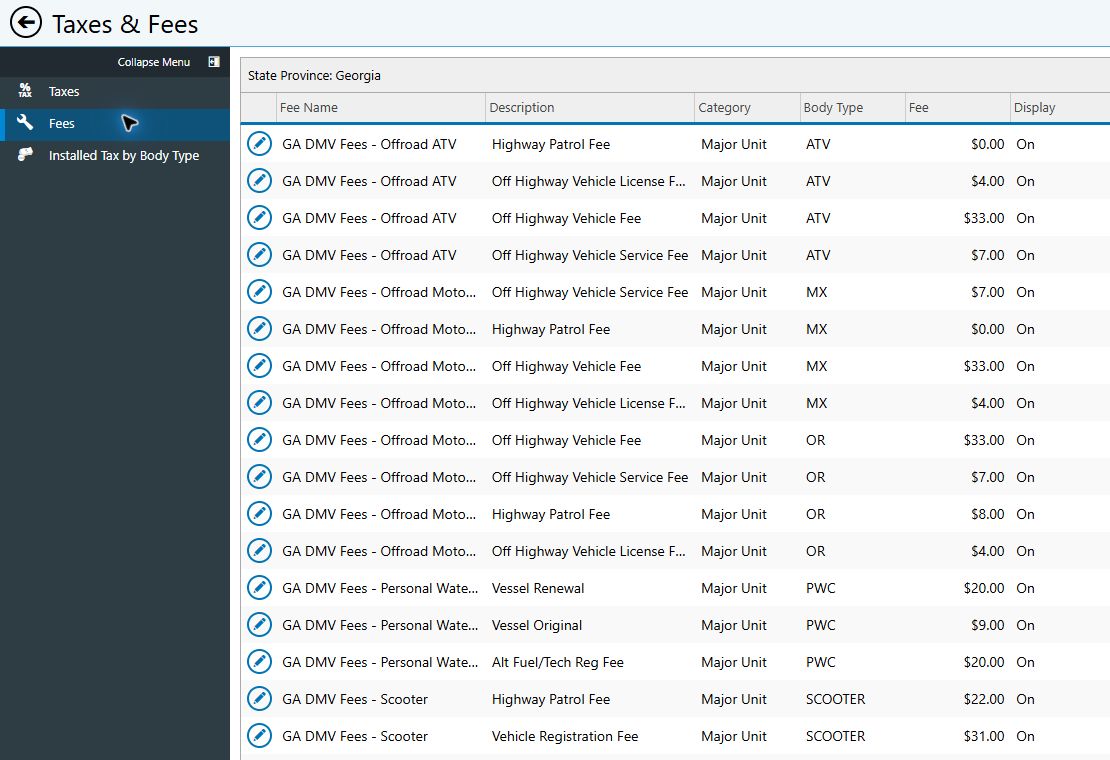
The Fees page shows the selected location and the available fee columns. Use the paging controls at the bottom of the list when more than one page of fees is available.
Review fee details
-
5
Open an existing fee
In the first column of the fee row you want to review, select the blue circular pencil icon. DX1 opens Fee Information.
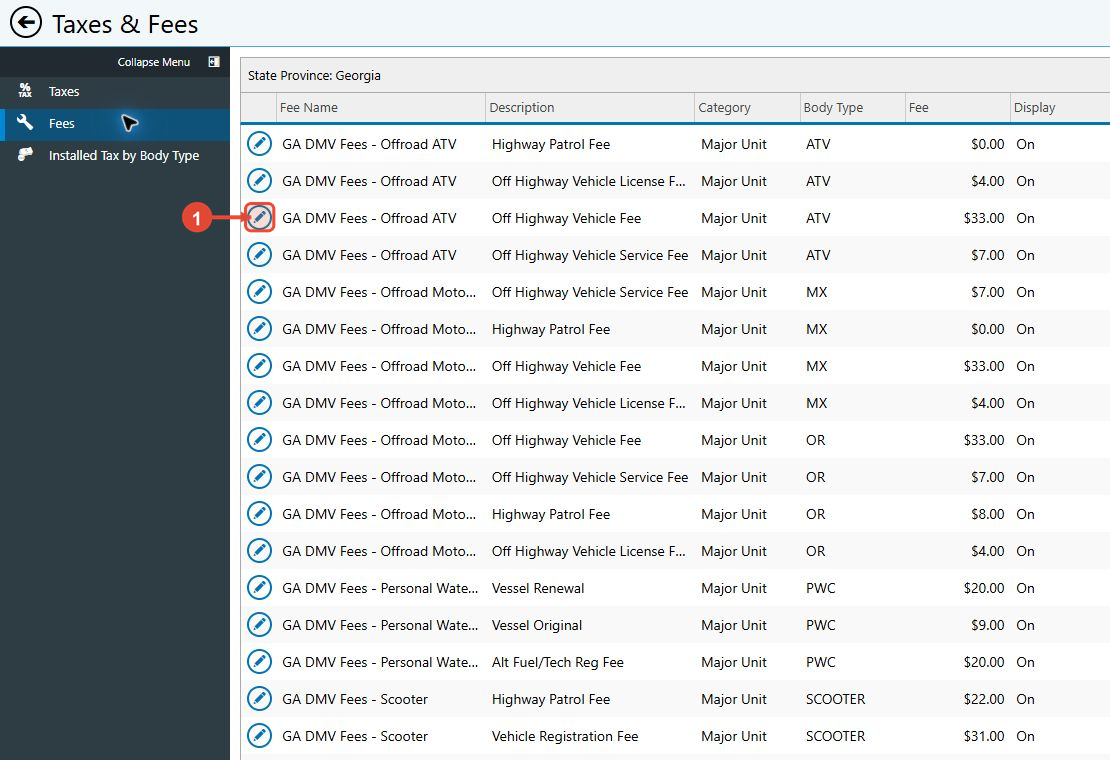
The blue pencil icon opens the selected fee. -
6
Review the fee configuration
Review the fee's state or province, name, description, amount, accounting selections, and whether it populates in a Major Unit deal.
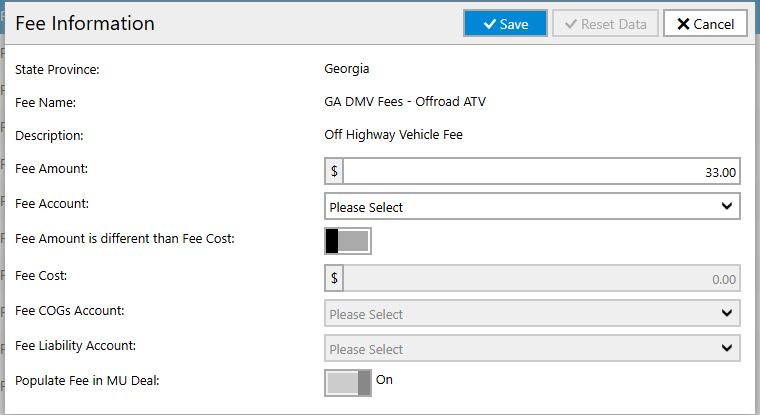
Fee Information shows the configuration of the selected fee.
If Taxes and Fees is not available
If Taxes and Fees does not appear in User Settings, contact your DX1 administrator to confirm that your user has access to the feature.