Taxes and fees are central to every dealership transaction. If they are not handled correctly, the dealership risks compliance issues, customer disputes, and lost revenue.
In DX1, proper setup ensures invoices show accurate tax rates and applicable fees, giving customers a clear and professional breakdown of costs. This supports compliance with state and local requirements, makes reporting reliable, and prevents mistakes during reconciliation.
Beyond compliance, consistent application of fees protects profitability. Charges such as documentation or environmental fees must be applied correctly to avoid missed revenue. DX1 simplifies this process by automating calculations and centralizing control, allowing dealerships to be accurate, efficient, and transparent.
In this document, we will show you how to access and edit fees.
DX1 Dashboard
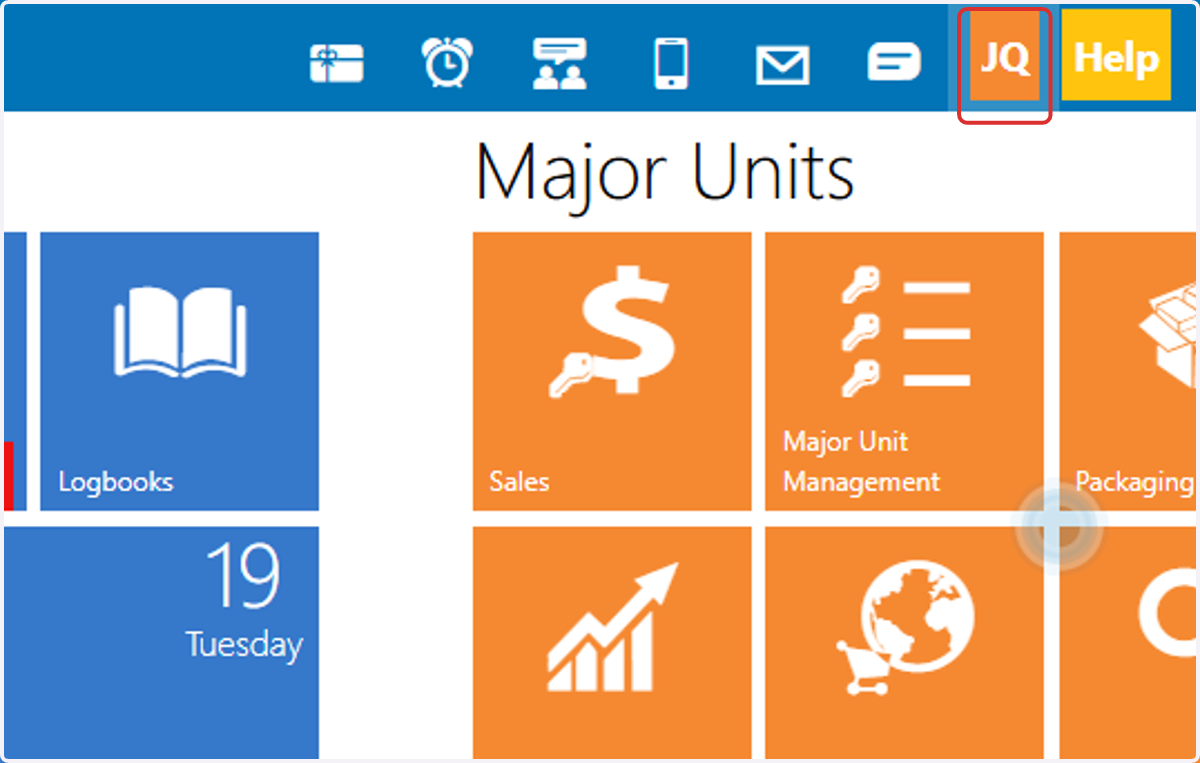
Click on your initials in the top right-hand part of the DX1 page
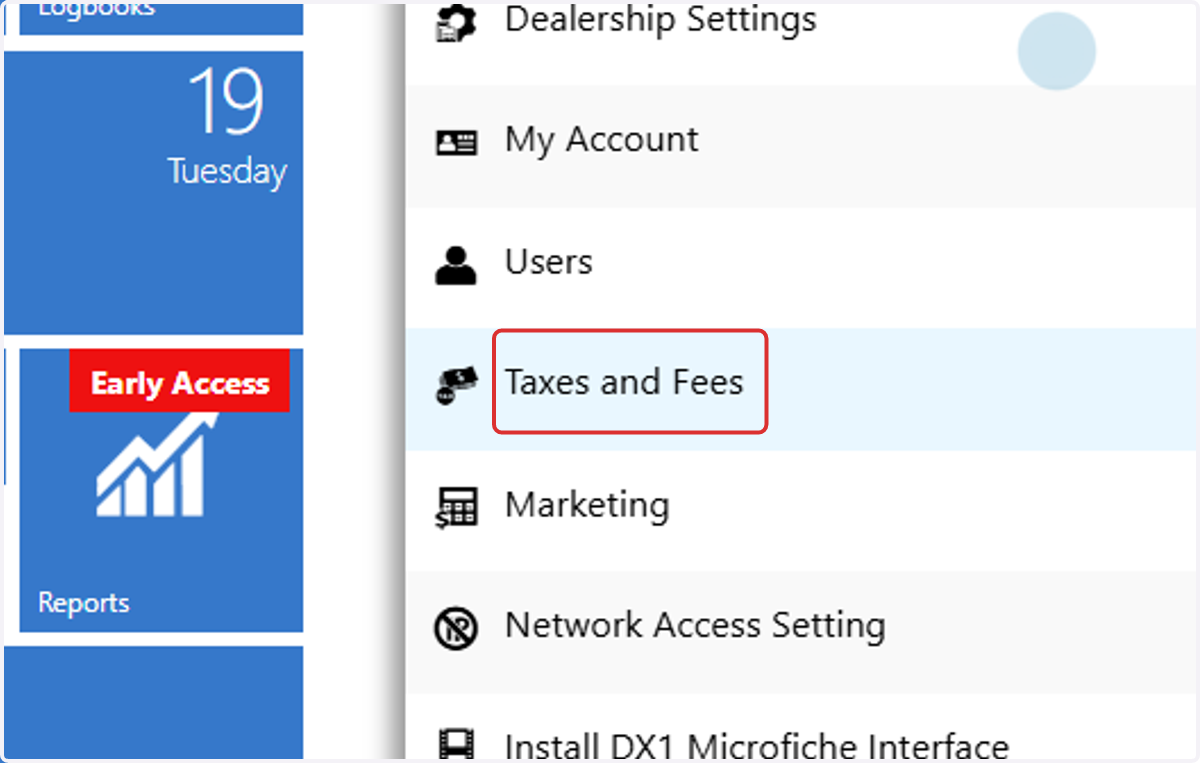
Click on Taxes and Fees in the drop down list
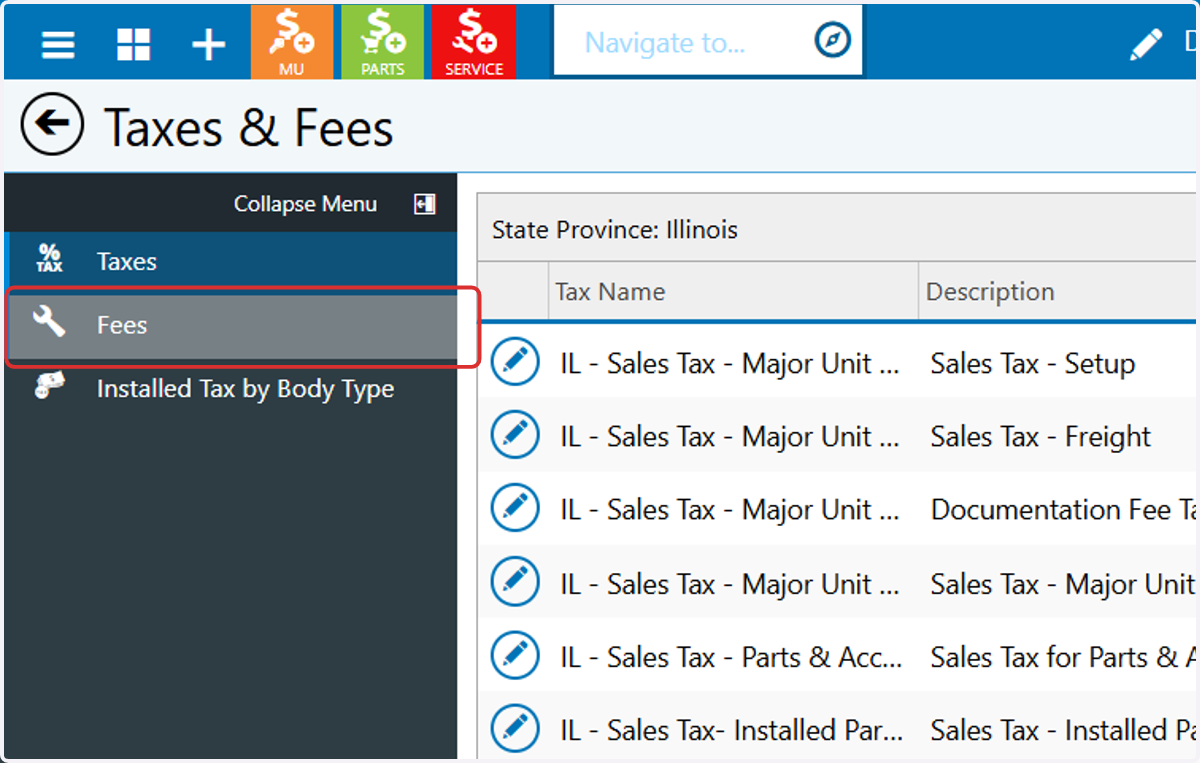
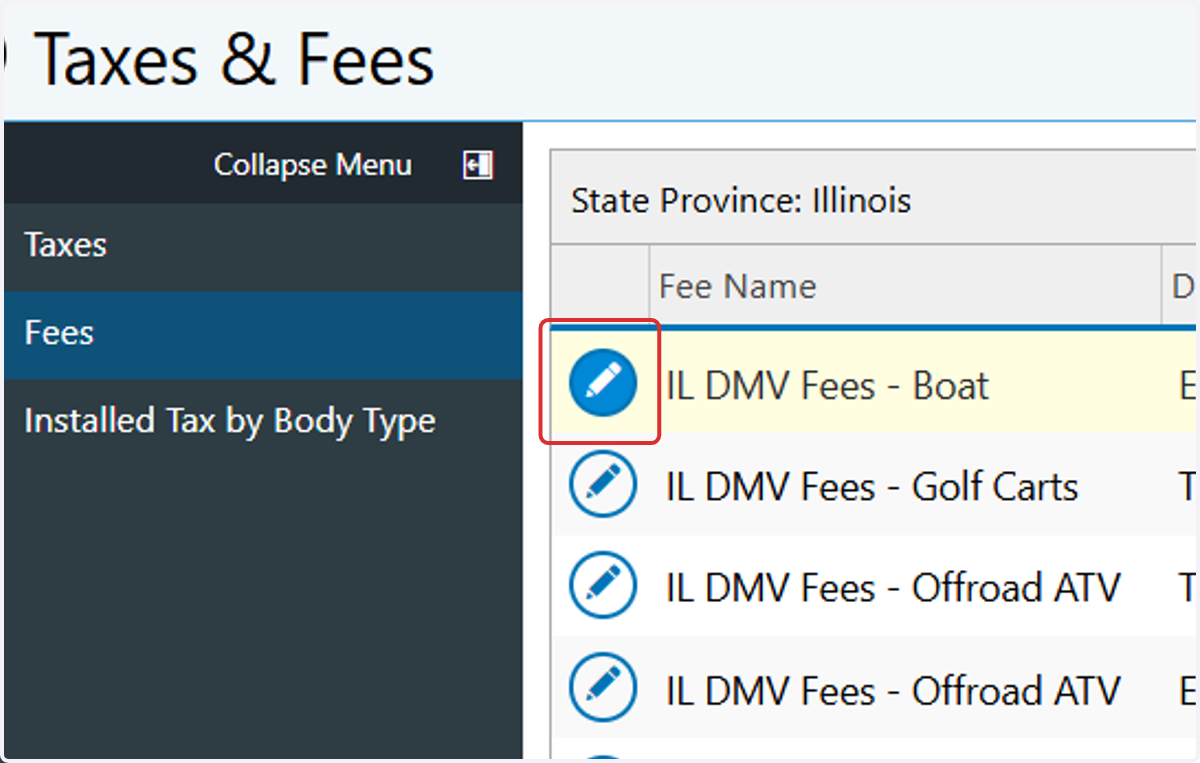
Click on Fees in the Collapse Menu
Click on the pencil icon next to the fee you want to edit
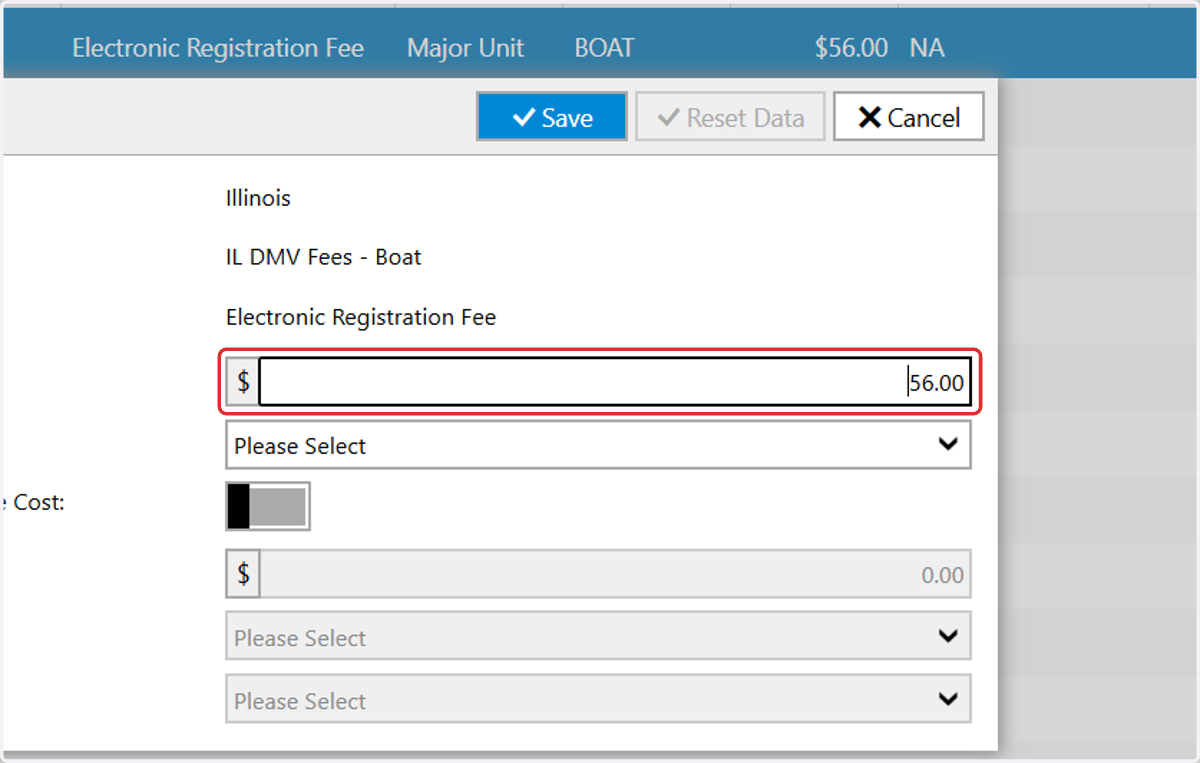
Click on Fee Amount field to set a new price
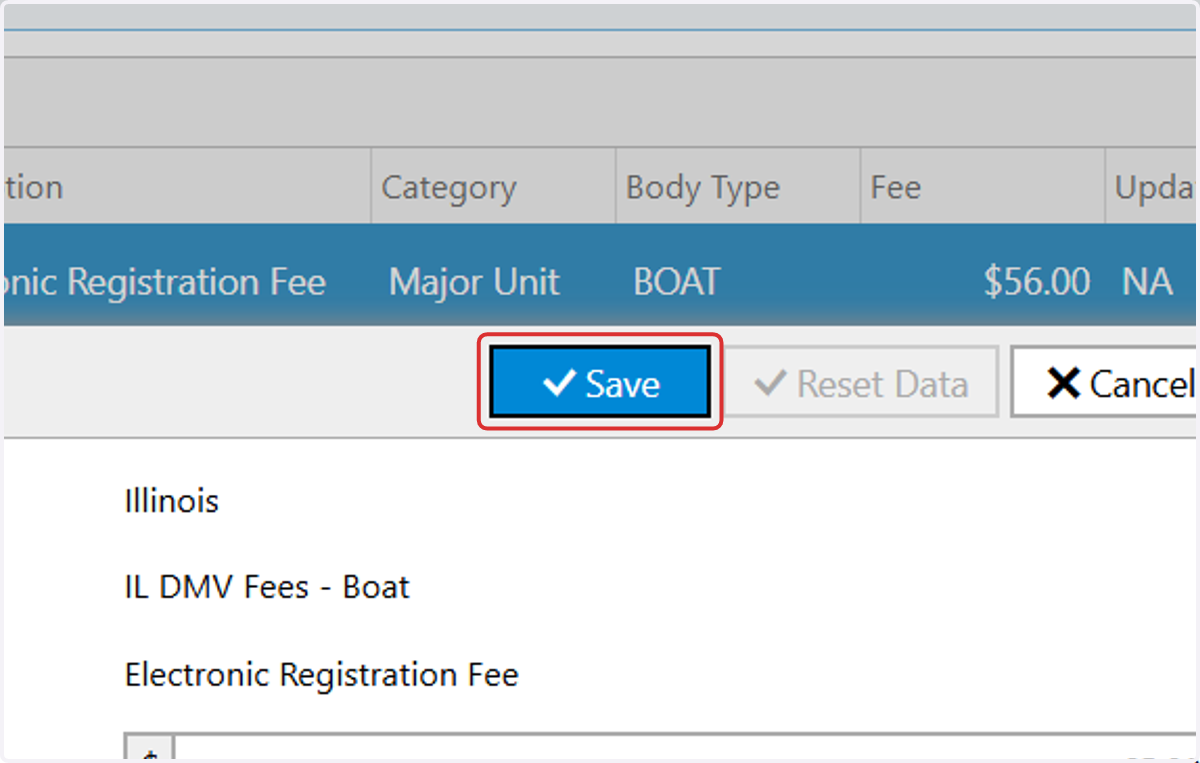
Click on Save
If you need further assistance, reach out to our support team in any of the numbers of ways listed below. Good Luck!