
A phone lead is a lead a dealership user enters manually after speaking with a customer by phone. DX1 links the lead to the customer record, where the dealership can track follow-up and, when appropriate, create a quote.
In this document:
1. Add a phone lead
2. Find and open a phone lead
3. Update and work a lead
4. Create a quote from a lead
5. Close a lead
6. Print the lead list and review the Want List Report
Lead statuses and some screen labels can change. Choose the status that fits the lead’s current situation.
Note: Phone leads can be entered manually or added from supported call sources. Leads generated through Craigslist services or DX1 toll-free tracking numbers are added directly to the Leads list. You do not need to convert them from a call into a lead before working them. Use the Leads tile to find and manage these leads with the other lead tools.
Dealerships with DX1 toll-free tracking numbers or Craigslist services may still see the Calls tile for access to historical call data.
To ask about getting a DX1 toll-free number, contact DX1 Account Management at 1-800-700-4399.
1. Add a phone lead
a. From the dashboard, open Customers and Leads and select Leads.
b. On the Leads page, select Add.
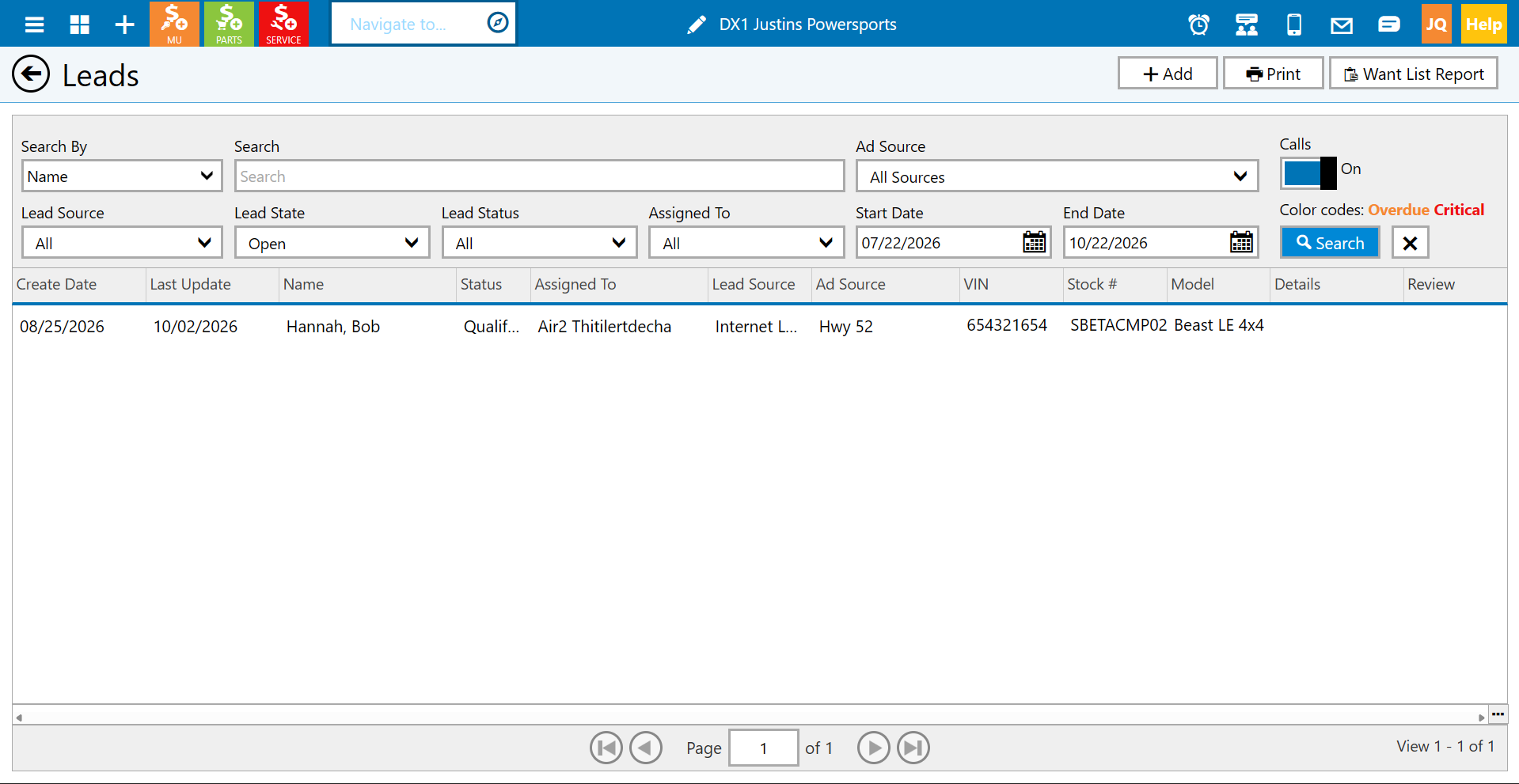
c. Select Phone Lead as the lead type and continue.
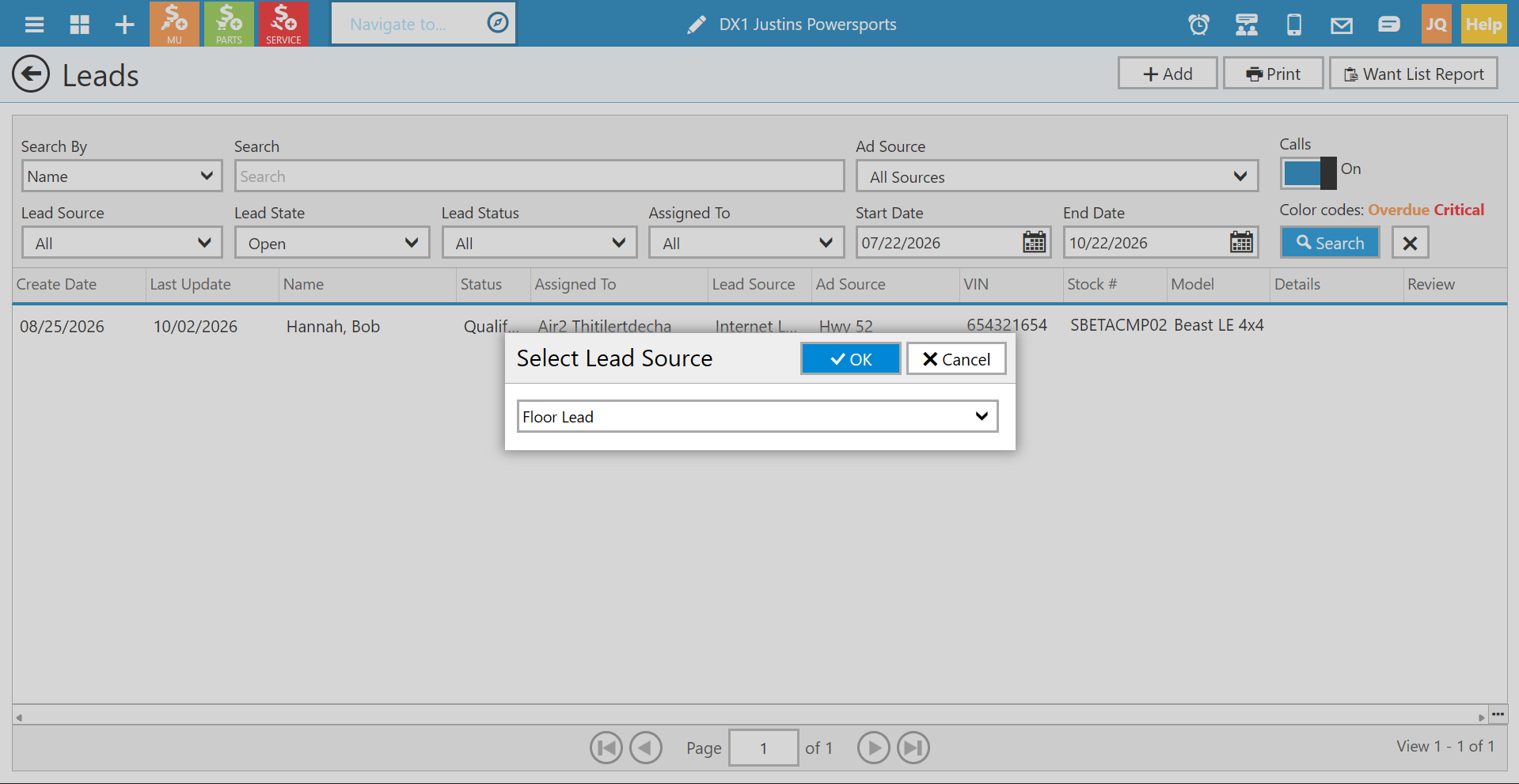
d. Find and select the customer. If the customer is not already in DX1, add the customer before continuing.
e. Complete the lead details. Review the assigned user and change it if needed.
f. Select the Ad Source that best describes how the customer heard about the dealership. For example, select a billboard source if the customer says they saw a dealership billboard. The available sources depend on how the dealership has configured them.
g. Add a Unit of Interest:
i. Select Inventory to choose a unit currently in the dealership’s inventory.
ii. Select Models to choose a model that is not currently in inventory.
h. If the customer has a trade-in, add it from the customer’s garage.
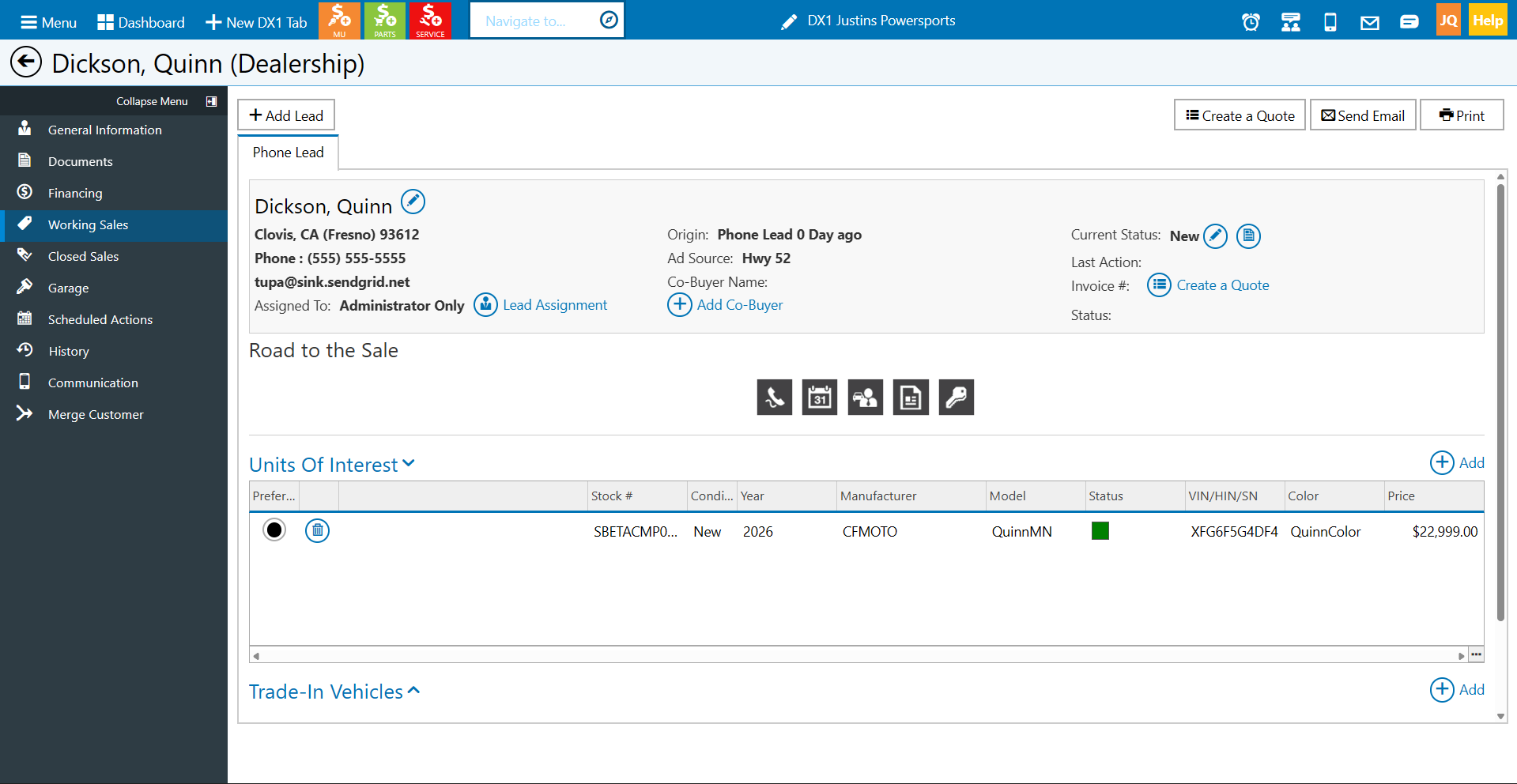
i. Review the information and select Save. DX1 saves the lead to the customer record and opens the customer’s Working Sales page.
2. Find and open a phone lead
a. From the dashboard, open Customers and Leads and select Leads.
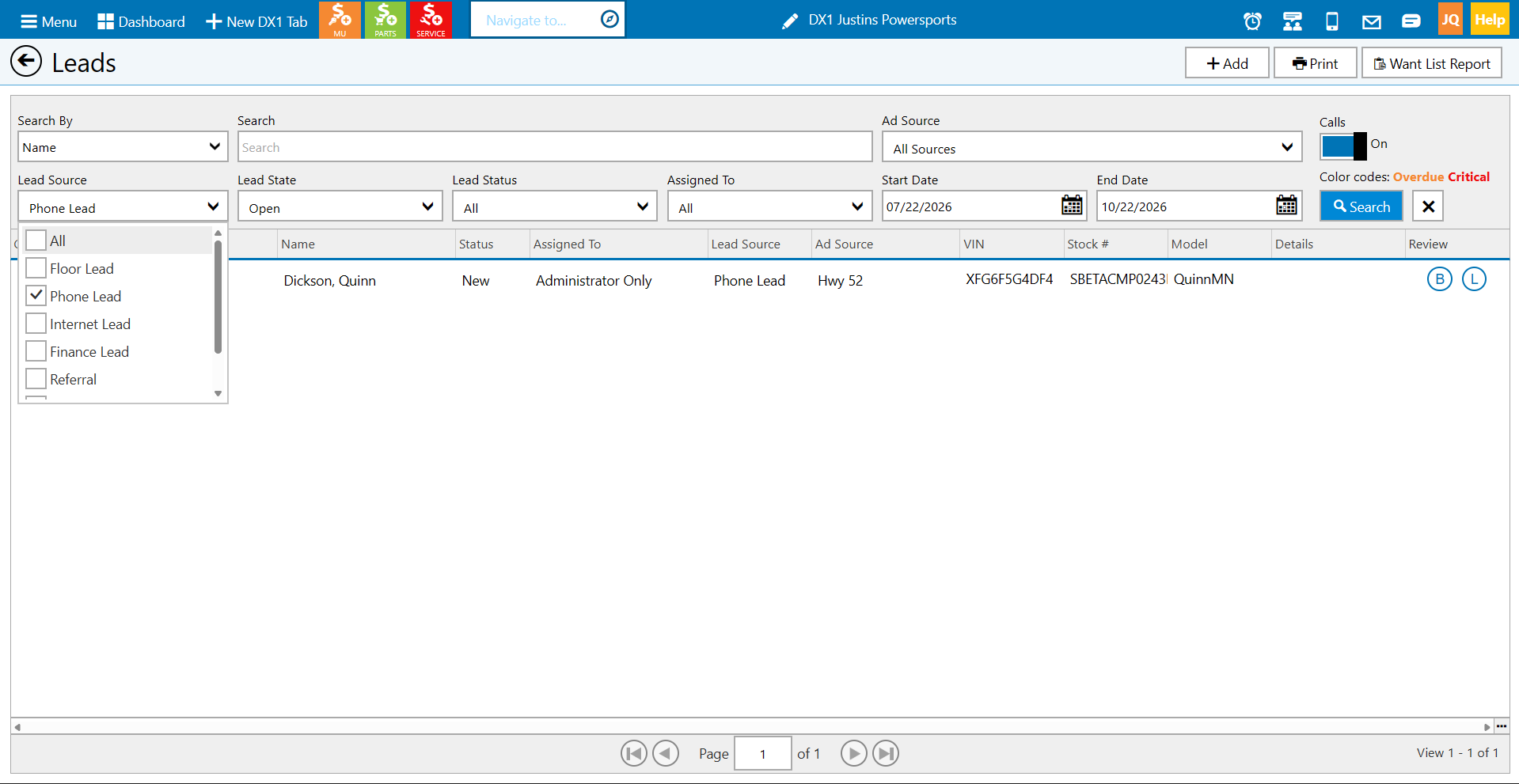
b. Use the search and filters to find the lead. Filter by Lead Source and select Phone Lead, or search by another available detail such as customer name, assignment, or date.
c. Select the lead or open the customer record and select Working Sales.
3. Update and work a lead
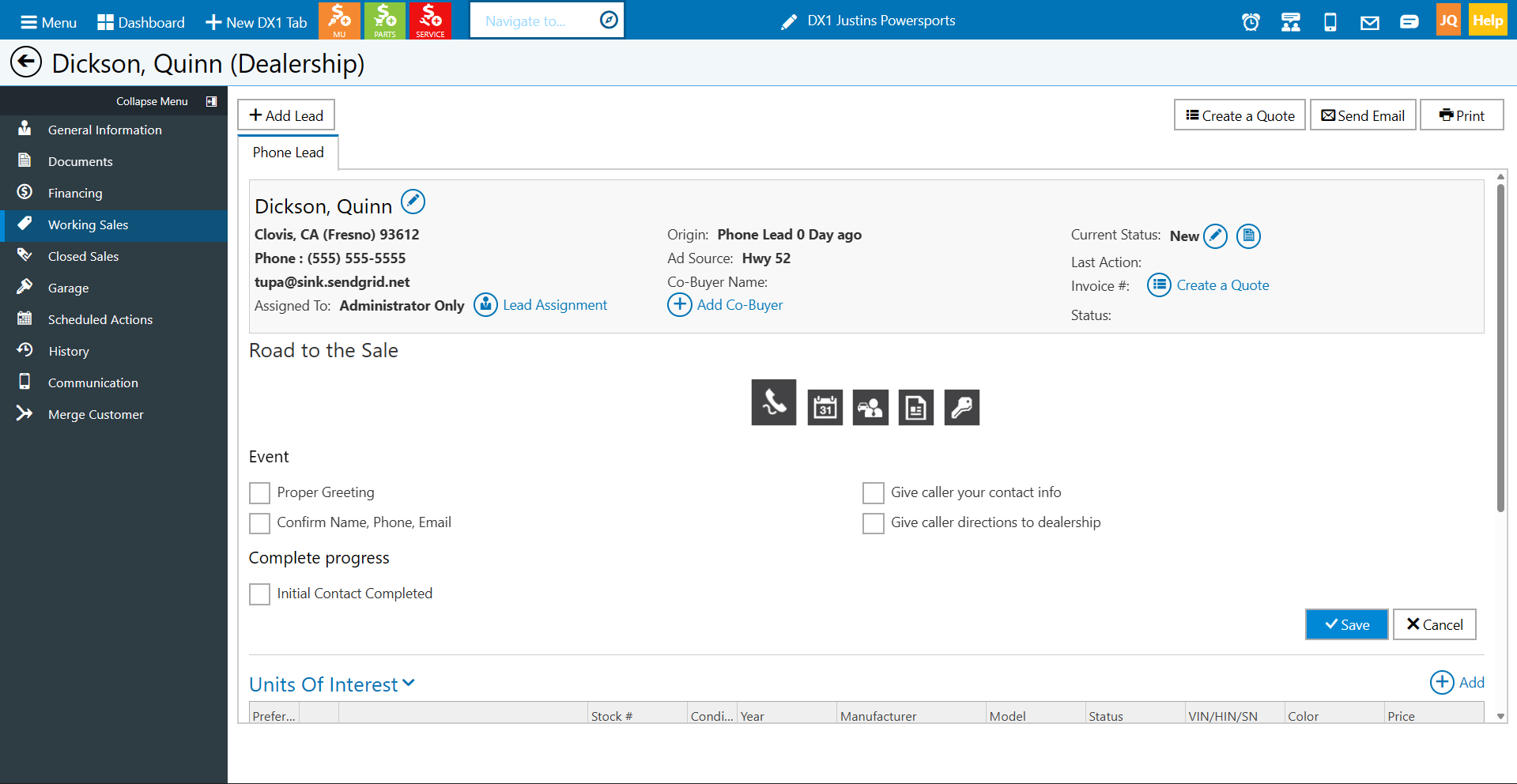
a. From the customer’s Working Sales page, review the lead information, including the assigned user, Ad Source, Unit of Interest, and current status.
b. To update customer information, select the edit control beside the customer’s name.
c. Update the lead assignment, add a co-buyer, or change the lead status when needed. Available status choices may change over time.
d. Review the event history to see activity recorded for the lead.
e. Use Road to the Sale to track follow-up steps. This checklist is optional. Select the steps completed and save your changes so the team can see the lead’s progress.
4. Create a quote from a lead
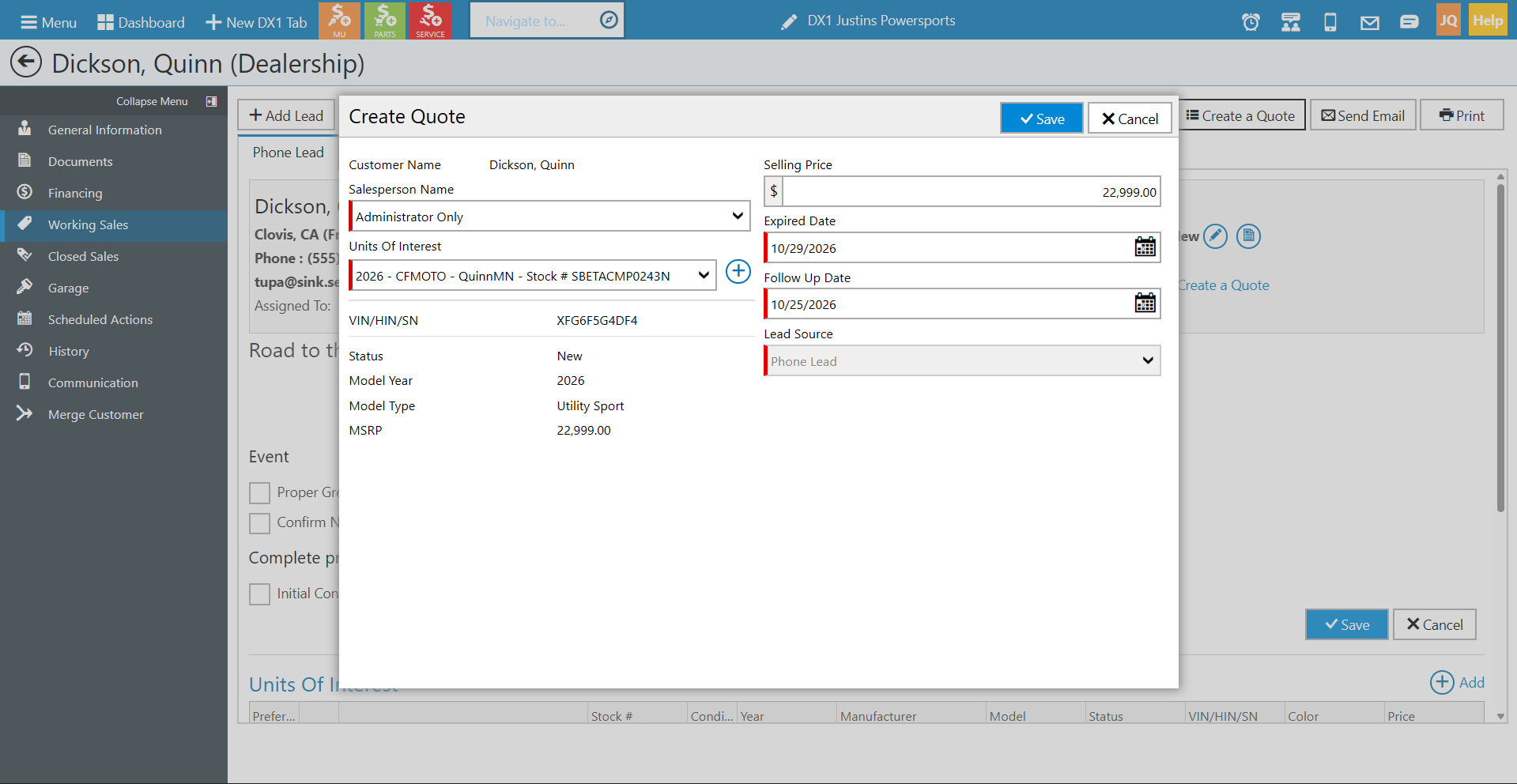
a. From Road to the Sale, select the option to create a quote.
b. Review the salesperson and Unit of Interest. Add another unit if needed.
c. Add or confirm the trade-in details, if applicable.
d. Select Save. DX1 creates the quote and opens it for continued work.
5. Close a lead
a. Open the lead from the Leads page or the customer’s Working Sales page.
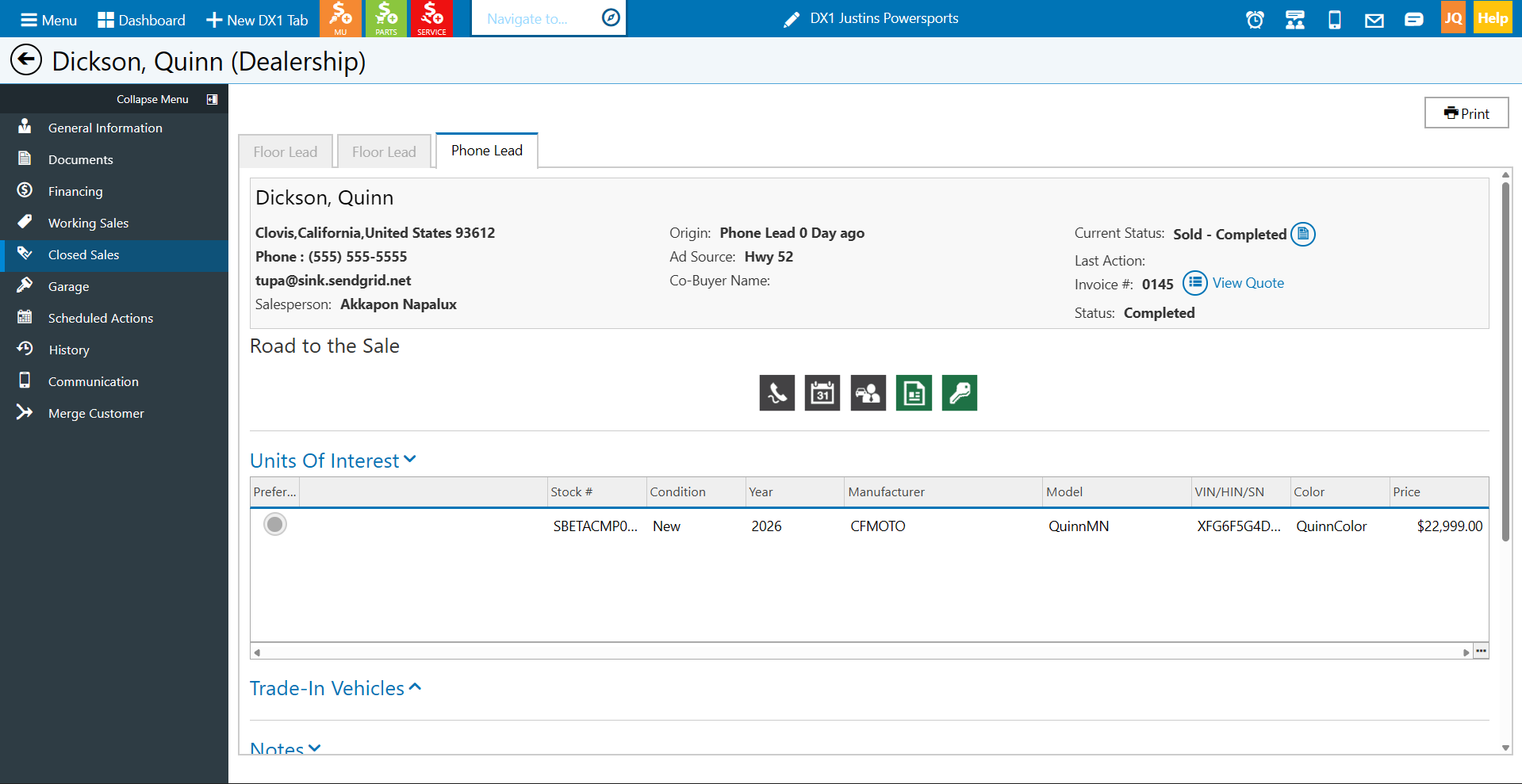
b. Choose the appropriate closed outcome from the available lead status options and provide any requested reason.
c. Save the change. Closed leads are removed from the open leads list but can still be reviewed through the available lead filters and reports.
6. Print the lead list and review the Want List Report
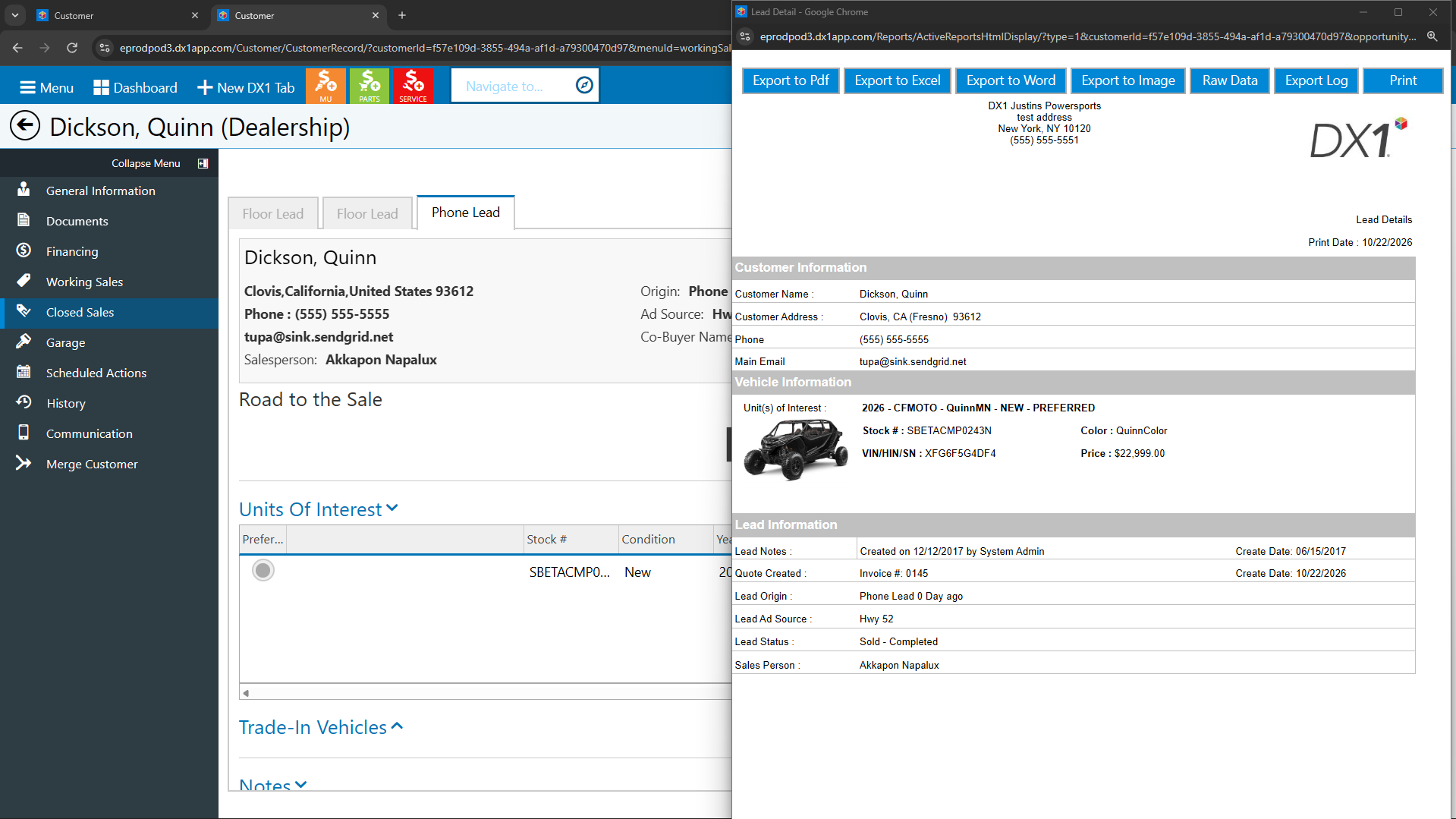
a. From the Leads page, select Print to print the displayed lead list.
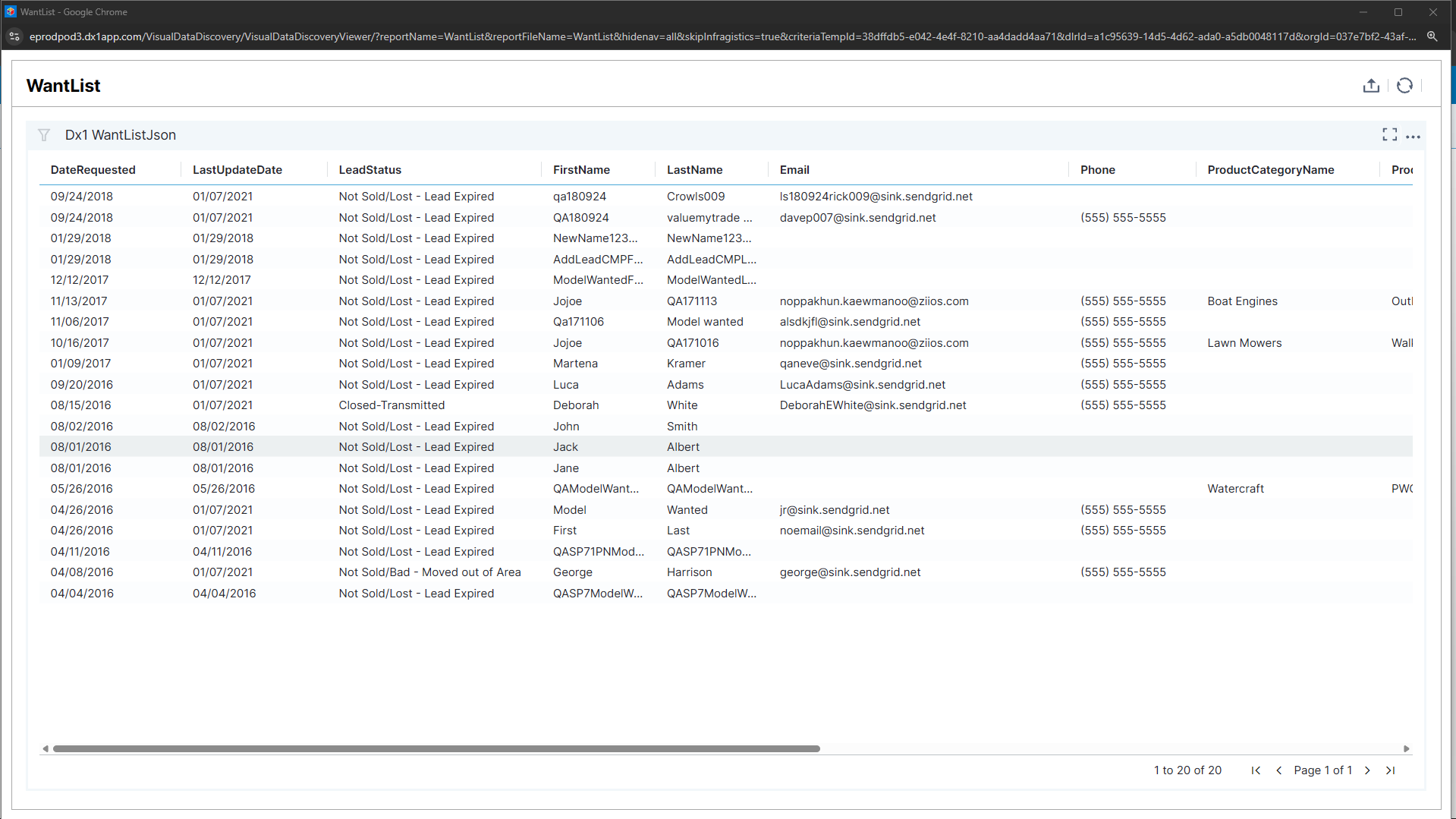
b. Select Want List Report to review reporting on units or models customers have requested.
Need help? Contact DX1 Support at 877-944-6766 or visit DX1support.com.