Table of Contents
Guided Tour
Step by Step
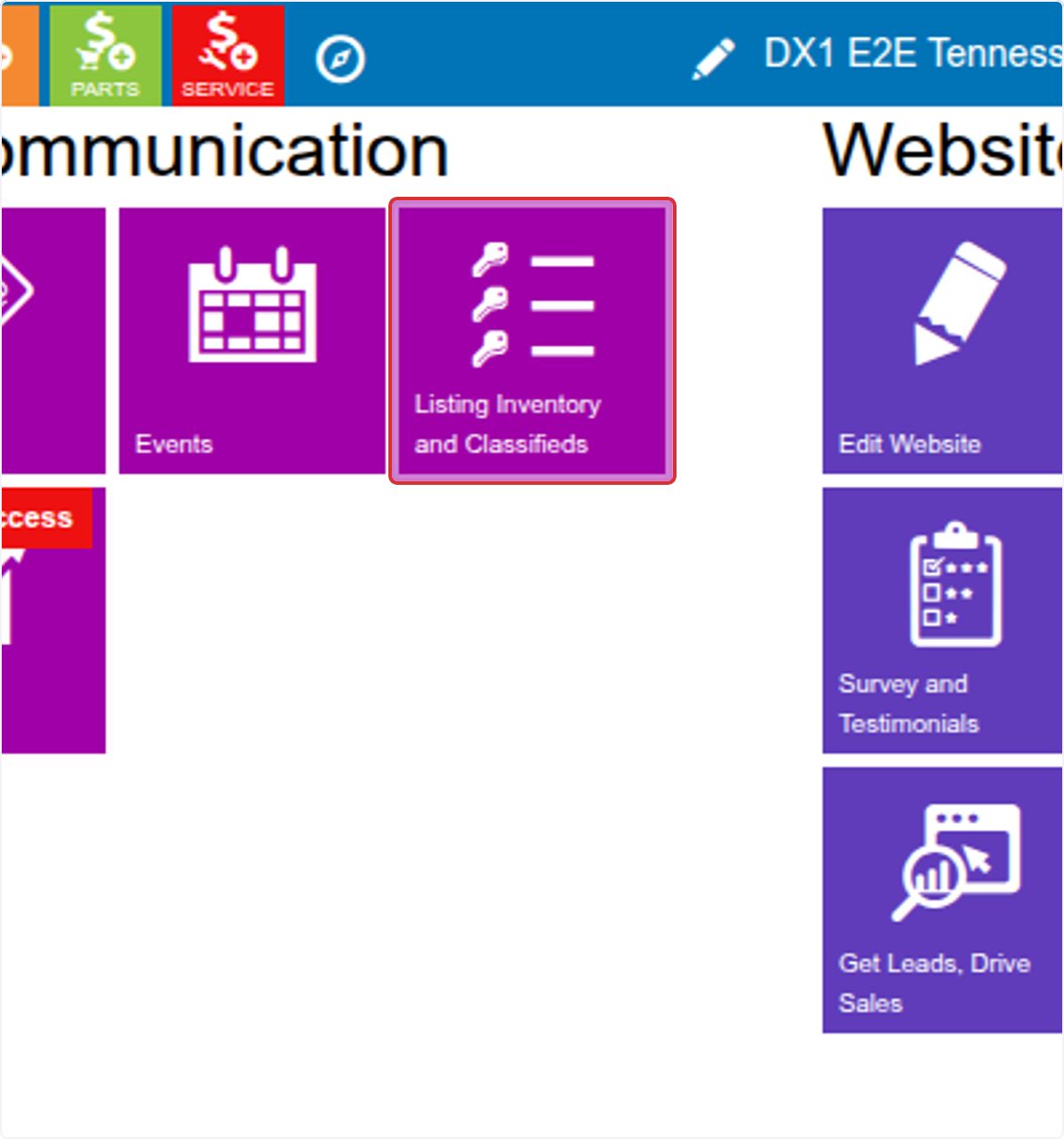
1. Click Listing Inventory and Classifieds.
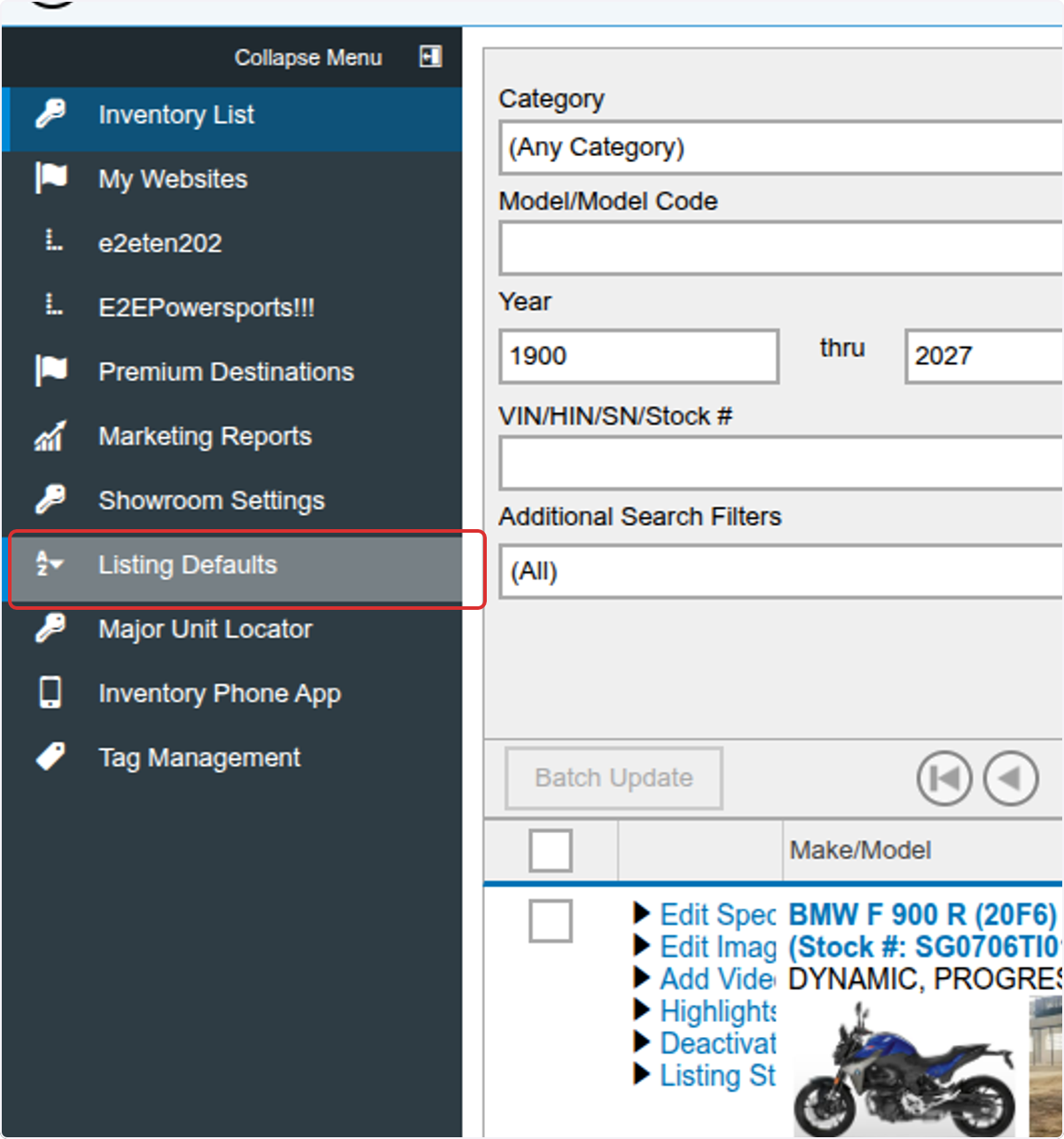
2. Click Listing Defaults.
3. Turn on Use adjusted price for classified destinations to send Total Price and all Offers and Charges in outgoing feeds automatically.
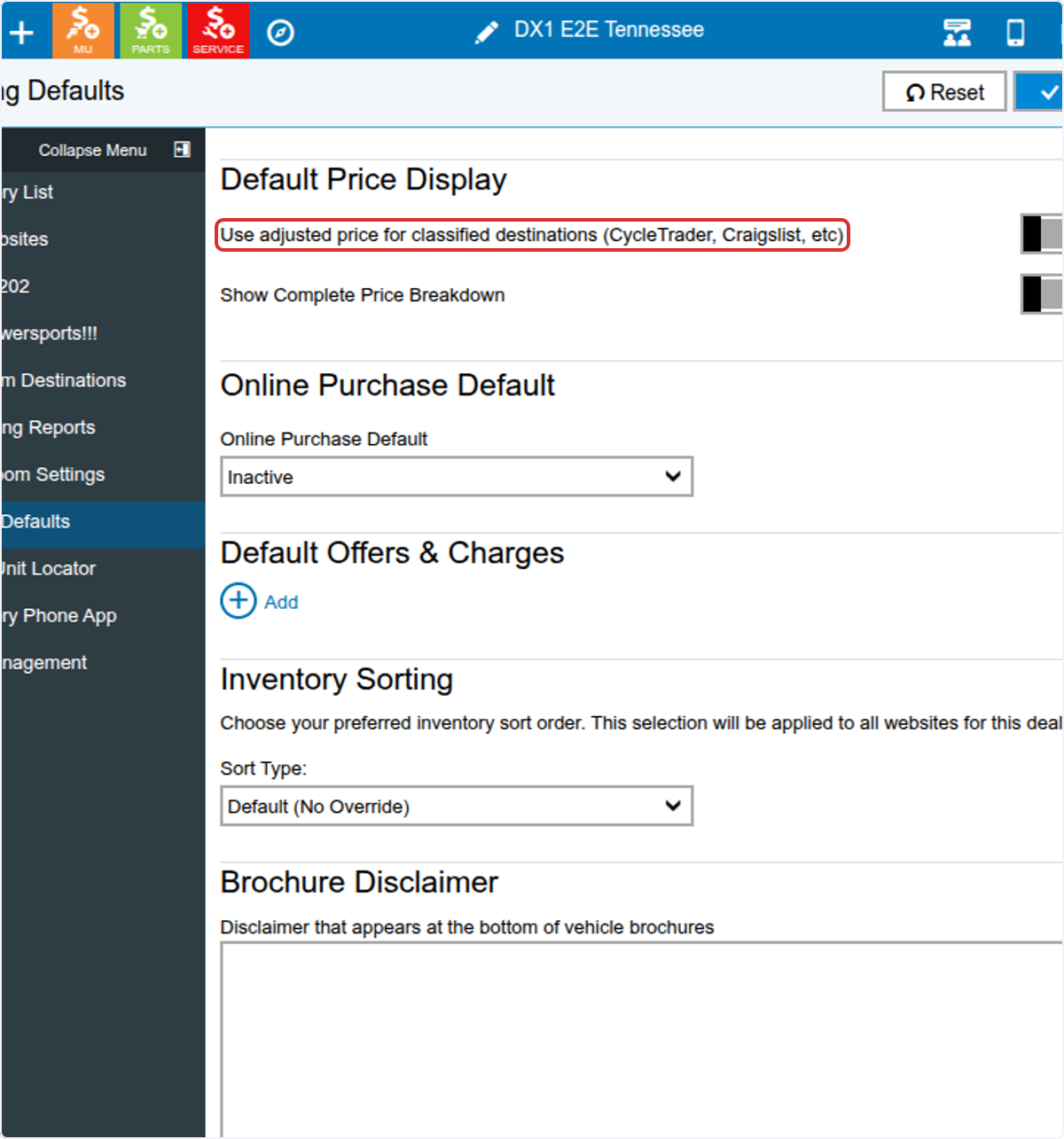
4. Turn on Show complete Price Breakdown to display all Major Unit Invoice fees on your DX1 website automatically.
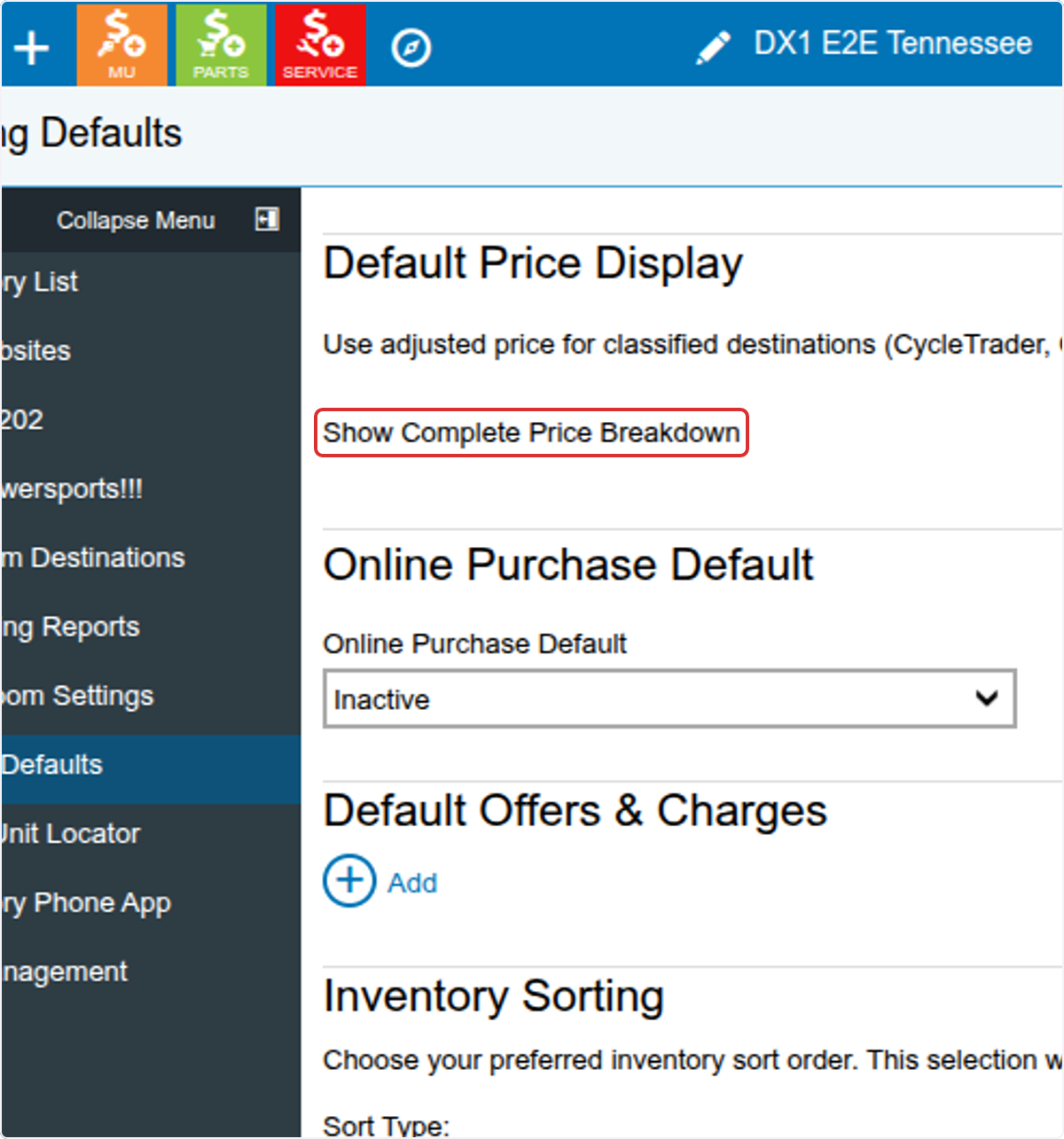
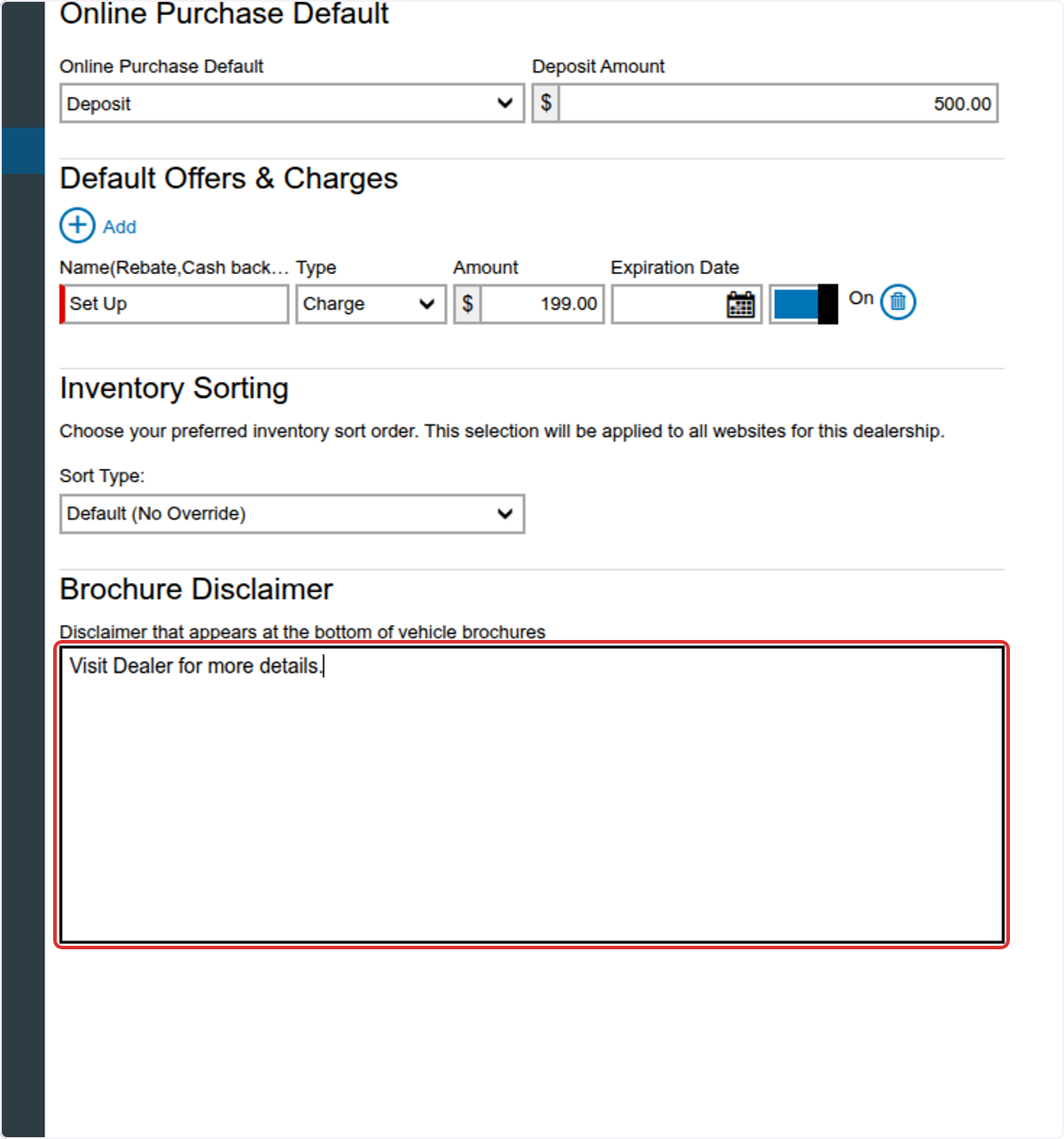
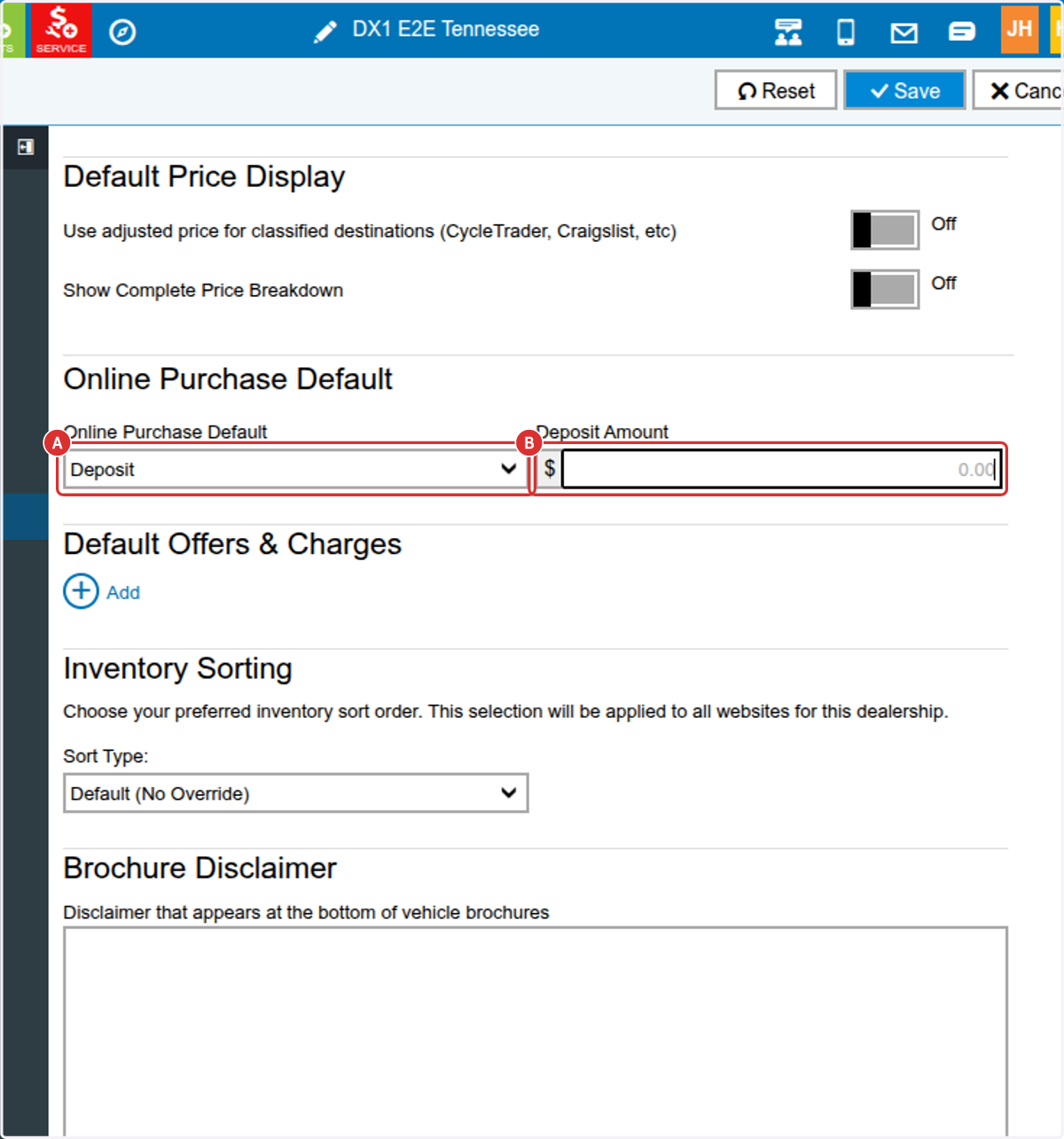
5. Activate online deposits for all units.
A. Select Deposit.
B. Enter a Deposit Amount.
6. Add default Offers and Charges.
A. Click + Add.
B. Enter the Offer or Charge Name.
C. Select Offer or Charge.
D. Enter the amount and Expiration Date, if applicable.
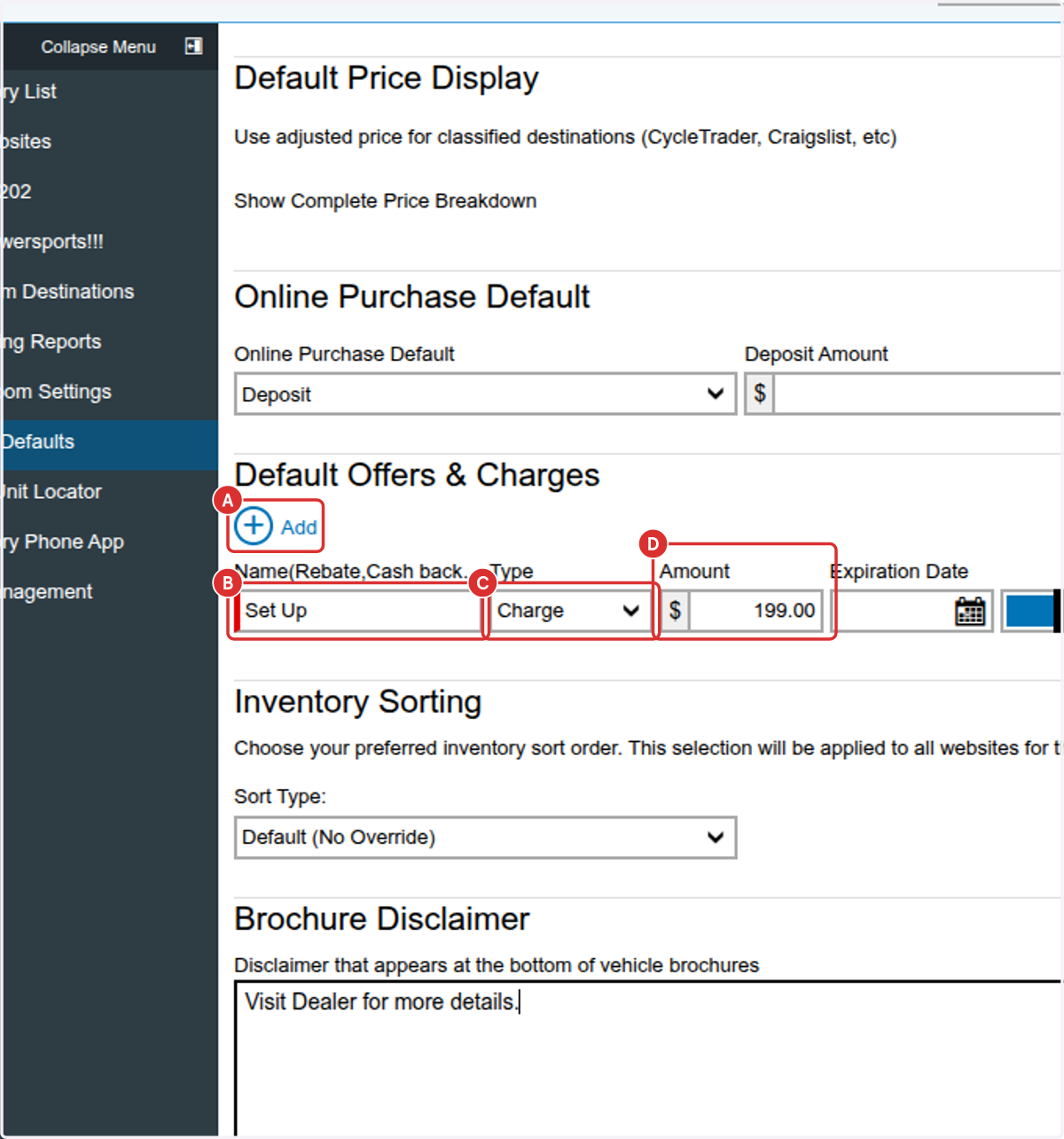
7. Create a custom brochure disclaimer by entering text in the Brochure disclaimer field.