Table of Contents
Use the Pop-Up Builder in the DX1 Dashboard to create and manage website pop-ups that appear On Load (when a page opens) or On Exit (when a visitor is about to leave). You can target specific pages (or all pages), optionally schedule when the pop-up runs, and even include a lead form inside the pop-up. Pop-ups are designed to display once per user session so shoppers aren’t repeatedly interrupted.
Guided Tour
Step by Step
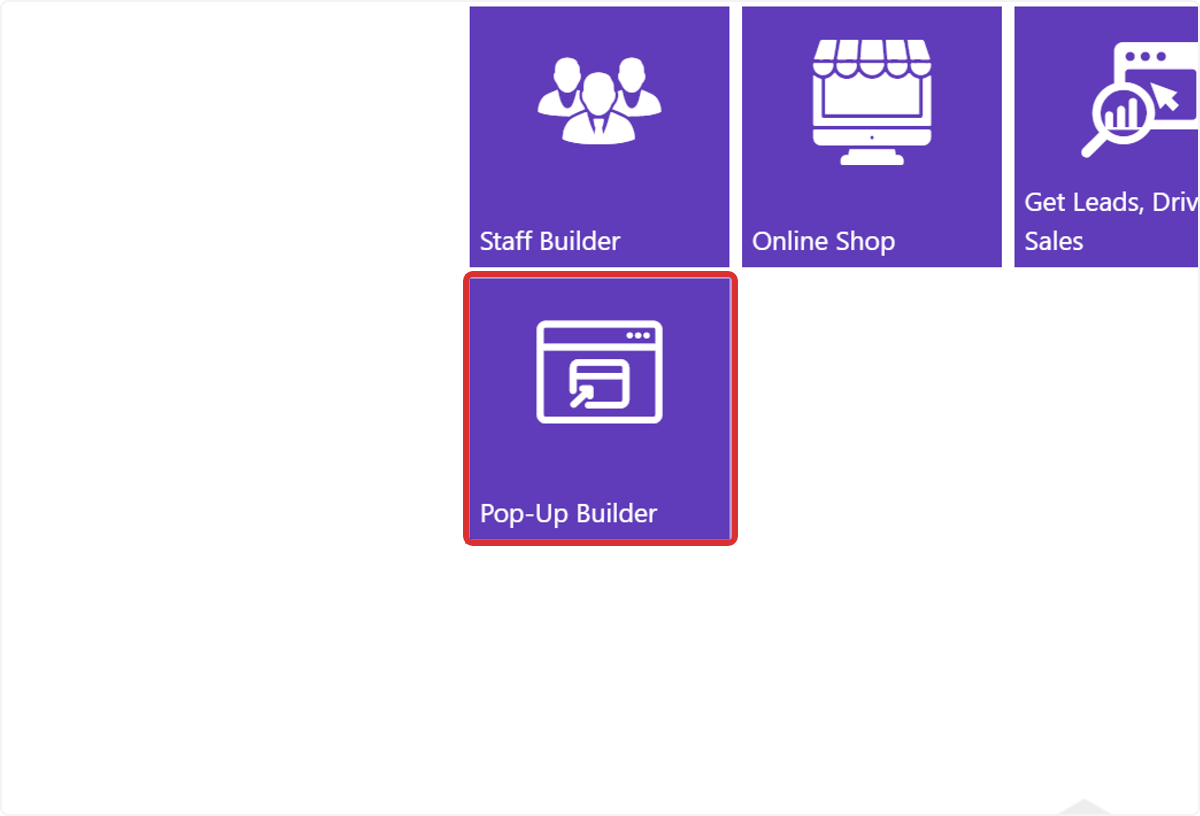
1. From the DX1 Dashboard, go to the Websites section and click the Pop-Up Builder tile.
2. Use the filters to search and sort existing pop-ups
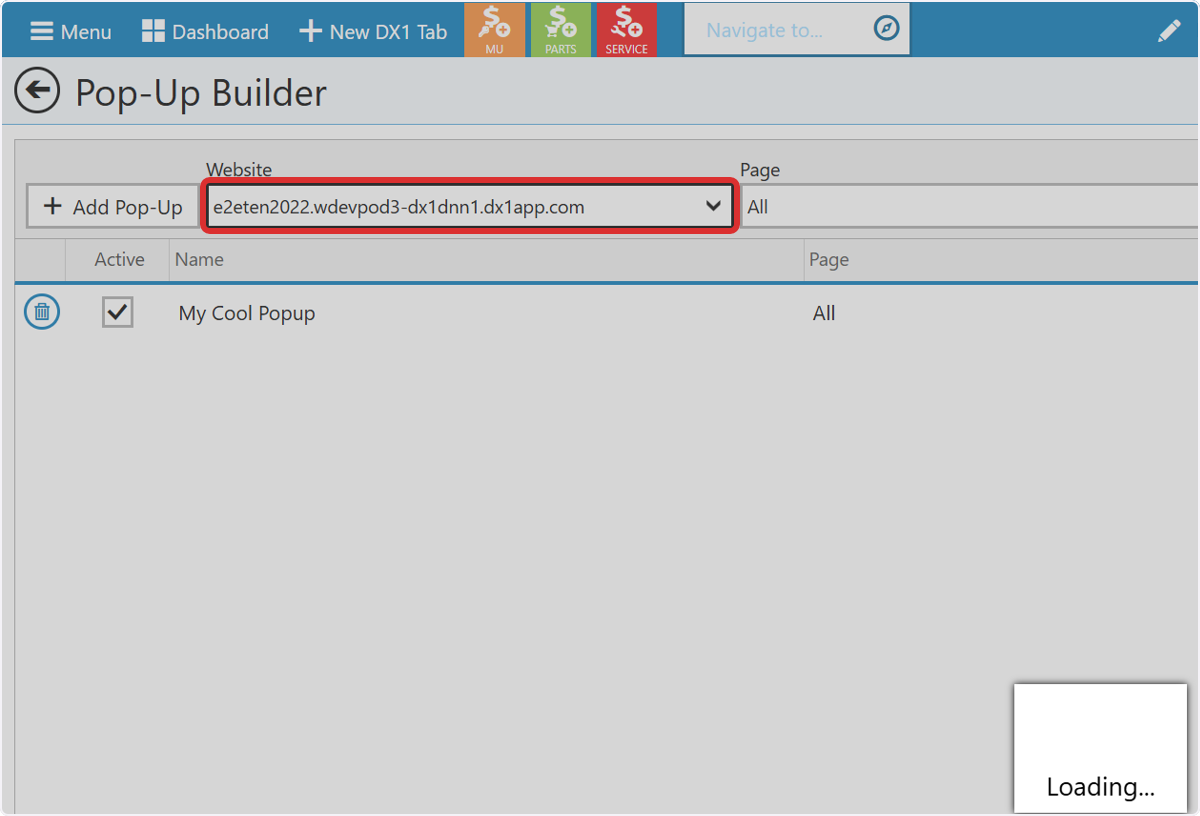
Use the filters at the top to find what you need:
Website (select which site you’re editing)
Page (All, Multiple Pages, or a specific page)
Status (Active / Inactive)
Type (On Load / On Exit)
To edit a pop-up, open it from the list (row/pencil icon).
To delete a pop-up, use the trash icon and confirm the warning.
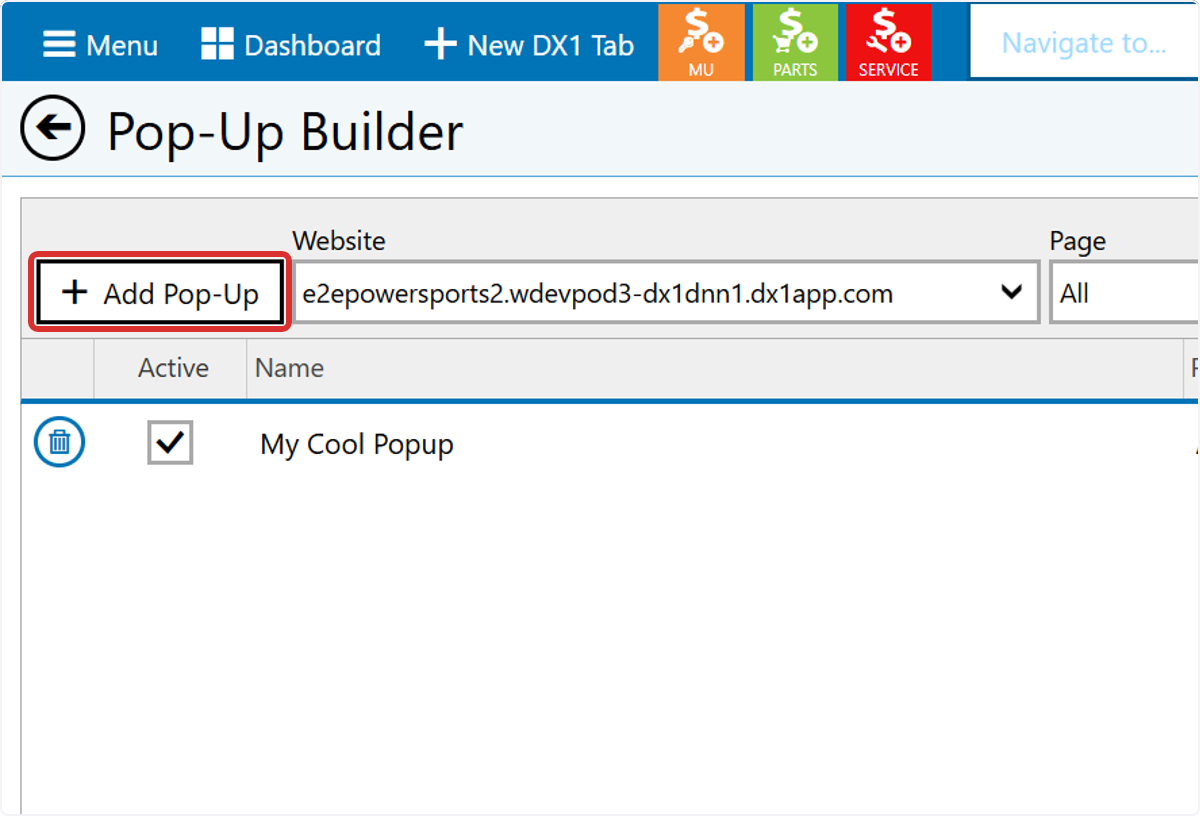
3. Click + Add Pop-Up
4. Confirm the Website you want this pop-up to apply to in the Website dropdown
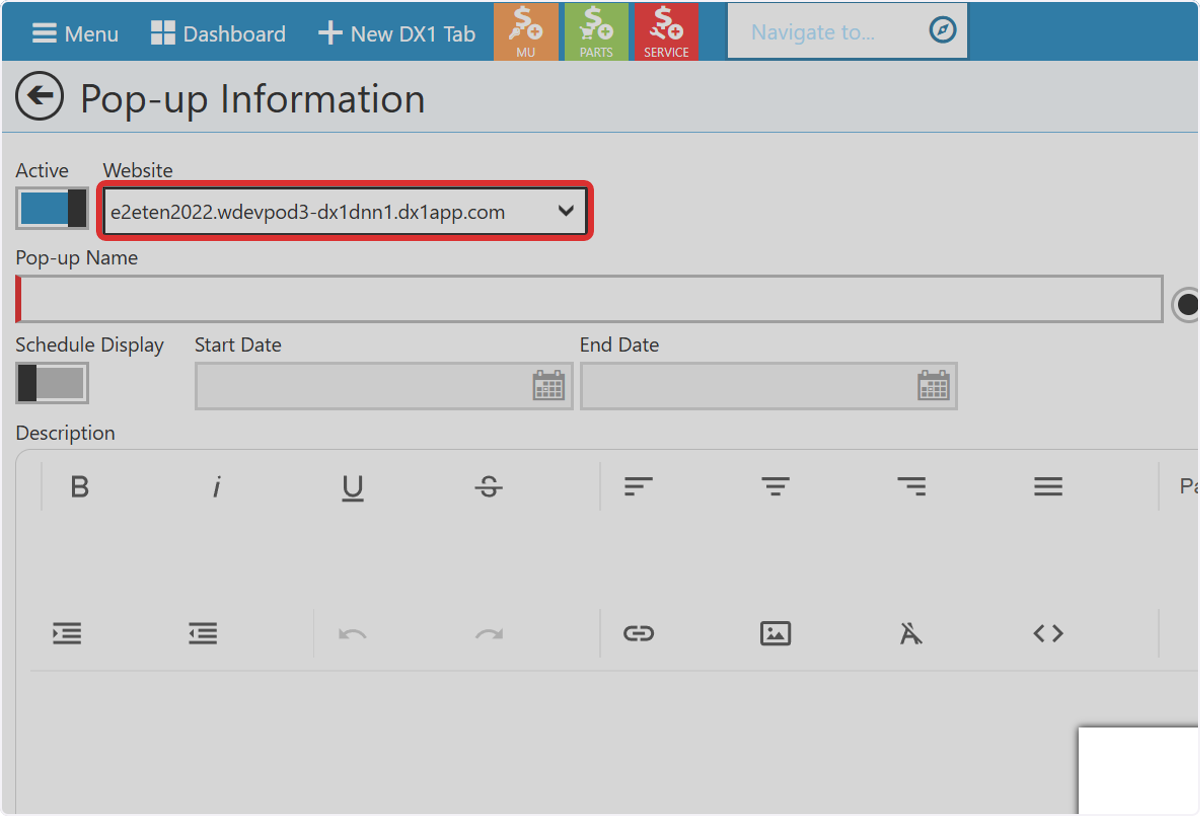
5. Add Pop-up Name (required)
Enter a unique name. Duplicate names aren’t allowed.
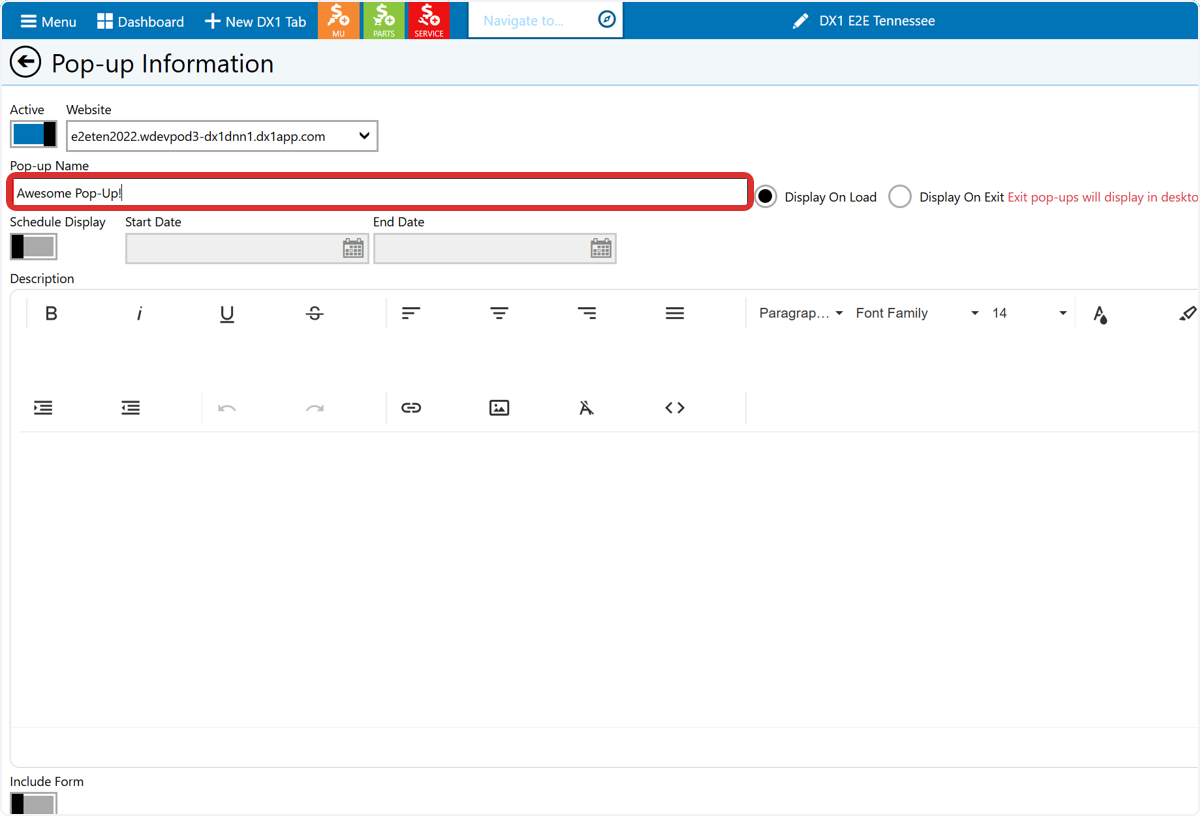
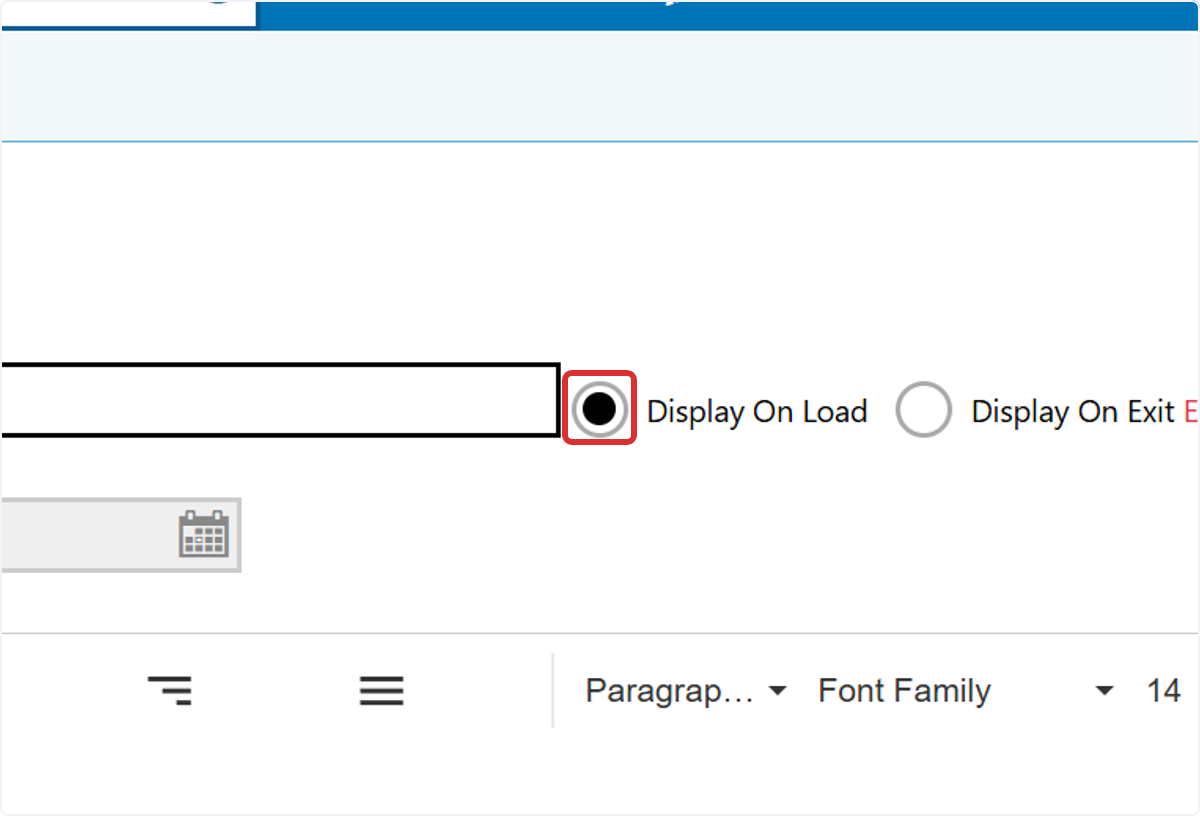
6. Choose Display Type
Choose Display On Load or Display On Exit.
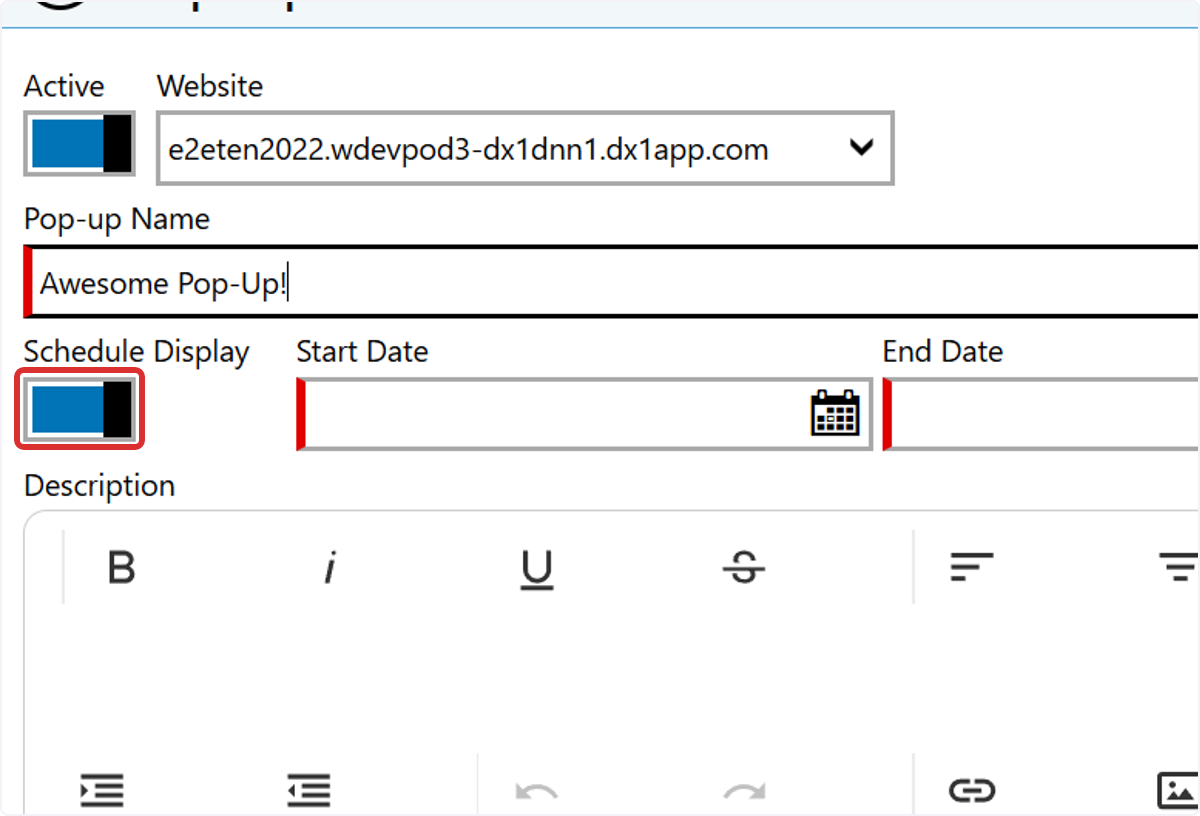
7. Schedule Display (optional)
Toggle Schedule Display ON to set a Start Date and End Date so the pop-up only runs during that timeframe.
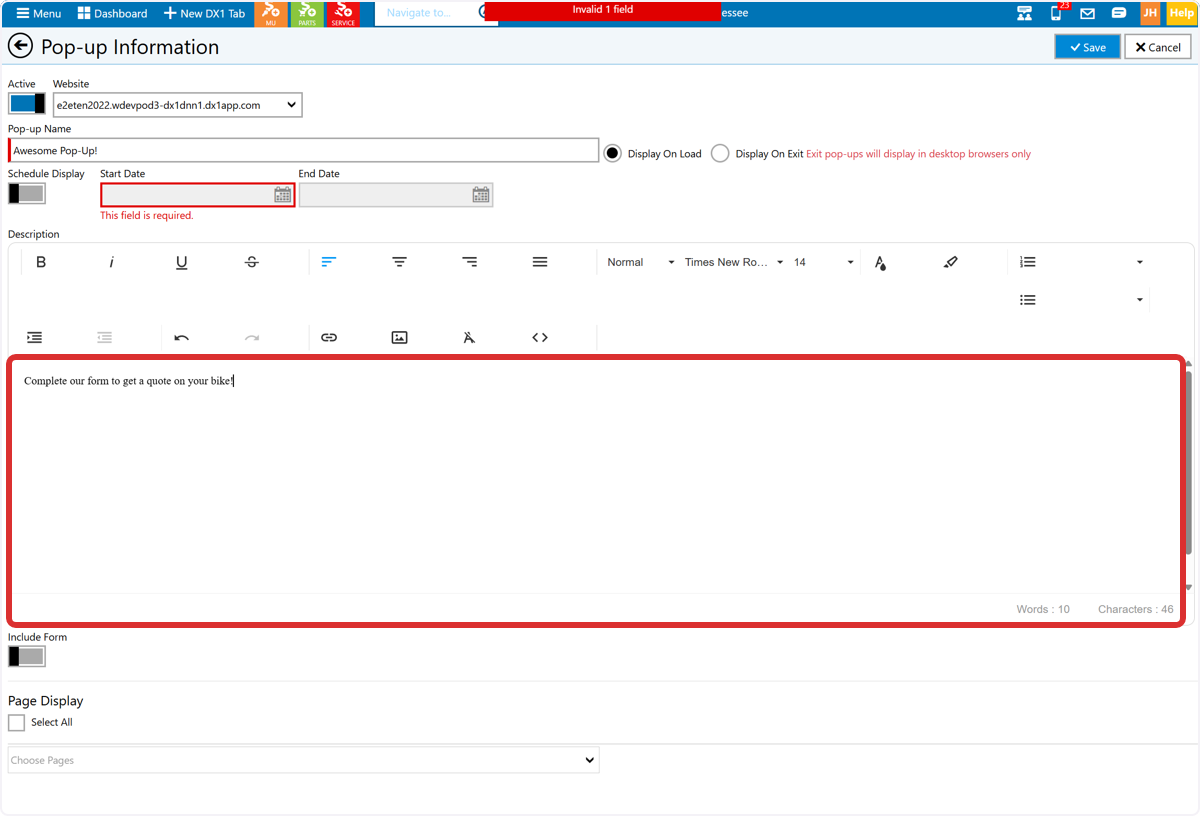
8. Add Pop-Up Description (required)
Add your pop-up content (text/images) using the editor.
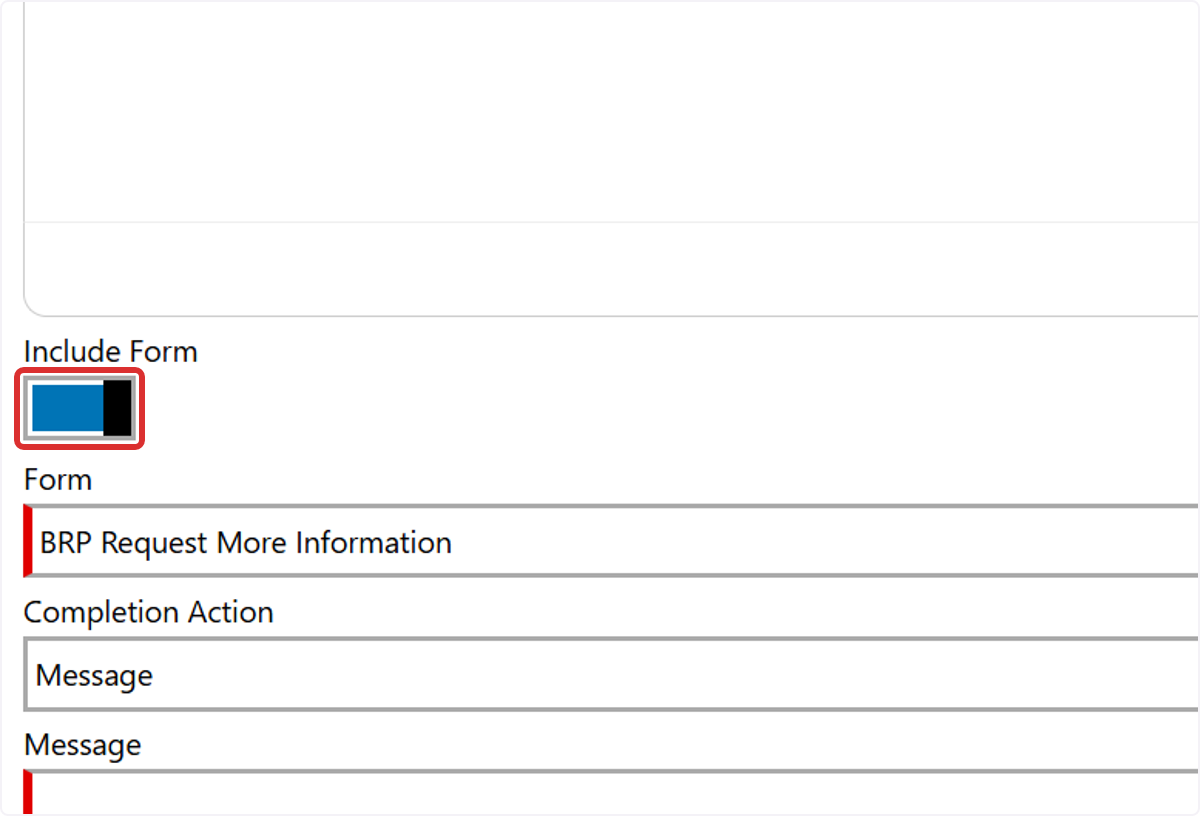
9. Add a form to the pop-up (optional)
Toggle Include Form ON.
Select the Form you want to display.
Choose a Completion Action and enter the completion Message (if applicable).
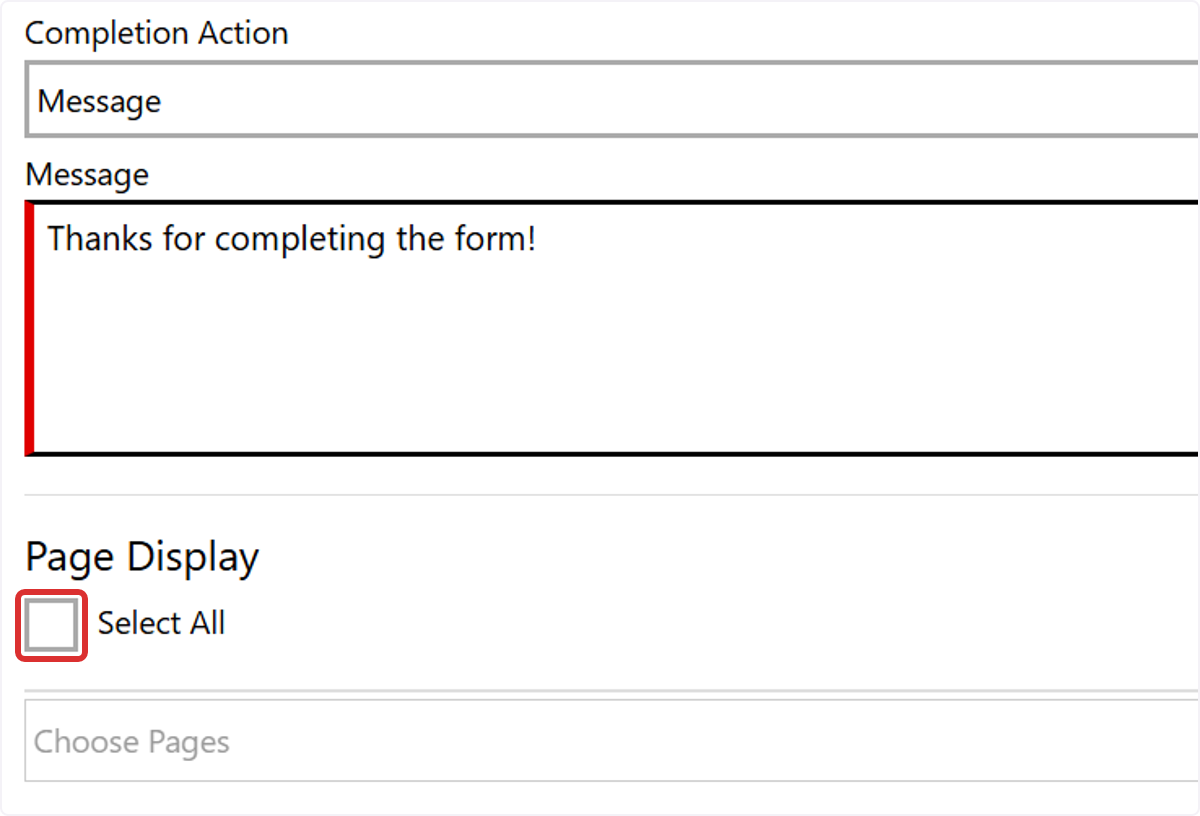
10. Choose where the pop-up displays
In Page Display, select:
Select All, or
choose one or more specific pages.
Note: a page can only have one pop-up per type (ex: one On Load and one On Exit). If a page already has that type, it should be unavailable/disabled in the list.
11. Save
Click Save (top right) to publish your changes.