
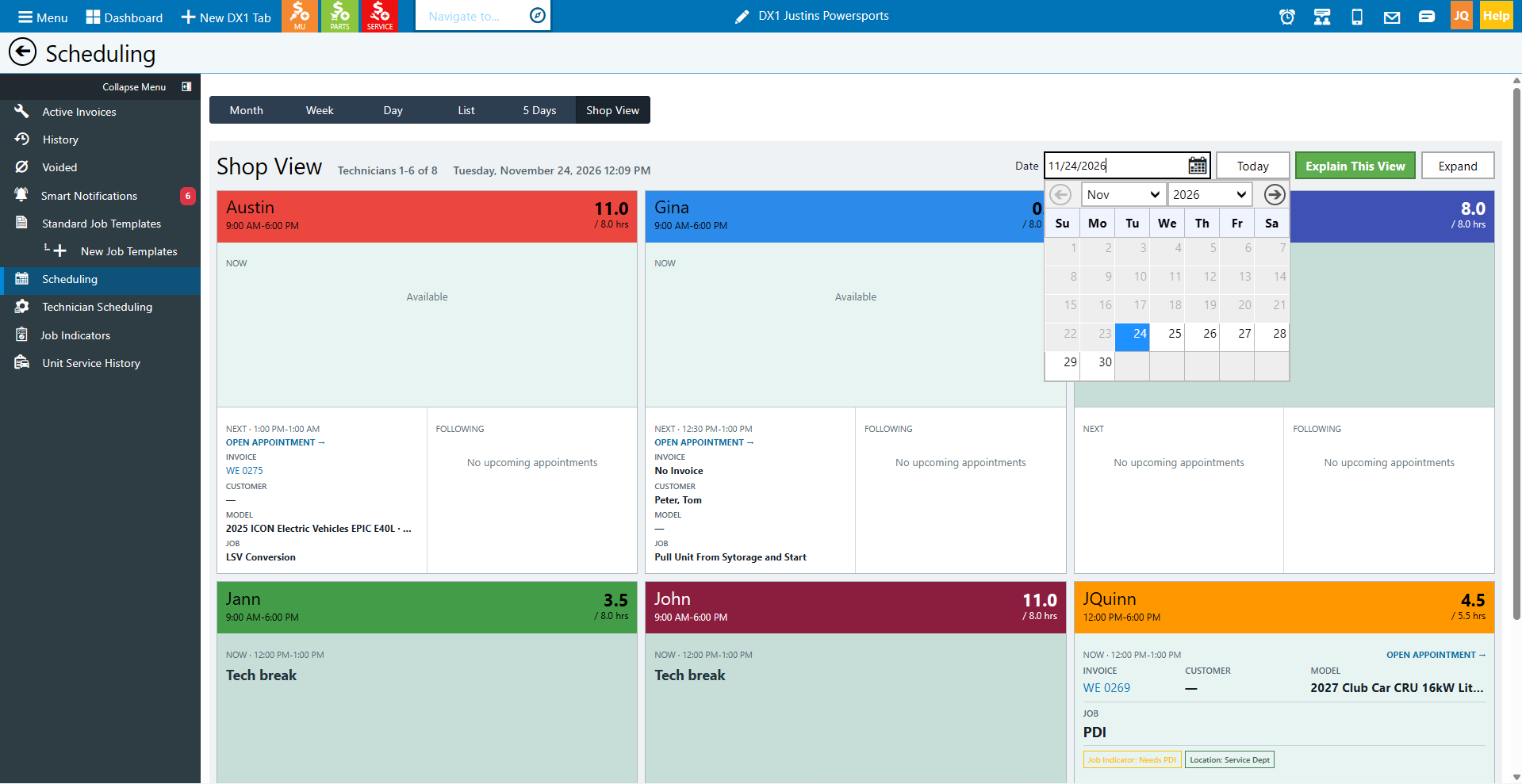
Shop View gives your service team a shared view of the day’s appointments and technician availability. It is designed for a shop monitor or television, where technicians can quickly see what is happening now and what is coming up.
Open Shop View
1. From the DX1 dashboard, open Service and select Scheduling.
2. In the view selector, choose Shop View.
3. Select Expand to display the board full screen.
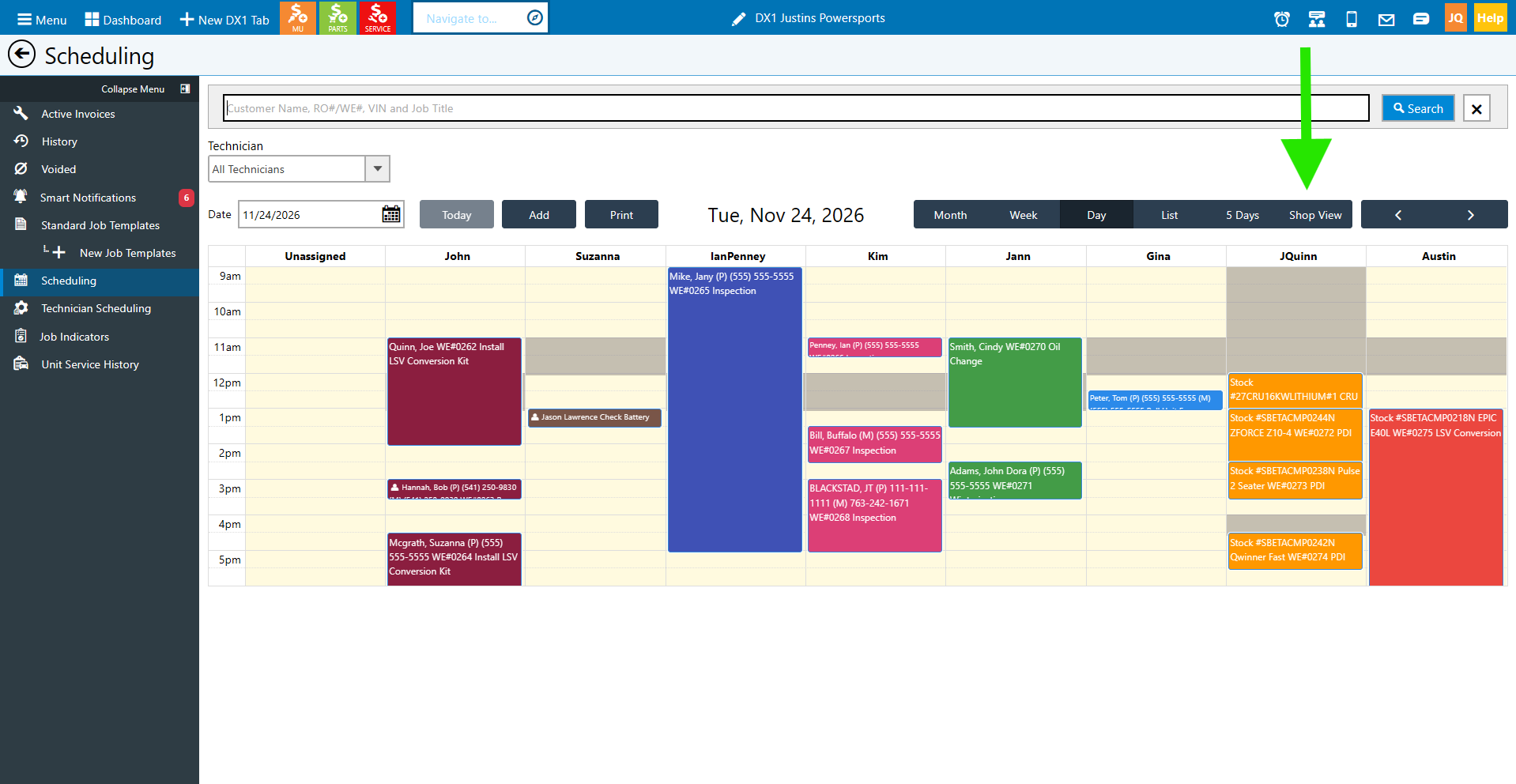
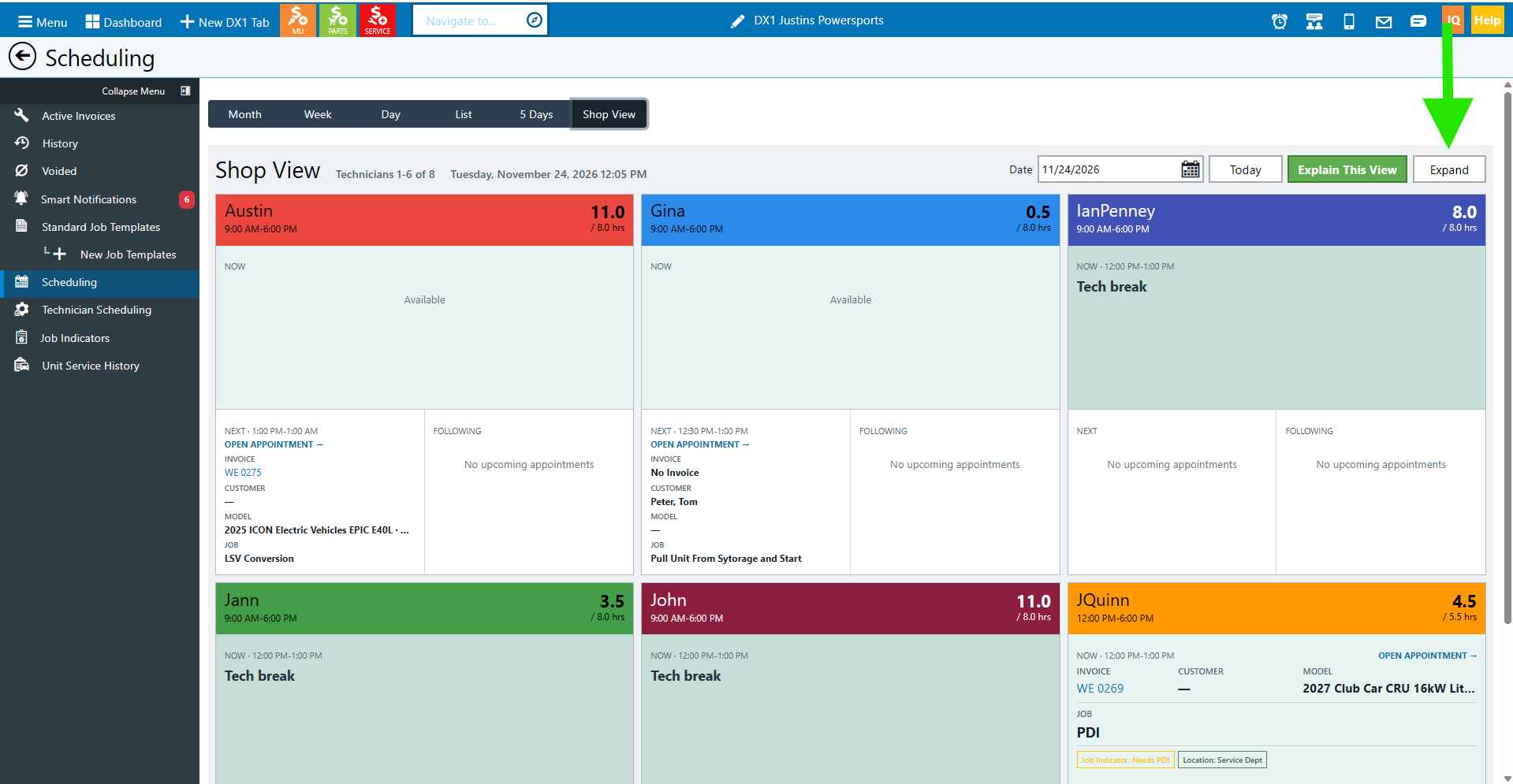
Pro Tip: Set the date and Shop View before expanding the board. Full screen gives the shop a cleaner display with less DX1 navigation around it.
Read the board
The board displays up to six technicians at a time. If more technicians are scheduled, their cards rotate about every nine seconds.
Each technician’s header shows their color or tags and their booked hours compared with their working capacity.
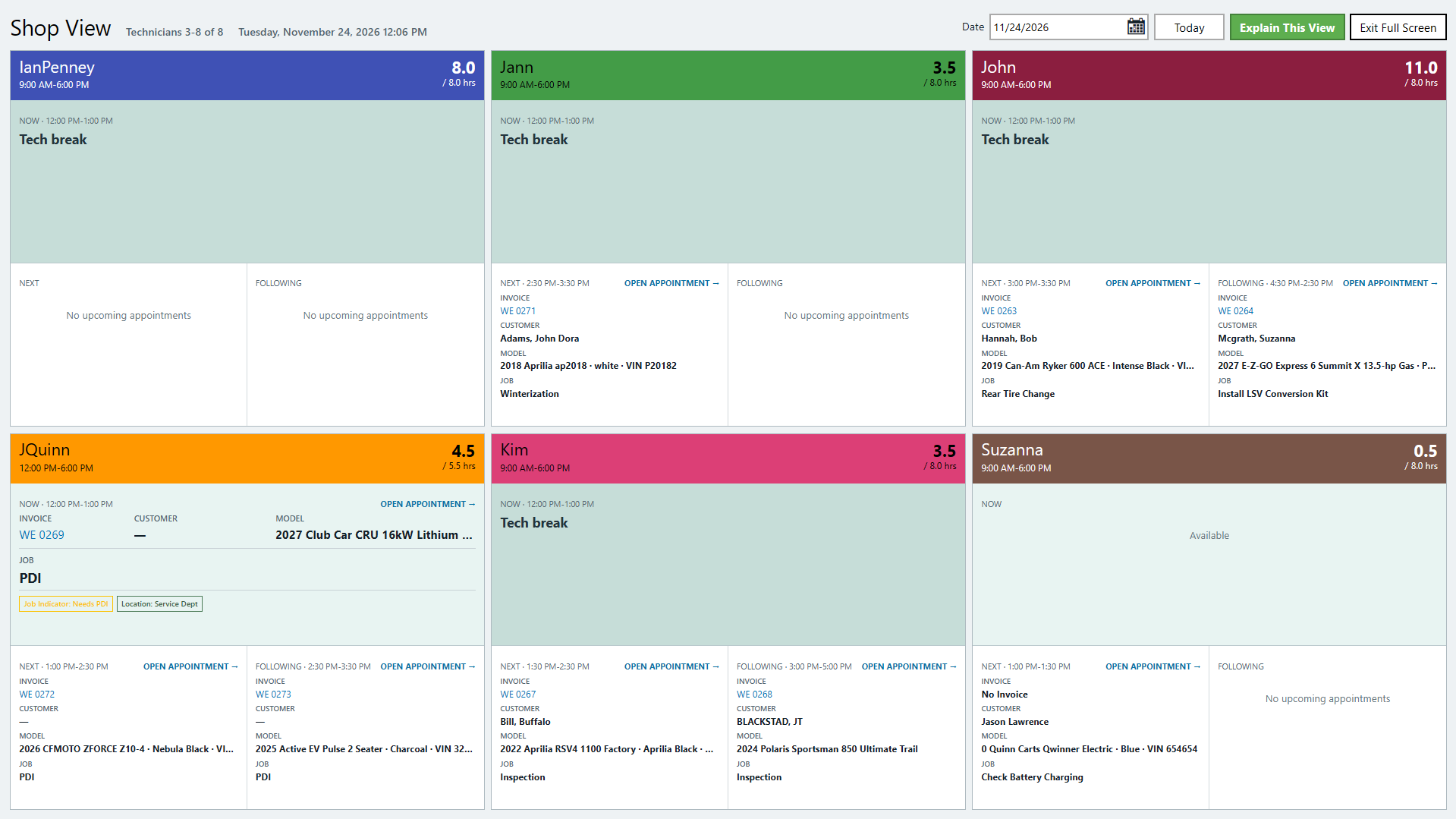
The appointment areas are labeled Now, Next, and Following.
- For today, Now shows the active appointment or the technician’s current availability. Next and Following show upcoming items.
- For a future date, the areas show the first three scheduled items for that day.
Appointment information can include the time, duration, invoice number, customer, model, and job. The model may show the year, unit color, and at least six VIN characters when available. Hover over the VIN to see the full number.
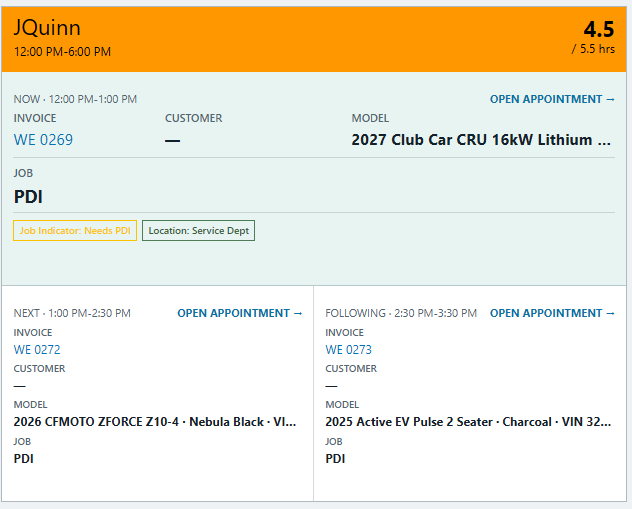
For invoice backed appointments, the Now or first appointment area can also show tags for the job indicator, unit location, multi day work, and a waiting customer. Other appointment areas do not show these tags. Technician breaks and other blocked time show the time and title. Appointments without an invoice do not display tags.
Why it matters: The board helps technicians see their workload and the next work in line without needing to open each appointment.
Open appointment or invoice details
Select an appointment area to open its details. Select an invoice number to open the service invoice in a separate tab or window.
Pro Tip: Shop View is intended mainly as a shared display. Use the appointment and invoice links when you need to review details or take action.
Change the date and refresh timing
Use the date selector in Shop View to choose another date. If the board is full screen, exit full screen first to access the date selector.
The board refreshes automatically every five minutes. Changes made elsewhere in DX1 may take up to five minutes to appear.
The technician cards rotate every 9 seconds.
Pro Tip: If a recent scheduling change is not showing, allow time for the automatic refresh before troubleshooting.
Current limitations
Pickup and delivery scheduling is not included in Shop View.
Because the board can display customer and unit details, place it where the intended shop audience can view it.
Support
For help, contact DX1 Support at 877-944-6766 or visit DX1support.com.