
The Technician Time Clock records time directly against a repair order job. When Time Clock Sync is enabled, it also connects certain technician punches with the dealership time clock. This helps your team track both job hours and time at the dealership with fewer missed punches.
Before you begin
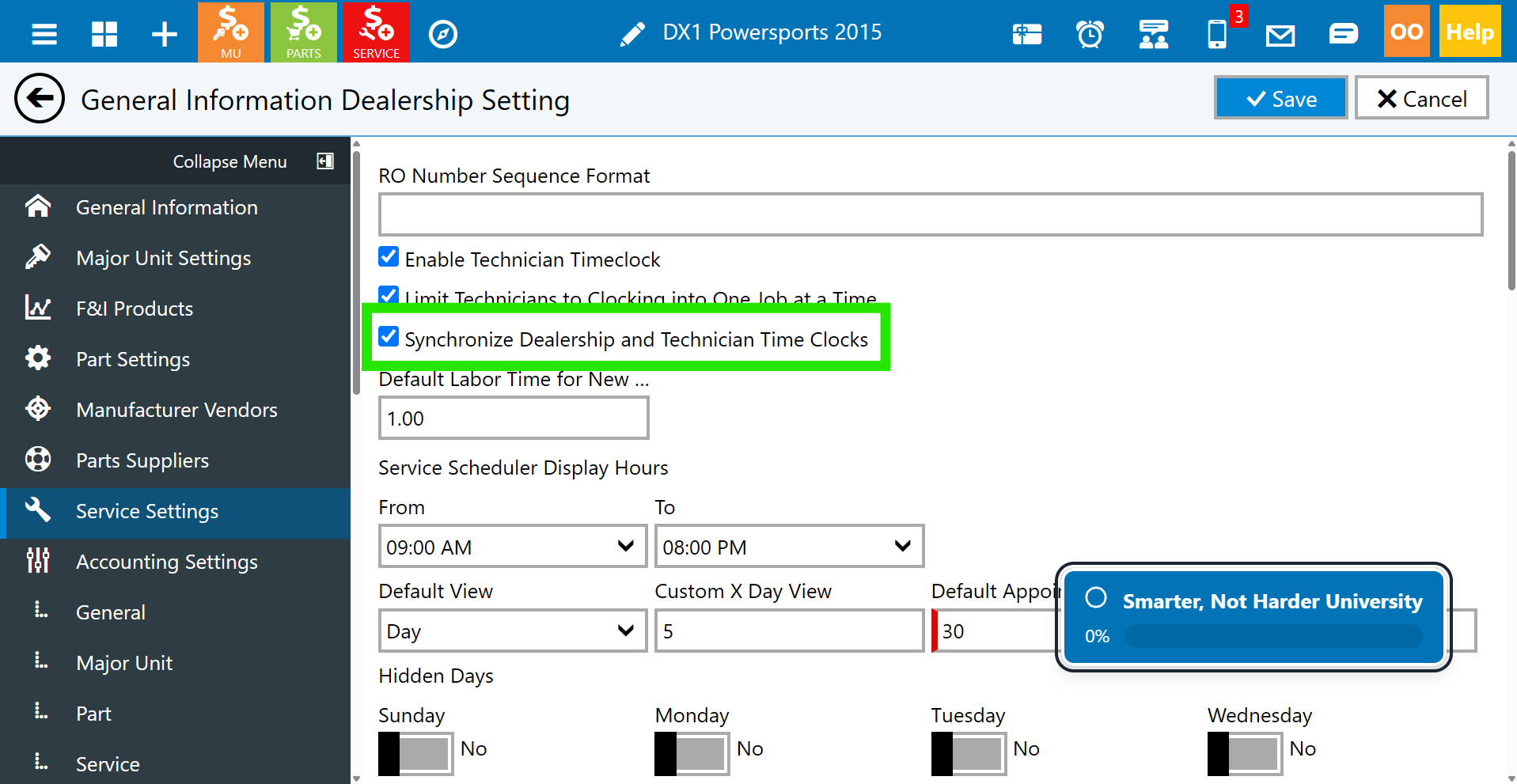
The Technician Time Clock must be enabled for the dealership, and the technician must be set up to use it. To connect job punches with dealership punches, enable Time Clock Sync in Service Settings. Both time clock features must be enabled for synchronization to work.
Clock in to a repair order job
1. Open the repair order and locate the job the technician is working on.
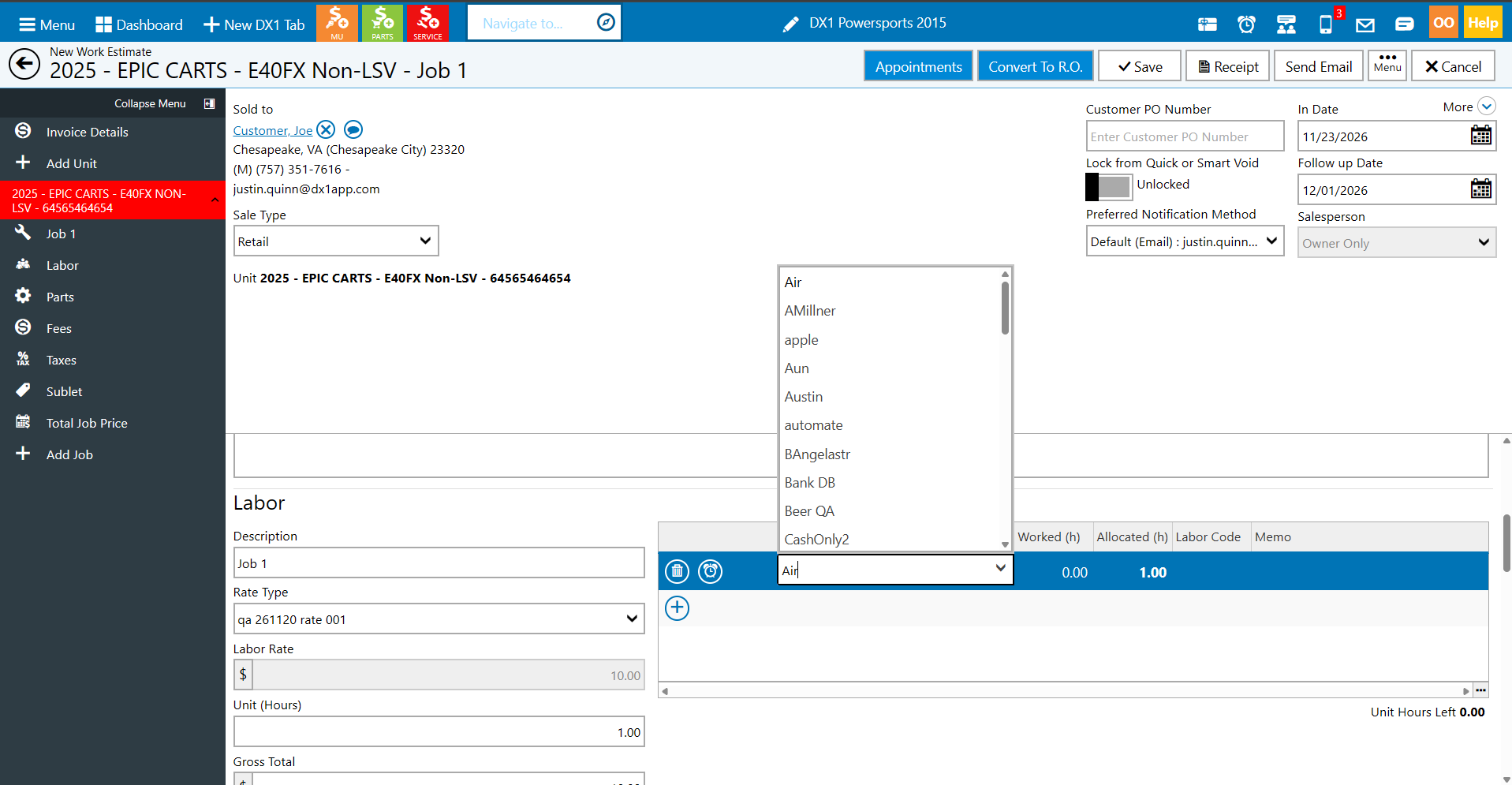
2. Select the technician from the job’s technician dropdown.
3. Select the Technician Time Clock icon.
4. Enter the technician’s passcode and select OK.
5. Select Clock In.
6. Confirm that a time entry appears, then select Cancel to return to the repair order.
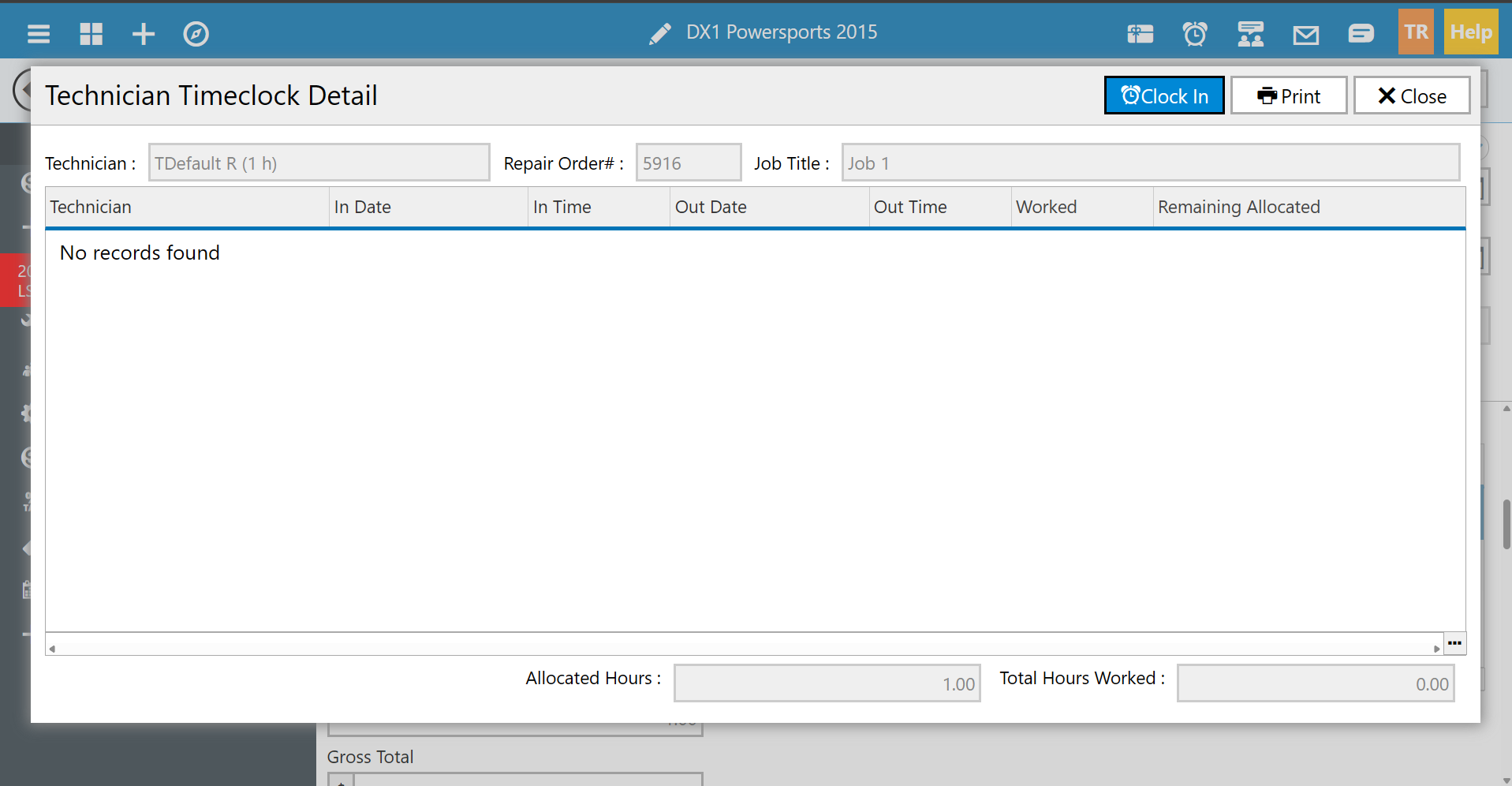
When Time Clock Sync is enabled, clocking in to a repair order job also clocks the technician into the dealership time clock if they are not already clocked in.
Why it matters: Recording time as the work happens gives the dealership more useful labor data than entering an estimate of worked hours later. Sync also helps capture dealership time when a technician starts a job before clocking in for the day.
Pro Tip: Have technicians clock in when they begin work on a job and clock out when they stop. Consistent entries make comparisons between worked hours and allocated hours more useful.
Clock out of a job
1. From the repair order, select the Technician Time Clock icon for the job.
2. Enter the technician’s passcode and select OK.
3. Select Clock Out.
4. Confirm that the time entry shows the hours worked and the hours allocated to the job.
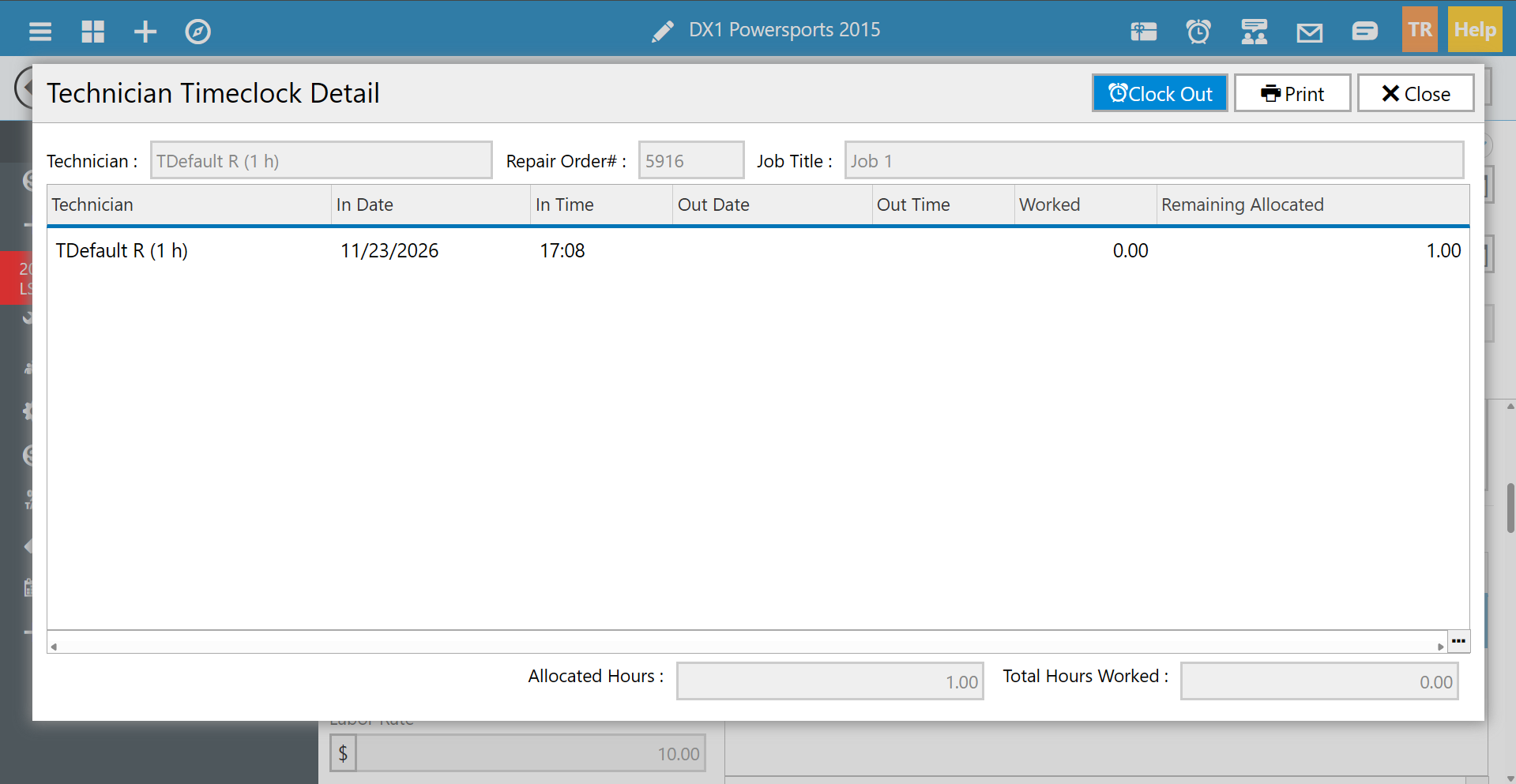
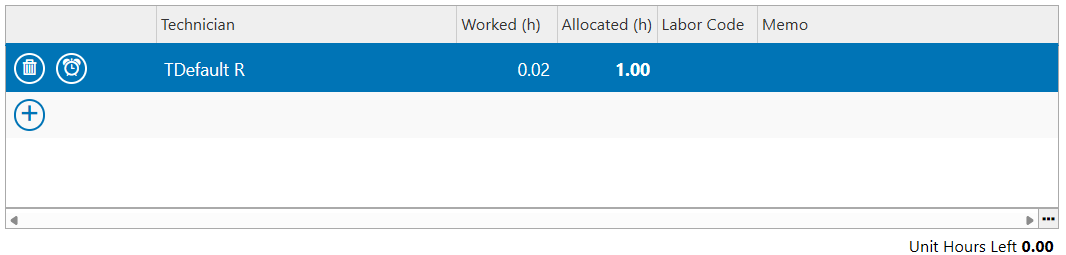
When the Technician Time Clock is in use, the Worked Hours field is grayed out because the clock entries record the technician’s time on the job.
Clocking out of a repair order job does not automatically clock the technician out of the dealership.
How Time Clock Sync works
- Clocking in to a repair order job clocks the technician into the dealership if they are currently clocked out.
- Clocking out of the dealership closes the technician’s open repair order job clocks.
- Clocking in to the dealership does not automatically clock the technician into a repair order job.
- Clocking out of a repair order job does not clock the technician out of the dealership.
Why it matters: The dealership clock tracks time at work, while the repair order clock tracks time spent on specific jobs. Keeping those punches connected helps managers compare dealership time with job time and review labor productivity.
Pro Tip: A dealership clock-out closes open job clocks, so technicians should still clock out of each job when they finish or stop work. This keeps job entries timely and easier to review.
If the time clock is unavailable
If the technician is not set up to use the Technician Time Clock, DX1 may display an error when the clock icon is selected. Continue entering worked hours manually until the dealership’s setup is addressed. Contact DX1 Support or Account Management for help.
Manager corrections and historical edits are handled independently for the dealership clock and repair order clocks.
Support
For help, contact DX1 Support at 877-944-6766 or visit DX1support.com.