From time to time, you're going to need to return parts to a vendor and remove them from your inventory. This process is used exclusively for parts and accessories. This document will walk you through how to create, manage, and complete vendor returns in DX1.
In this document, we will cover the following topics
- How to access the vendor returns feature
- How to create a new vendor return
- How to add parts to a vendor return
- How to save a vendor return without completing it
- How to add an RMA number and complete a vendor return
- How to view and filter vendor return statuses
- How to print vendor return documentation
1. How to access the vendor returns feature
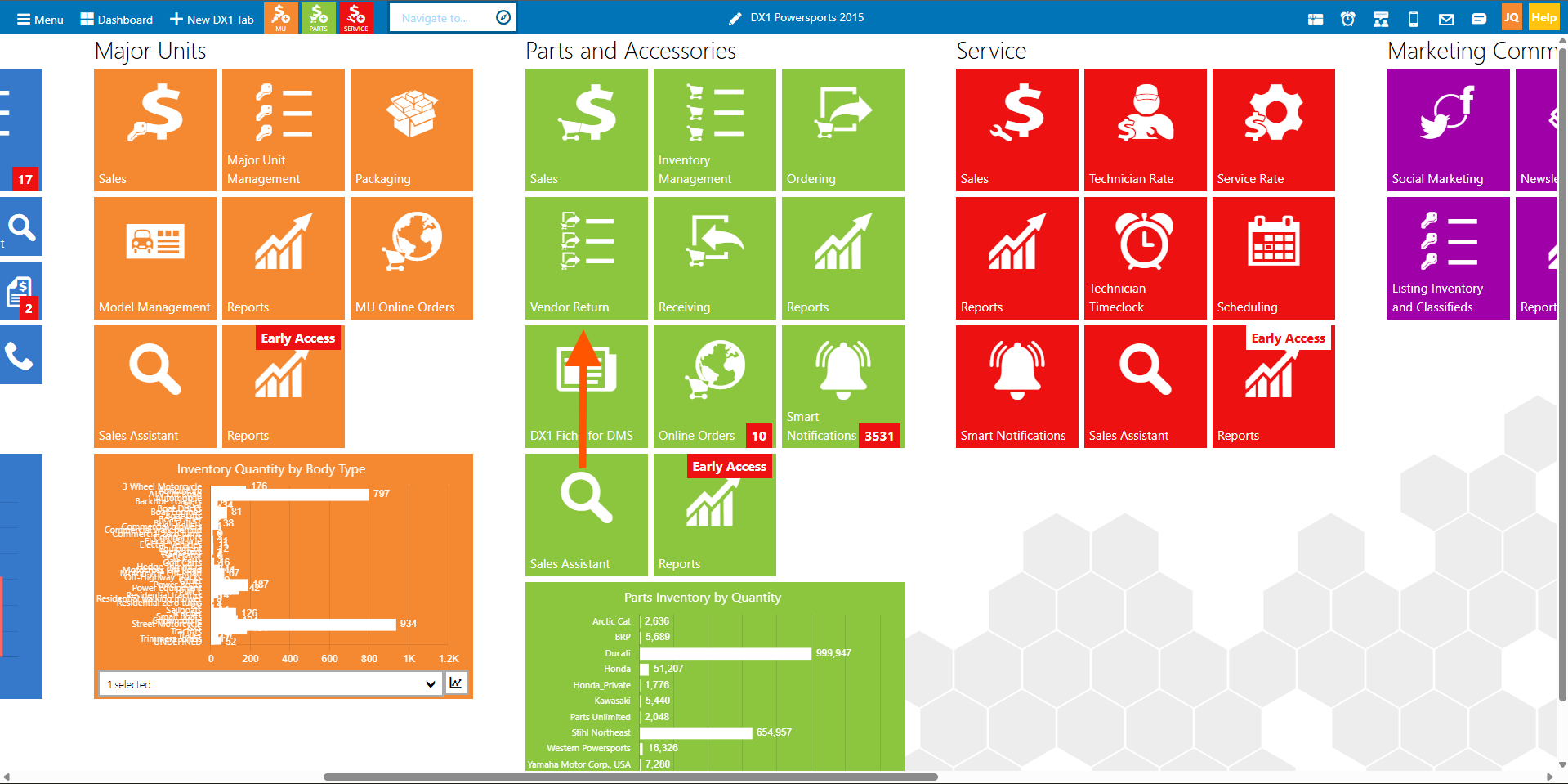
- From the Parts and Accessories module, you will see several different tiles.
- If you have the correct permissions, you'll see the Vendor Return tile.
- Click the Vendor Return tile to access the vendor returns interface.
- You will land on a list of existing vendor returns organized by vendor.
2. How to create a new vendor return
- From the vendor returns list screen, click the "+ New" button.
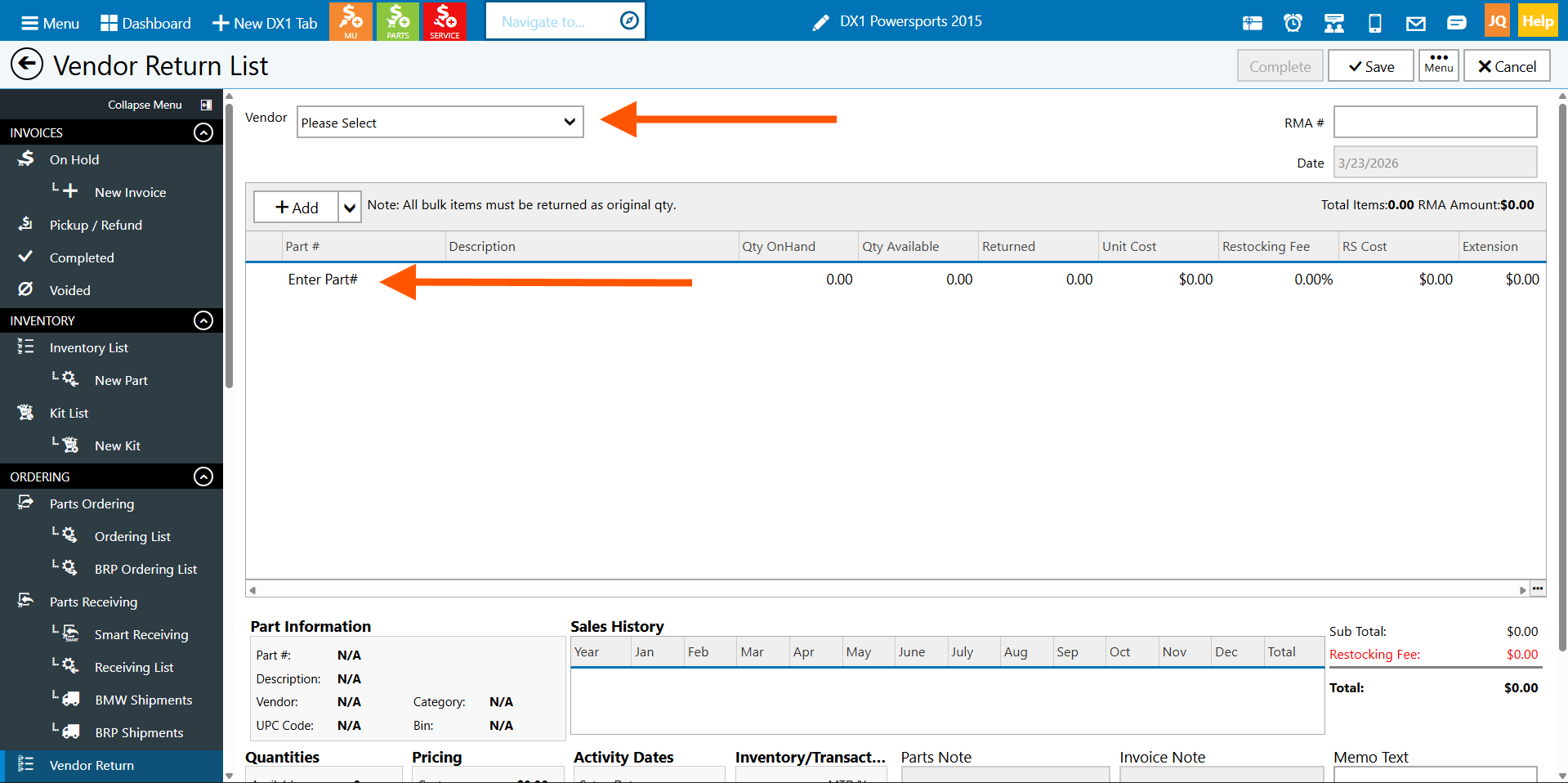
- You will be prompted to select which vendor you are returning parts to.
- Select the vendor from the dropdown list (for example, CF Moto).
- Once the vendor is selected, you can begin adding parts to the return.
3. How to add parts to a vendor return
- After selecting your vendor, click "Add a Part" or the add button.
- A list of parts will appear showing your available inventory for that vendor.
- Find the part you need to return and select it.
- Common reasons for returns include damaged parts upon delivery, warranty returns, or parts covered by vendor credits.
- Once the part is selected, you can specify:
- Quantity: Enter the number of units you're returning
- Cost: The cost will typically auto-fill, but you can adjust if needed
- Repeat this process for any additional parts you need to return to this vendor.
4. How to save a vendor return without completing it
- If you need to submit the vendor return to the vendor but are still waiting for authorization or an RMA number, click Save.
- When you save (without completing), the following occurs:
- The vendor return is created in the system
- The part is removed from your inventory
- The return is NOT yet completed in the accounting system
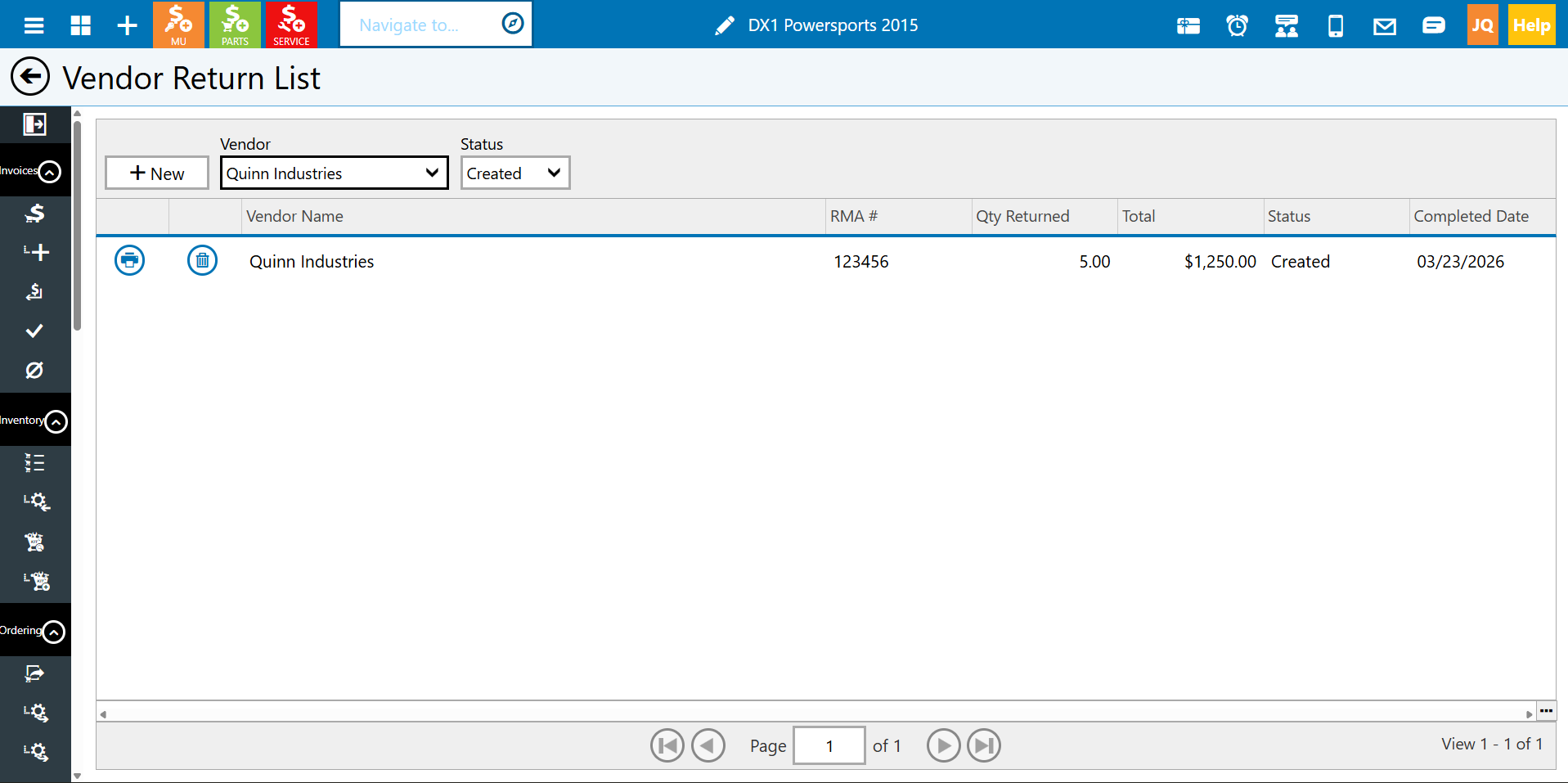
- The status of the vendor return will show as "Created" on the vendor returns list.
- You can still delete the vendor return at this stage if needed.
- This allows you to track returns that are pending vendor approval.
5. How to add an RMA number and complete a vendor return
- Once you receive an RMA number from your vendor, return to the vendor returns list.
- Double-click the vendor return you need to complete to open it.
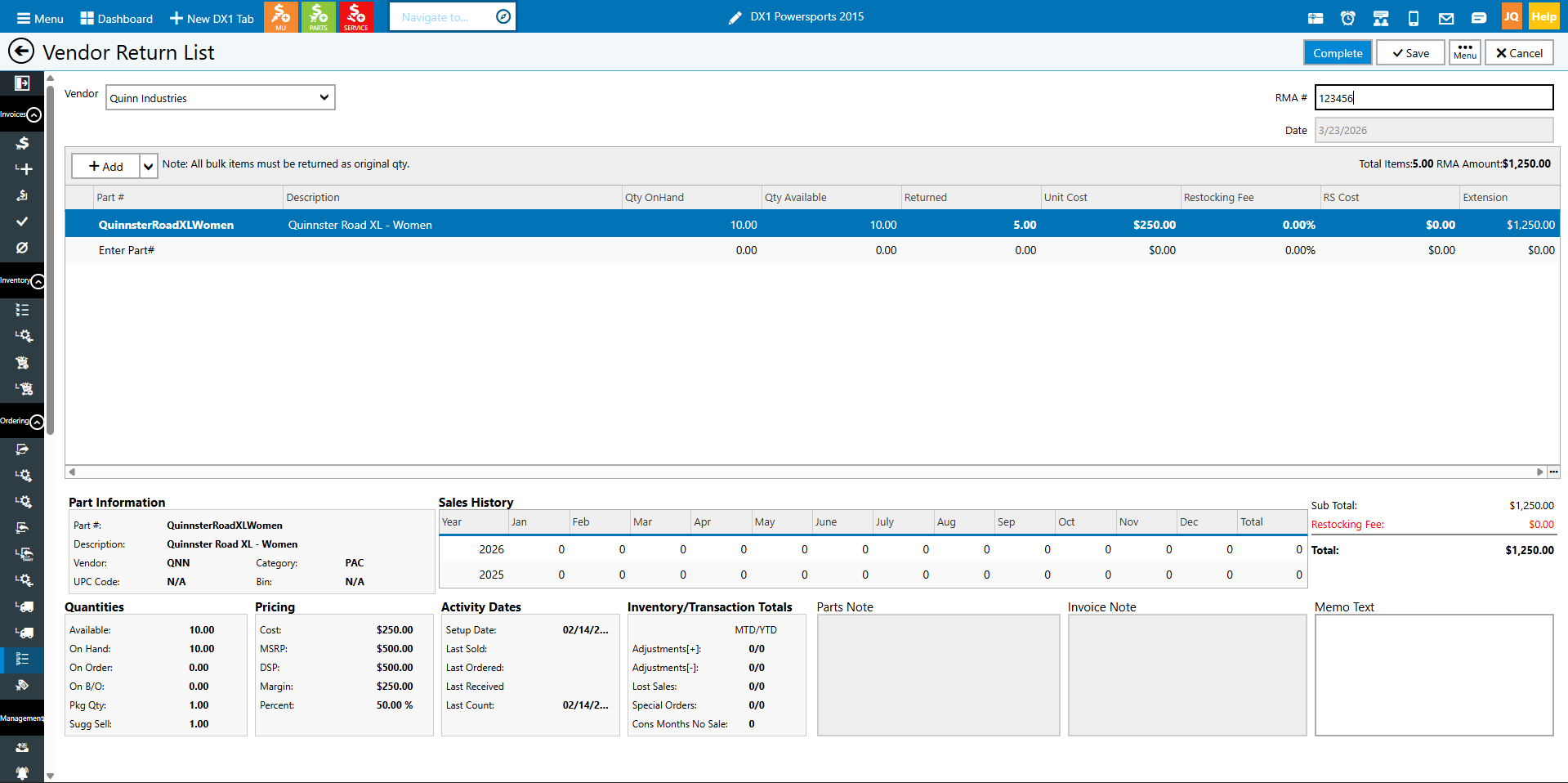
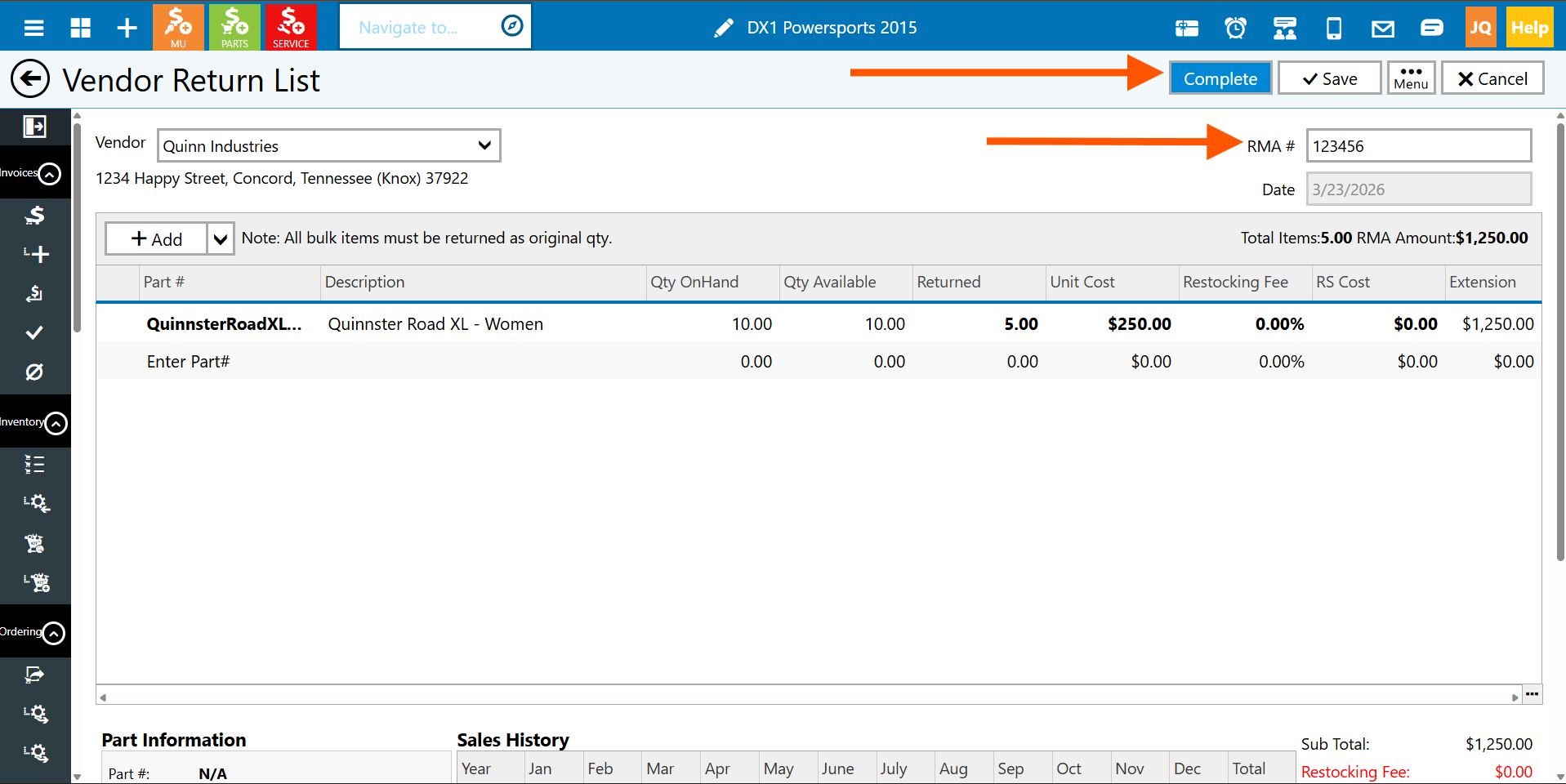
- Enter the RMA number in the RMA number field (for example, 123456).
- Review the details of the return:
- You can highlight any part to see additional details
- View the subtotal
- Check for any restocking fees if applicable
- Once the RMA number is entered and everything looks correct, click Complete.
- When you complete the vendor return:
- The part is permanently removed from inventory
- A notification is sent to accounting (if configured)
- The return status changes to "Completed"
- At this point, you can box up the parts and send them back to the vendor with printed documentation if needed.
6. How to view and filter vendor return statuses
- From the vendor returns list, you can view all returns across all vendors.
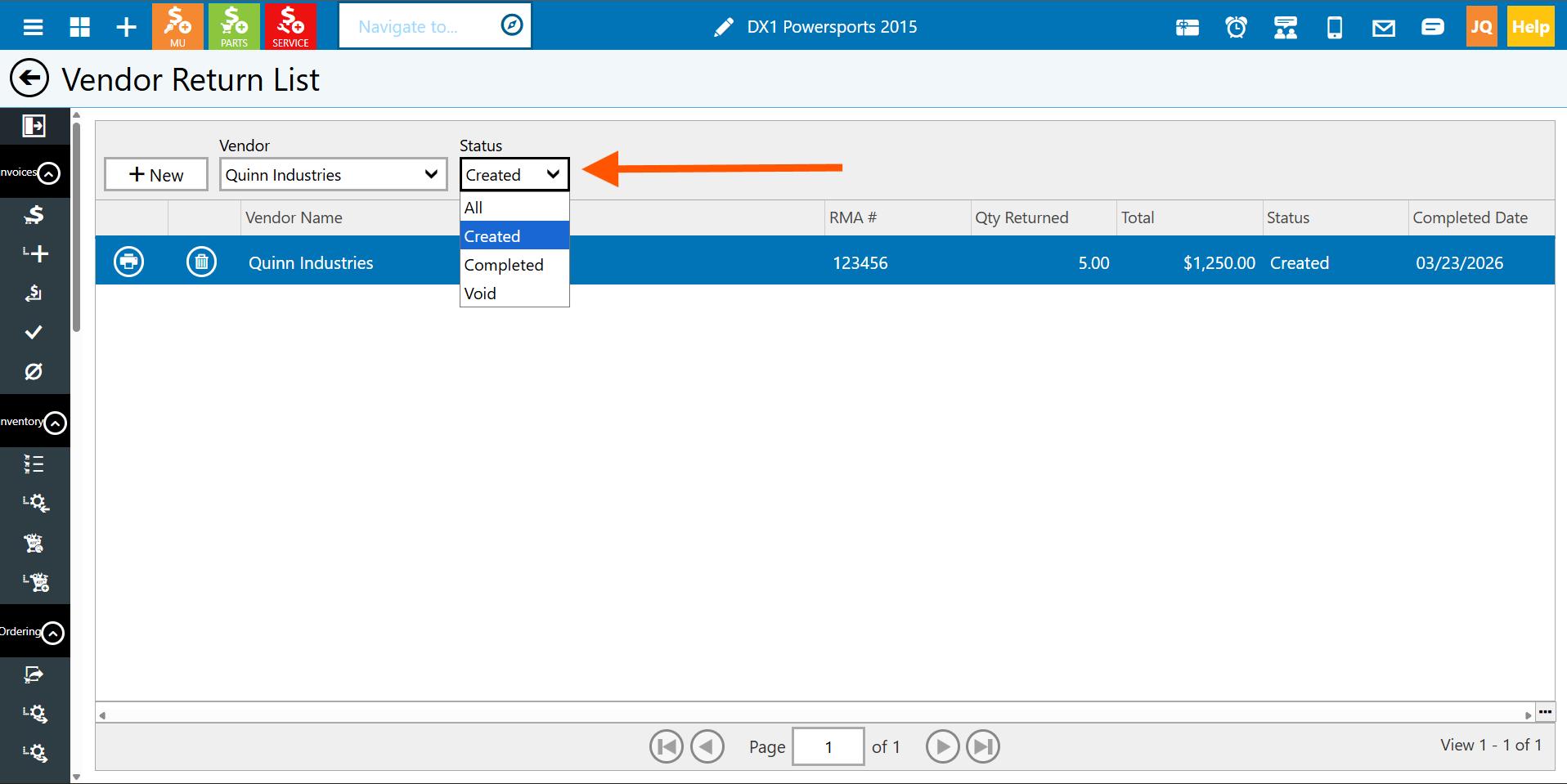
- Use the dropdown filters to narrow your view:
- Filter by specific vendor (for example, show only CF Moto returns)
- Filter by status (Created, Completed, All)
- Filter by date range
- The list displays key information, including:
- Vendor name
- Status
- Total amount
- RMA number (if assigned)
- Date created
- This allows you to quickly track the status of all pending and completed returns.
7. How to print vendor return documentation
- If you need to print documentation for your vendor return, click the Print button.
- Note: If you have automatic printing enabled in your settings, the print dialog will automatically appear when you complete a vendor return.
- If you have automatic printing disabled (paper-friendly mode), you can manually click Print when needed.
- Common uses for printed vendor return documentation:
- Include a copy in the box with the returned parts
- Provide a copy to your accounting department so they can balance credits
- Keep a copy for your records
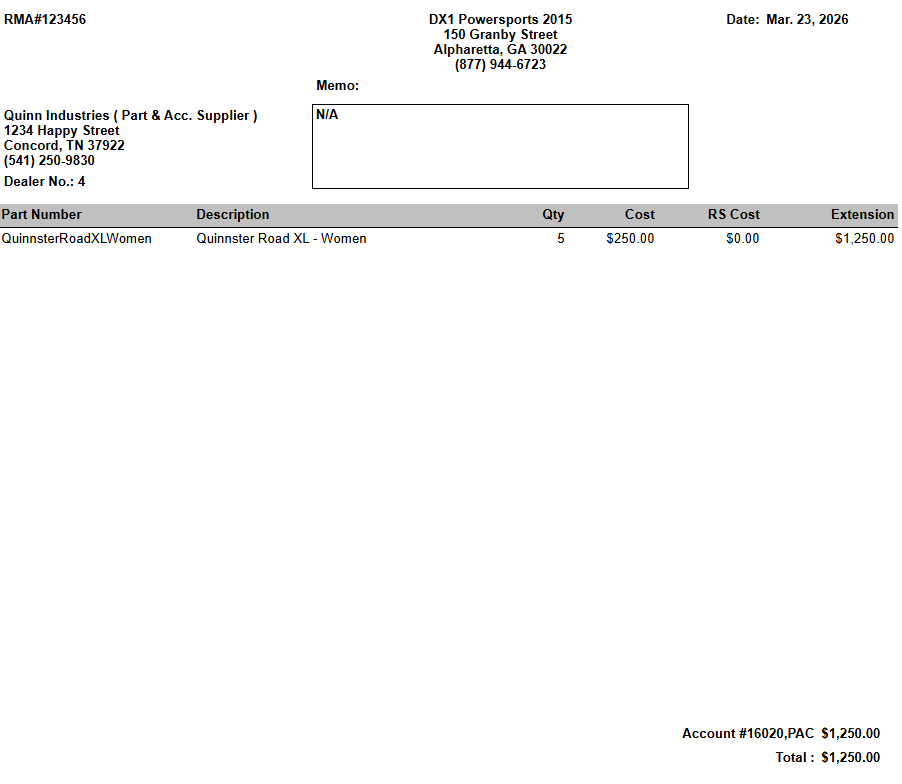
- The printed documentation includes all details of the return, including parts, quantities, costs, and RMA number.
Important Notes
- Vendor returns can ONLY be used for parts and accessories, not for major units or other inventory types.
- Once a vendor return is completed, it cannot be deleted or reversed. Make sure all information is correct before completing.
- The part quantities are immediately removed from inventory when you save the vendor return, even before it's completed.
- Always obtain an RMA number from your vendor before shipping returned parts to ensure proper processing and credit.
- If you need to delete a vendor return, you can only do so while it has a "Created" status (before it's completed).
Summary
Doing a vendor return in DX1 is a straightforward process:
- Access the Vendor Return tile from the Parts and Accessories module
- Click "+ New" and select your vendor
- Add the parts you need to return with quantities and costs
- Save the return if you're waiting for an RMA number
- Add the RMA number when received and click Complete
- Print documentation if needed and ship the parts back to the vendor
Video: