Use the Image Uploader to add images and make basic edits before completing your upload.
i
For detailed explanations of every editing tool, see Image Uploader: Editing Tools.

Add and edit an image

  1. 1

    Add images

    Drag images into the uploader or select Browse to choose files from your device.
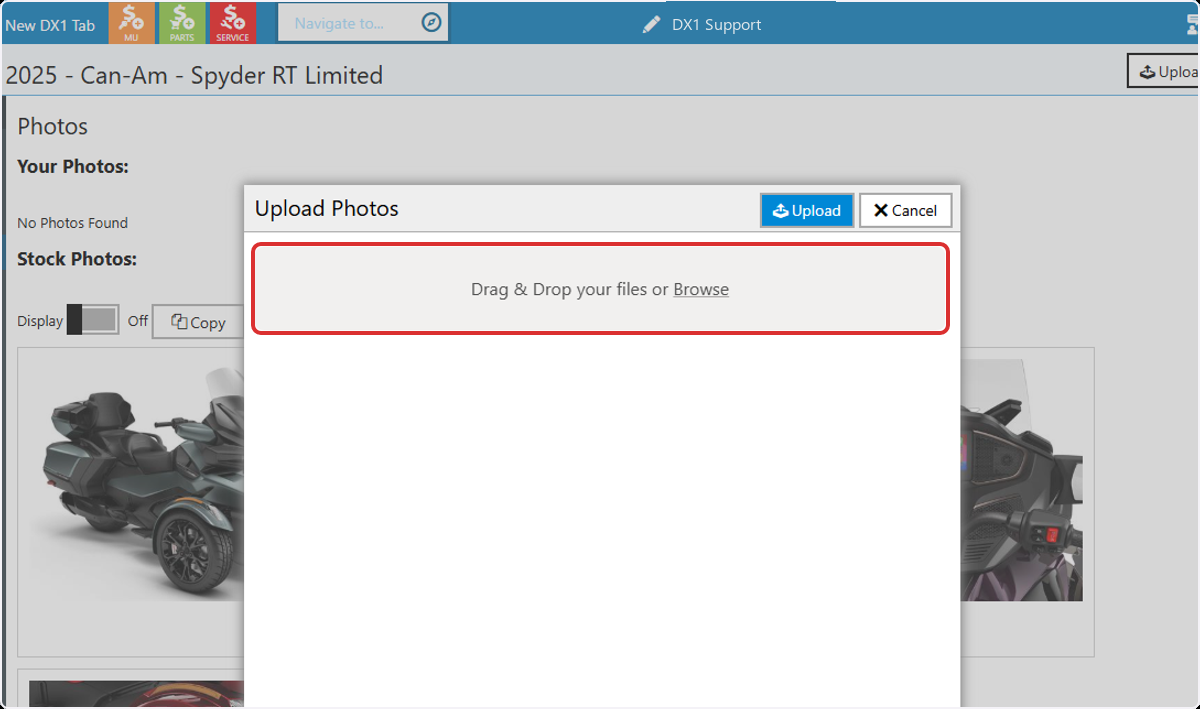
    Image Uploader area for dragging images or browsing for files
  2. 2

    Open the image editor

    Select Edit image for the image you want to change.
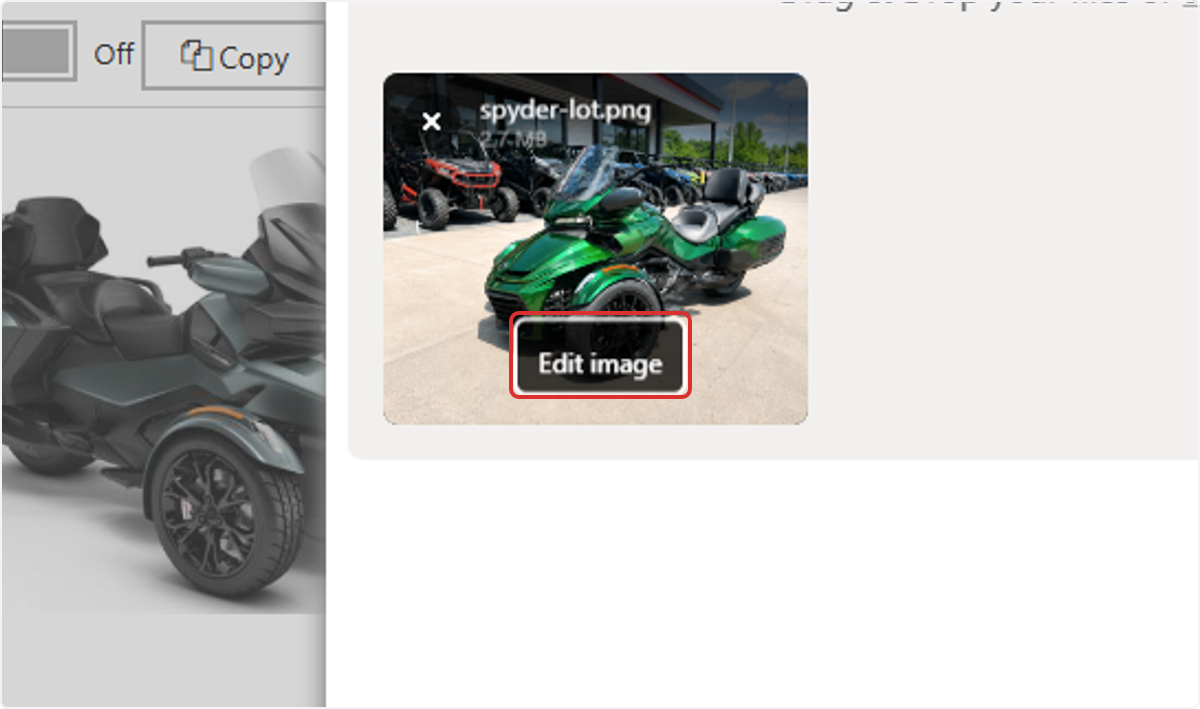
    Edit image control for an uploaded image

Make basic edits

  1. 3

    Crop the image

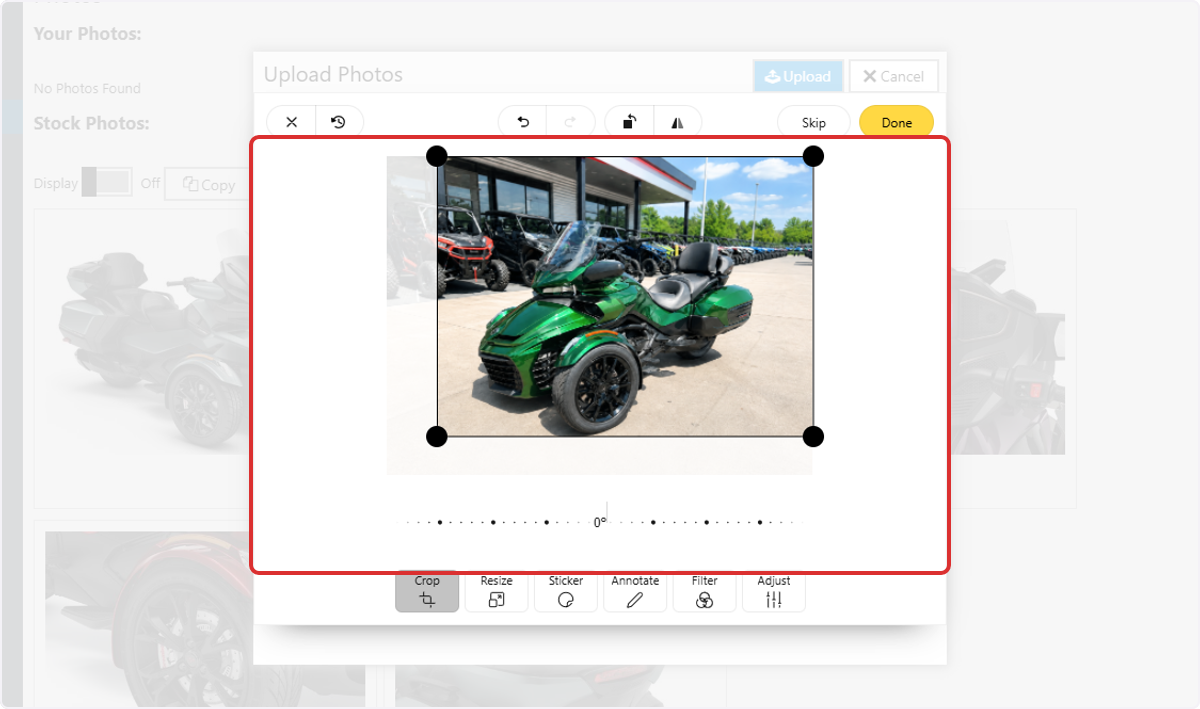
    Select Crop, then drag the handles to choose which part of the image remains visible.
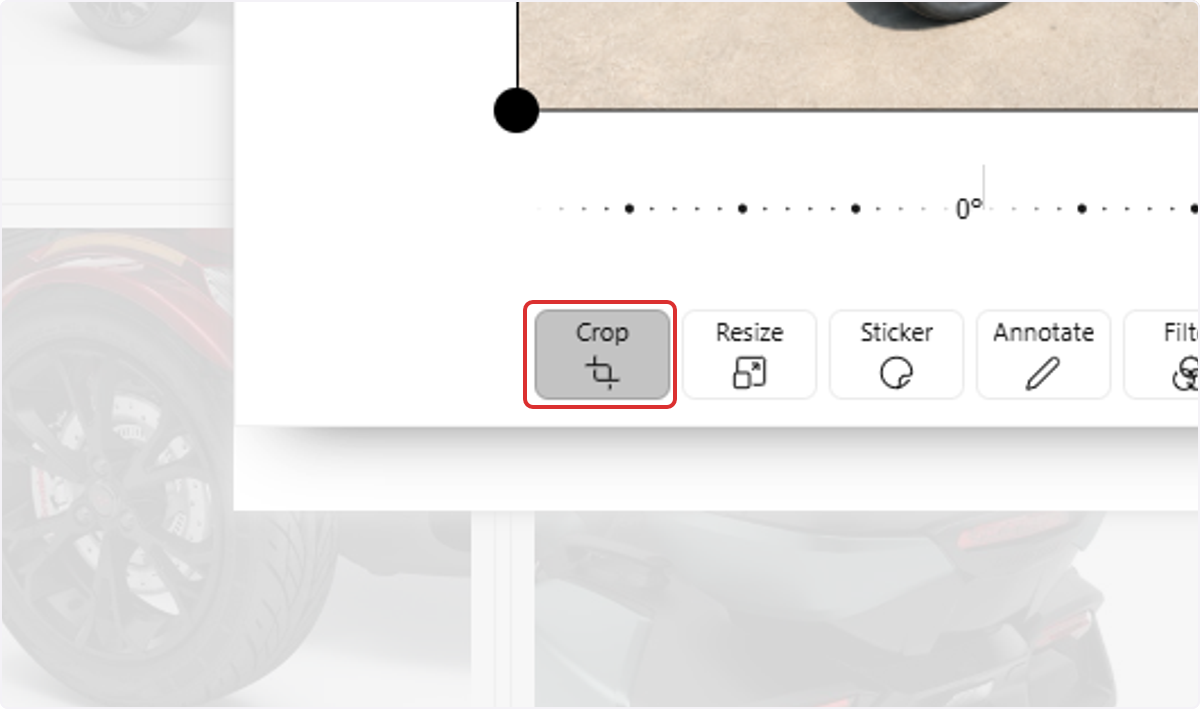
    Crop tool selected in the Image Uploader editor
    Crop handles used to change the visible area of an image
  2. 4

    Resize the image

    Select Resize, then enter the desired width and height. Keep the lock enabled to maintain the image's proportions.
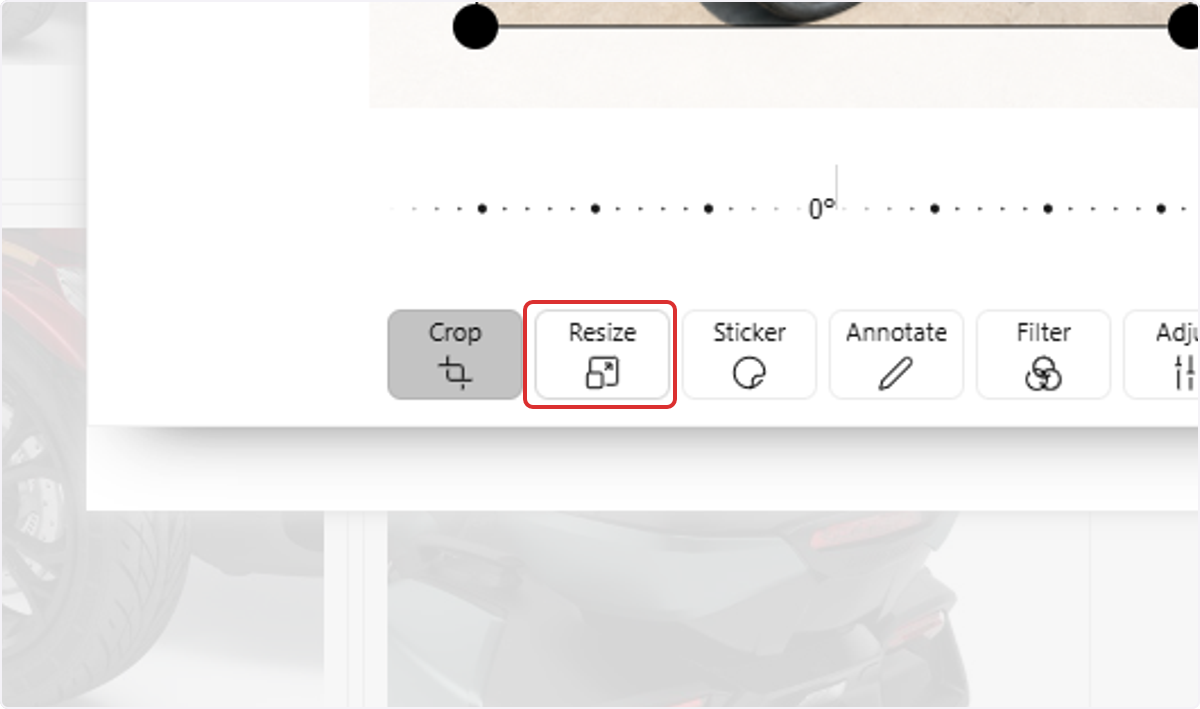
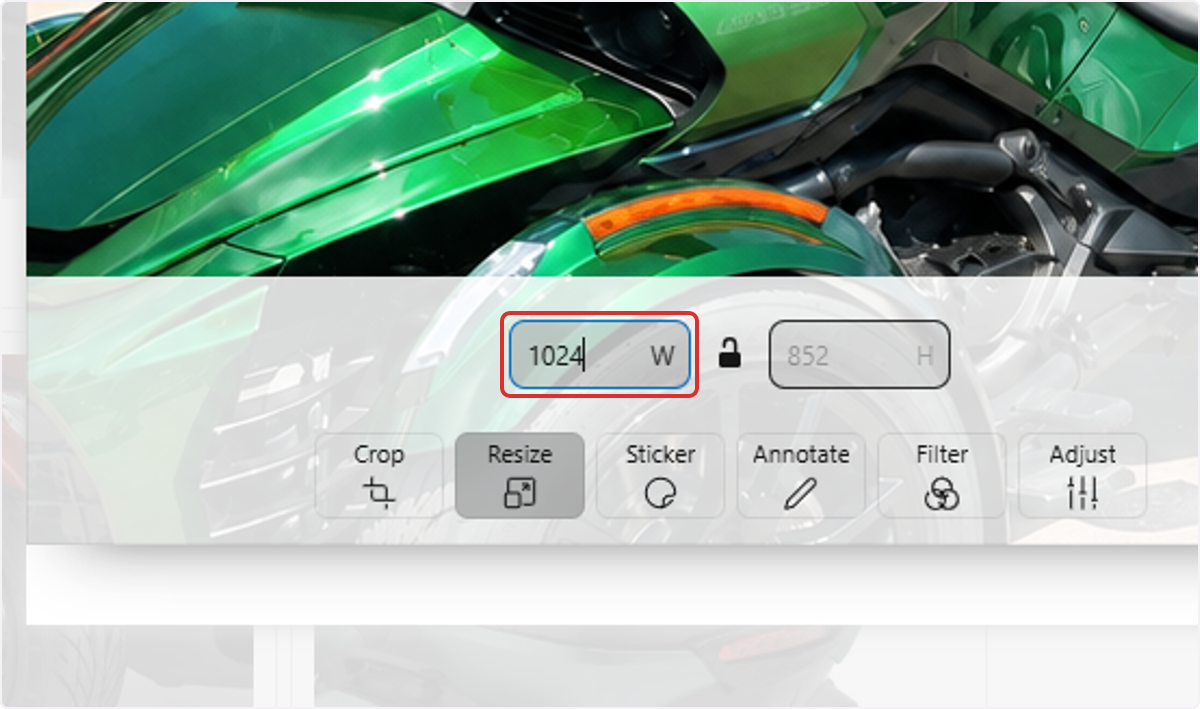
    Resize tool selected in the Image Uploader editor
    Width and height fields in the Resize tool
  3. 5

    Add a sticker

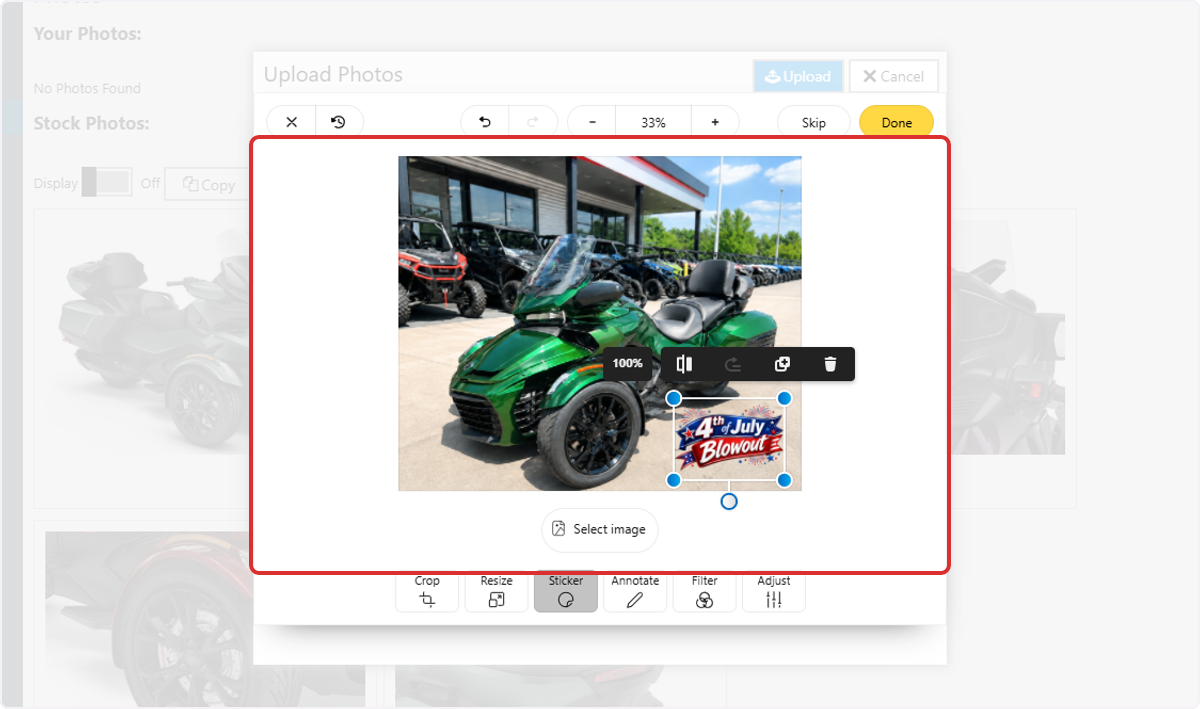
    Select Sticker. Choose built-in artwork when available or select Select image to add an image from your device. Drag the sticker into position and use its handles to resize it.
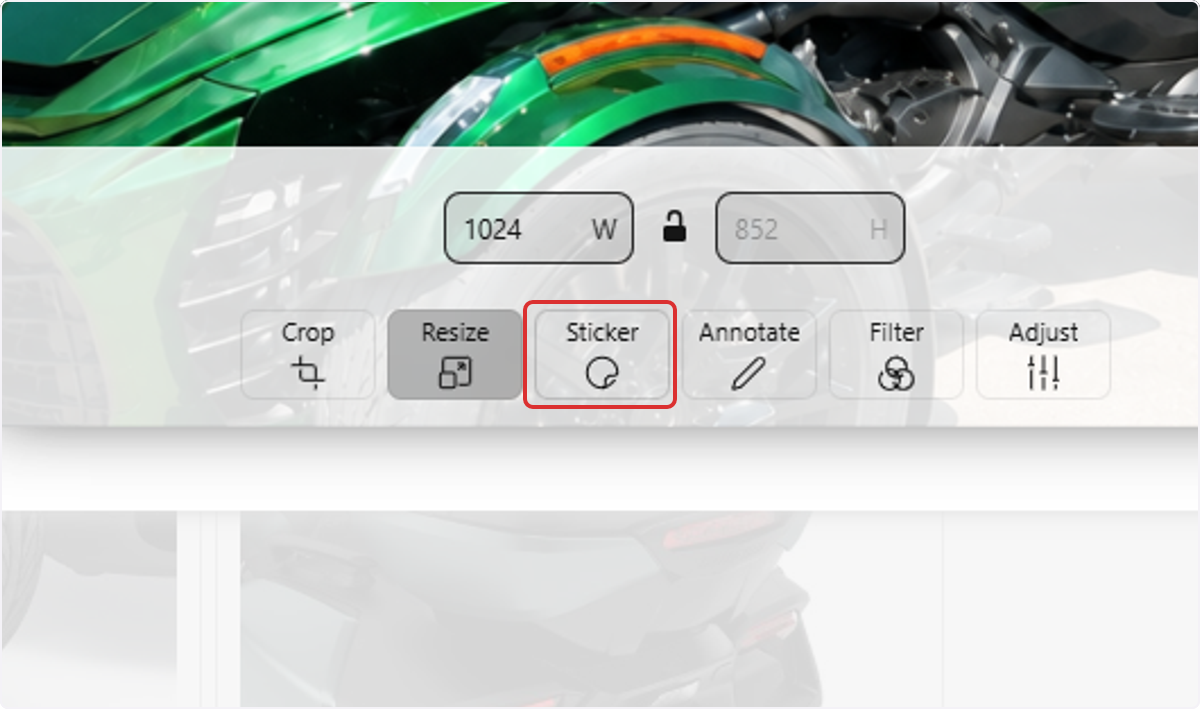
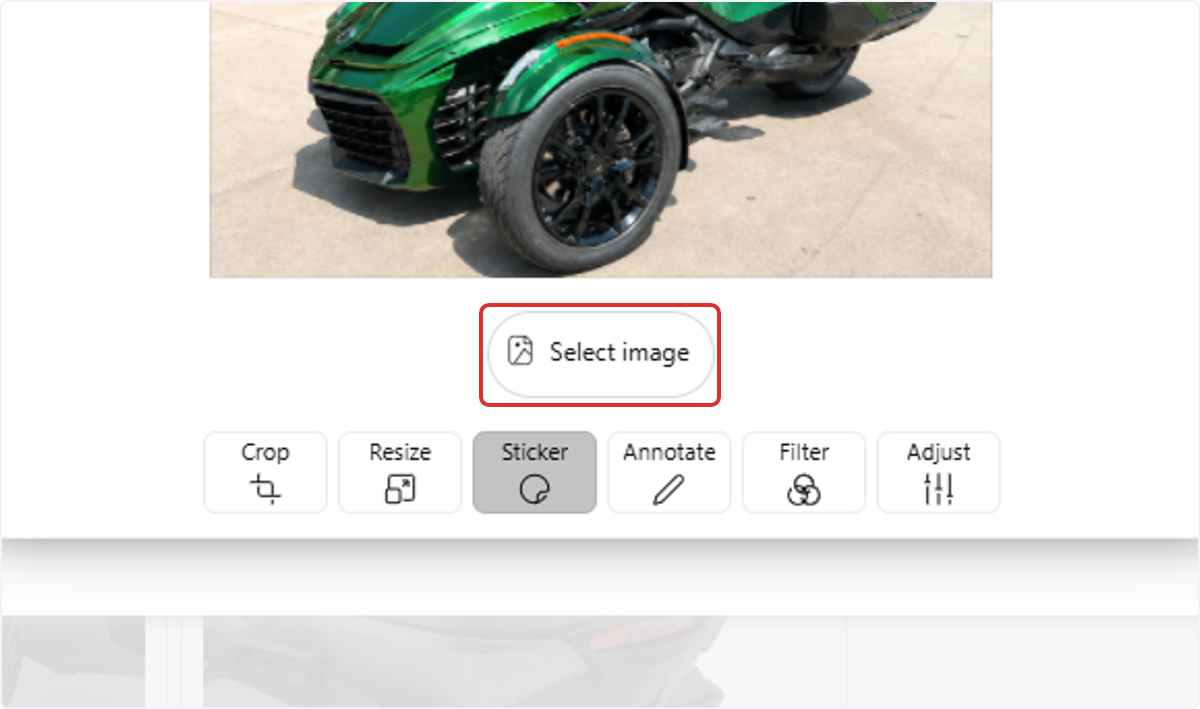
    Sticker tool selected in the Image Uploader editor
    Select image control for adding sticker artwork from a device
    Sticker positioned and resized over an image
  4. 6

    Annotate the image

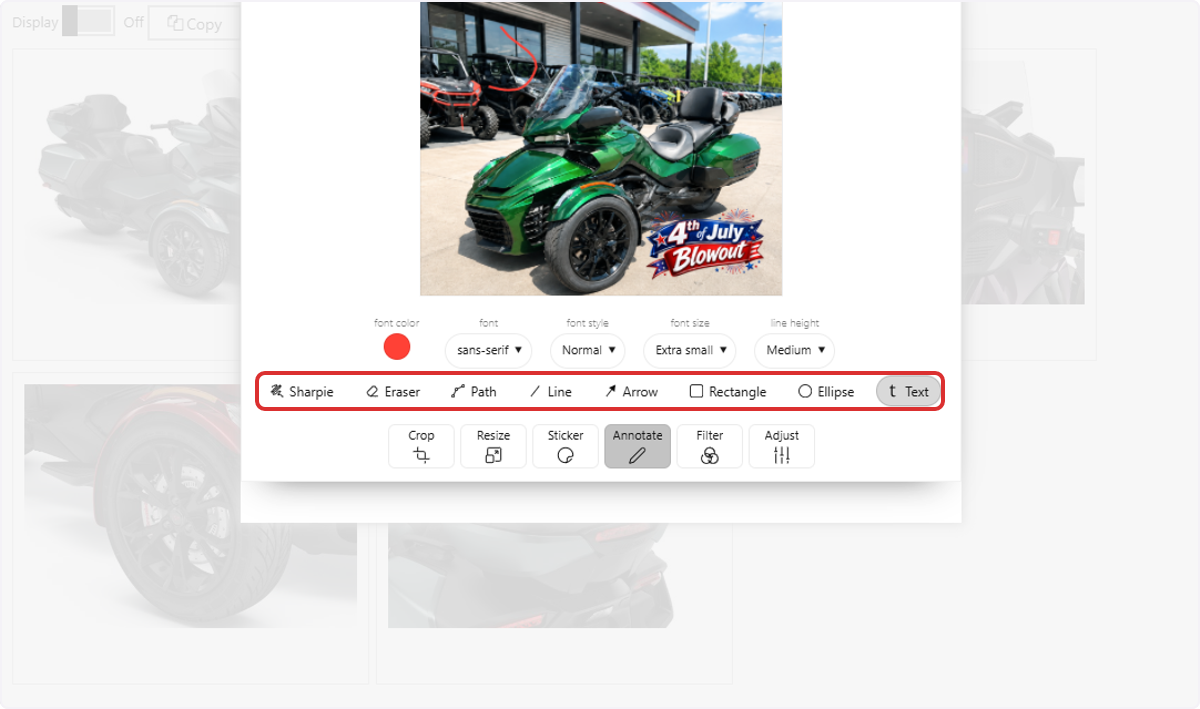
    Select Annotate, then choose a tool to add text, arrows, lines, shapes, or freehand drawing.
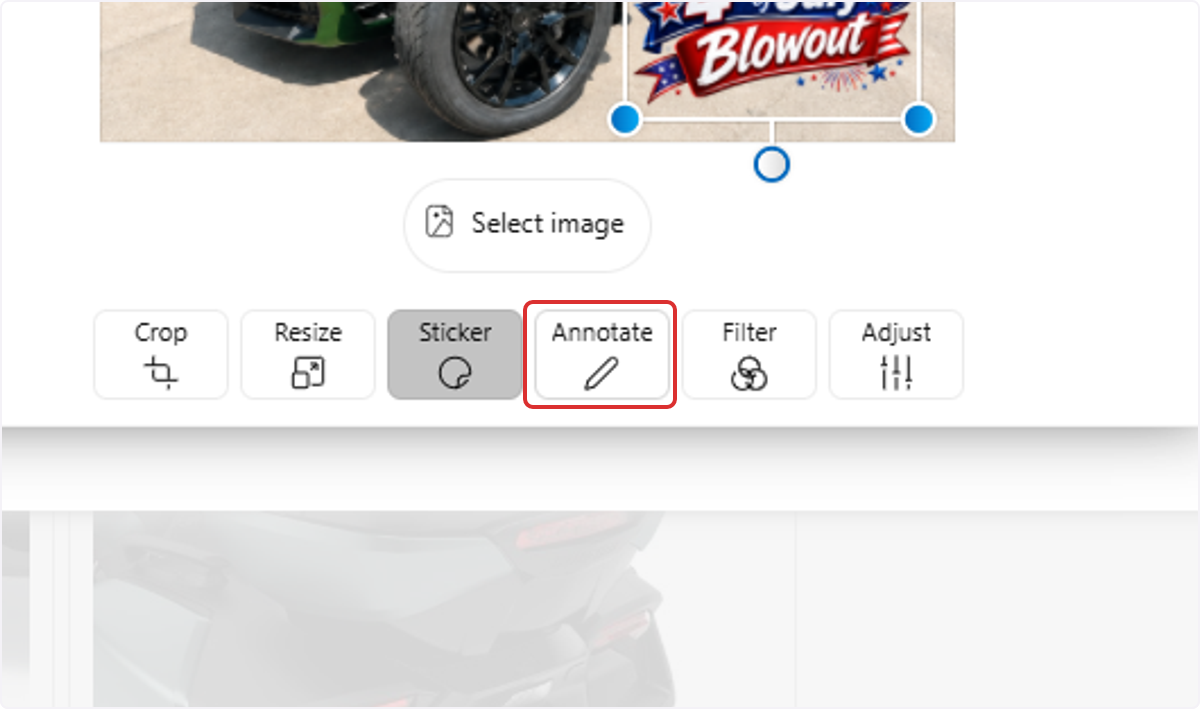
    Annotate tool selected in the Image Uploader editor
    Text, drawing, line, arrow, and shape annotation controls
  5. 7

    Apply a filter

    Select Filter, then choose a predefined look for the image.
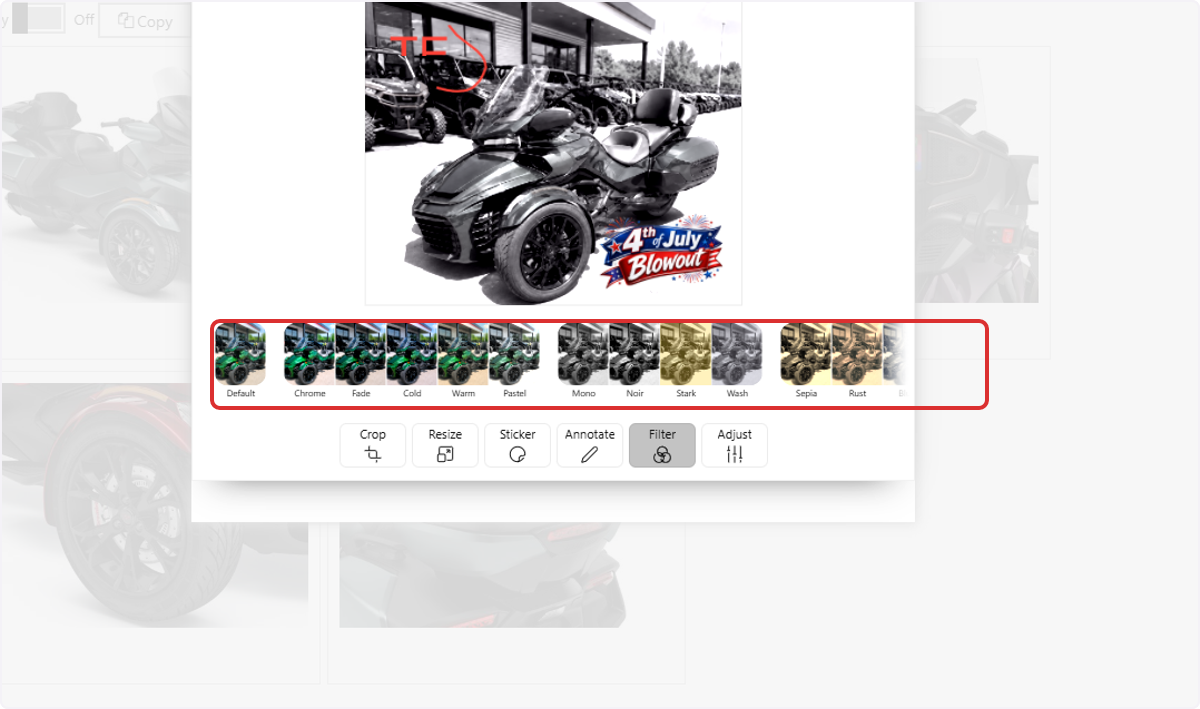
    Preset filters available in the Image Uploader editor
  6. 8

    Fine-tune and finish

    Select Adjust to fine-tune settings such as brightness, contrast, saturation, exposure, temperature, and clarity. When you finish editing, select Done to return to the uploader.
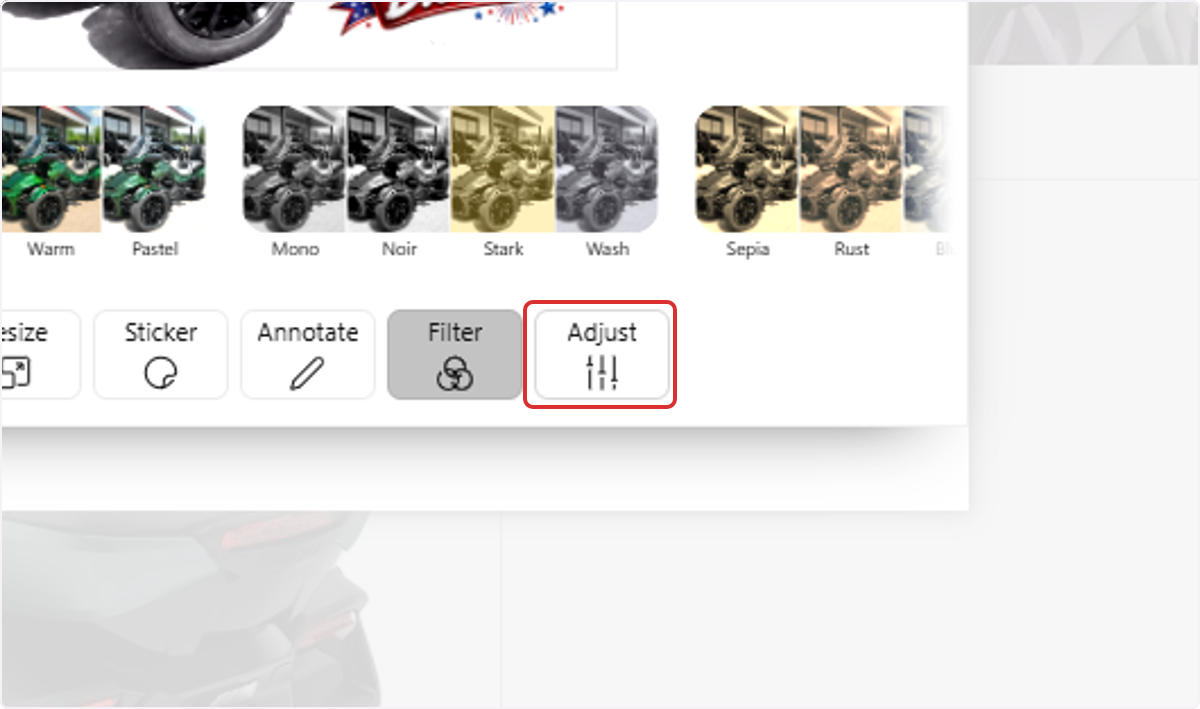
    Adjust controls for fine-tuning an image before selecting Done
i
To edit an existing Listing Inventory photo and use built-in DX1 Highlights stickers, see Edit Listing Inventory Photos and Add Stickers.